iMac Pro stuck syncing photos to iCloud since Ventura upgrade

I have recently upgraded to Ventura and now I cannot upload new photos to iCloud, it gets stuck permanently trying to sync. I also have an "Unable to Upload" folder which my Mac has recently created,and the photos in there are all dated between 2016 and 2020. They uploaded fine at the time I took them, and there are now over 4,000 photos in there, and the number is growing. I tried re-booting in Safe mode and the Mac was still trying to sync with iCloud.


I’m shooting digital RAW on either a Canon 5D Mk IV DSLR or a Canon 7D MK II DSLR and am downloading to an iMac Pro 3.2 GHz 8-Core Intel Xeon W. Can anyone help me please.

iMac Pro

Posted on Mar 23, 2023 8:11 AM

Reply
Question marked as Top-ranking reply

Posted on Mar 24, 2023 2:11 PM

Hello Chris Wayman,


It's great to see your post in Apple Support Communities.

Trying to upload your photos to iCloud, in safe mode was a great steps to take. However, we'd like to provide you with a few steps that may be able to resolve this issue:


"If items couldn't sync to iCloud

To see which items couldn't sync to iCloud, click the View button next to the message at the bottom of the Library window or click Unable to Upload in the sidebar. You can try to reimport the items from the Unable to Upload album into your Photos library to sync the items with iCloud Photos. 

  1. Press Command-A to select all of the items in the Unable to Upload album, choose File > Export, then choose Export Unmodified Original For [number] Photos.
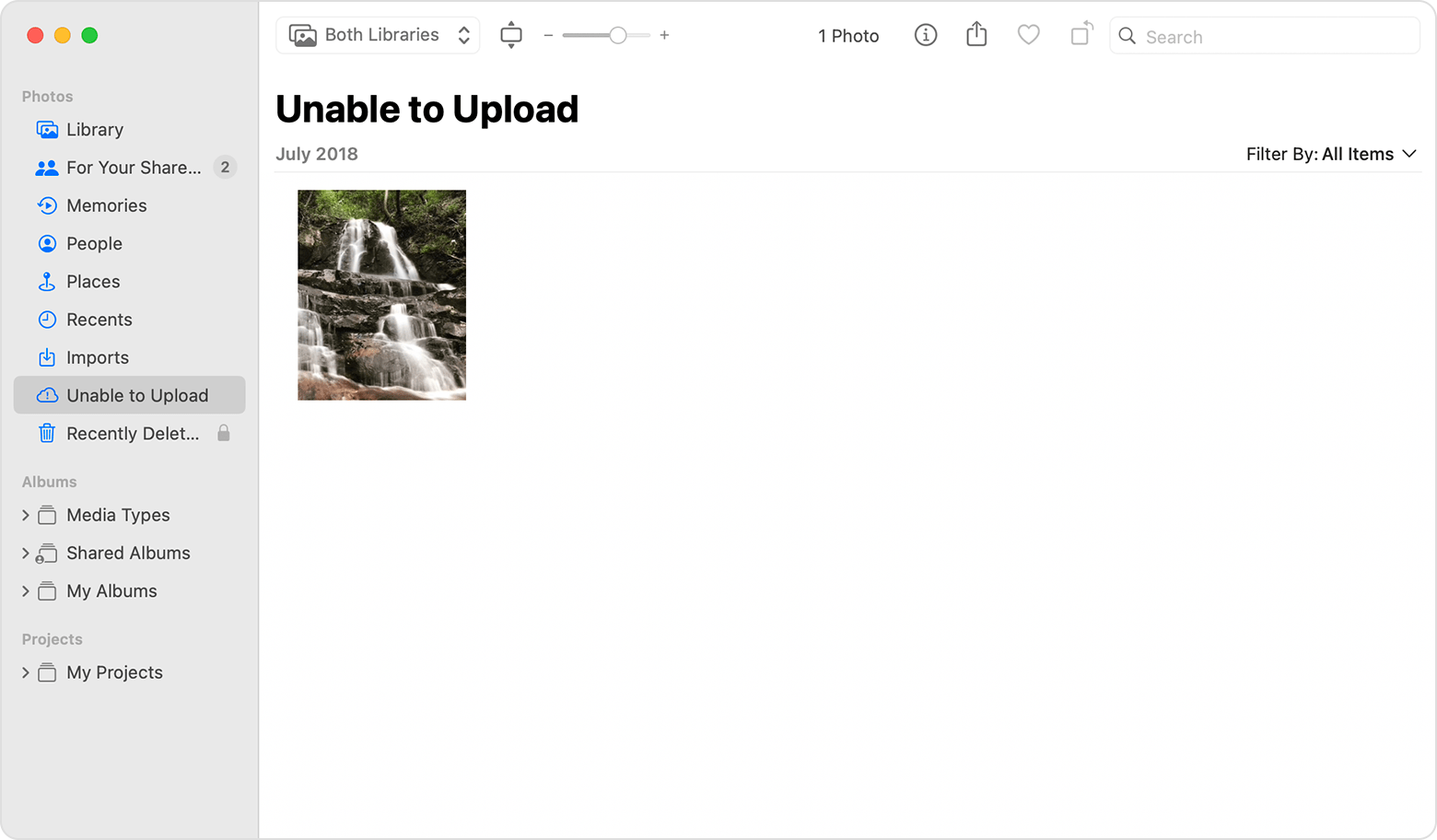
Unable to Upload album showing an item that couldn't be synced


2. In the dialogs that follow, click Export, choose a save location, then click Export Originals.

3. After the items export, make sure they are all still selected in the album, then choose Image > Delete [number] Photos or Videos.

4. Click Delete, then click OK.

5. Choose the Recently Deleted album in the sidebar, then choose Delete All. Or delete only the items that you just deleted. 

6. Choose File > Import, then choose the images you previously exported. For any items successfully synced to iCloud Photos, edits or keywords that you added to the affected items might be lost.


If you see "Items on This Mac Only"

If you set up Photos to allow referenced files, which are photos and videos stored outside of your library, Photos counts those as “Items on This Mac Only.” If you want to consolidate those items into your library so that they can be uploaded to iCloud Photos and available to your other devices, follow these steps:

  1. From the menu bar in Photos, choose File > New Smart Album.
  2. Name the Smart Album “Referenced” and set the conditions to “Photo is referenced.” Click OK.
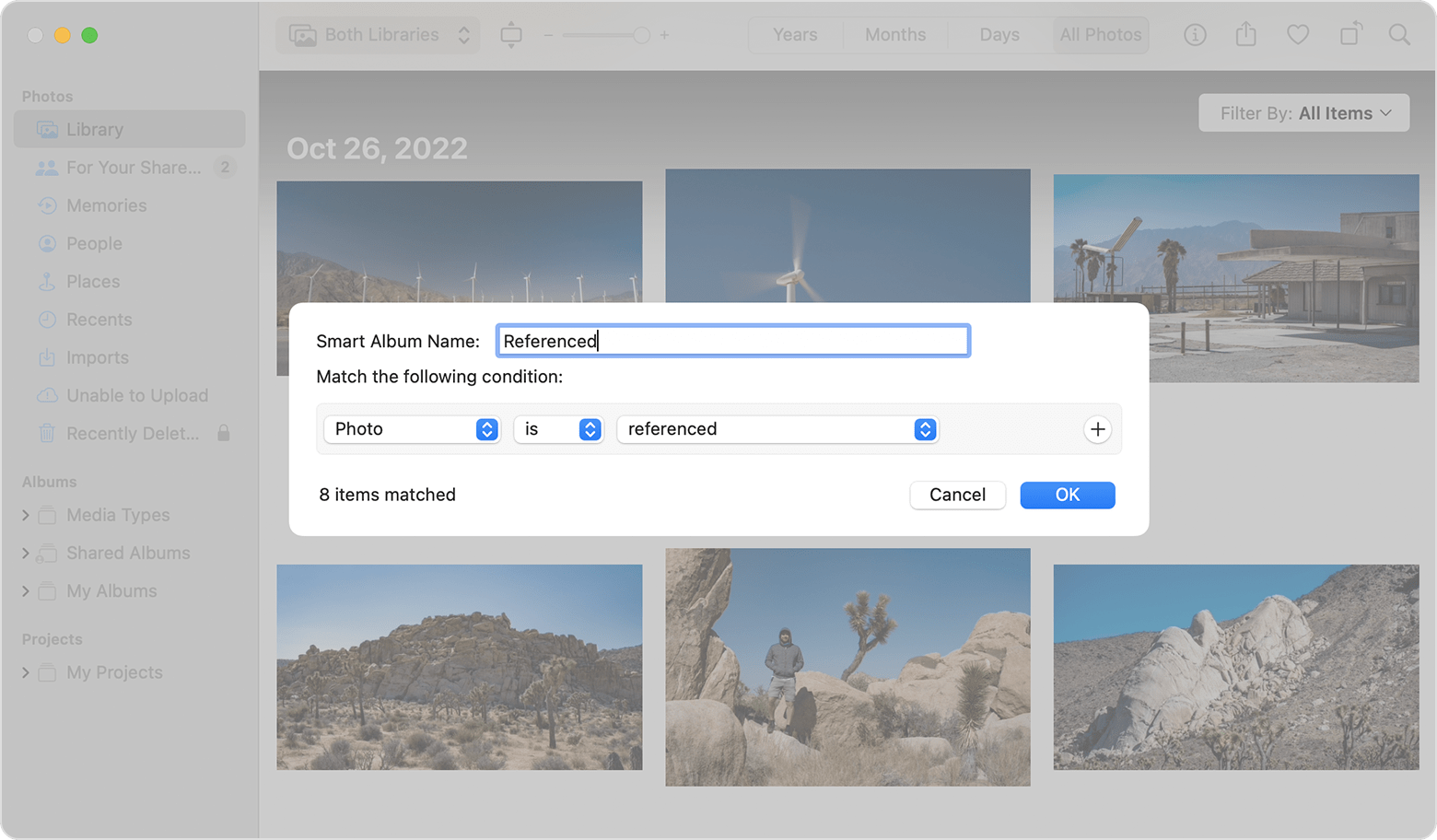
New Smart Album dialog showing a Smart Album being named “Referenced” and setting the conditions to “Photo is referenced.”


3. Select the Referenced album in the sidebar.

4. Press Command-A to select all items in the album, then choose File > Consolidate."


More details here: Check the status of your library in Photos for macOS


Let us know if this helps.

Best wishes.


Similar questions

8 replies
Question marked as Top-ranking reply

Mar 24, 2023 2:11 PM in response to Chris Wayman

Hello Chris Wayman,


It's great to see your post in Apple Support Communities.

Trying to upload your photos to iCloud, in safe mode was a great steps to take. However, we'd like to provide you with a few steps that may be able to resolve this issue:


"If items couldn't sync to iCloud

To see which items couldn't sync to iCloud, click the View button next to the message at the bottom of the Library window or click Unable to Upload in the sidebar. You can try to reimport the items from the Unable to Upload album into your Photos library to sync the items with iCloud Photos. 

  1. Press Command-A to select all of the items in the Unable to Upload album, choose File > Export, then choose Export Unmodified Original For [number] Photos.

Unable to Upload album showing an item that couldn't be synced


2. In the dialogs that follow, click Export, choose a save location, then click Export Originals.

3. After the items export, make sure they are all still selected in the album, then choose Image > Delete [number] Photos or Videos.

4. Click Delete, then click OK.

5. Choose the Recently Deleted album in the sidebar, then choose Delete All. Or delete only the items that you just deleted. 

6. Choose File > Import, then choose the images you previously exported. For any items successfully synced to iCloud Photos, edits or keywords that you added to the affected items might be lost.


If you see "Items on This Mac Only"

If you set up Photos to allow referenced files, which are photos and videos stored outside of your library, Photos counts those as “Items on This Mac Only.” If you want to consolidate those items into your library so that they can be uploaded to iCloud Photos and available to your other devices, follow these steps:

  1. From the menu bar in Photos, choose File > New Smart Album.
  2. Name the Smart Album “Referenced” and set the conditions to “Photo is referenced.” Click OK.

New Smart Album dialog showing a Smart Album being named “Referenced” and setting the conditions to “Photo is referenced.”


3. Select the Referenced album in the sidebar.

4. Press Command-A to select all items in the album, then choose File > Consolidate."


More details here: Check the status of your library in Photos for macOS


Let us know if this helps.

Best wishes.


Mar 25, 2023 12:37 PM in response to Chris Wayman

One more thing to check, before you delete photos from your library. Make sure, that your Photos Library is stored on a supported volume. Photos 8 on macOS 13 is much more critical with respect to the location of the Photos Library than previous versions of Photos and will no longer work correctly, if the file system format is not APFS or MacOS Extended (Journaled). The volume must not have been used for Time Machine backups, and it needs to be mounted locally with a wired connection, not over the network. If the Photos Library is on external volume, the volume should have been prepared as described here: Move your Photos library to save space on your Mac - Apple Support


Mar 25, 2023 5:16 AM in response to Grace2211

Hi Grace


Thank you so much for your reply to my question. Unfortunately, I cannot follow your instructions because I no longer have an Unable to Upload folder. Since I posted my question, the 4,000 photos in the Unable to Upload folder grew to over 33,000, which is nearly half my entire Photos library of 70,000+! However, it did start to gradually reduce and the folder finally emptied completely overnight, at which point the Unable to Upload folder disappeared. I am now left with Photos continually trying to sync 26 photos and the only option I am given is to pause syncing.


When I download photos from my camera, I can no longer edit them because once I’ve edited and closed a photo it won’t fully re-open thereafter, it doesn’t sharpen up and I get an exclamation mark at the bottom right hand corner and the Unable to Upload folder appears again. If I delete the photo in the Unable to Upload folder and re-download the original from my camera, the same thing happens again when I try to edit it. (All my photos are stored on my iMac, by the way, and are not referenced.) I have seen suggestions online whereby the problem rights itself if you ‘revert to original’ after editing, but that’s not a solution, I need to be able to edit all my photos!


I am at my wits’ end on this, and need this Ventura glitch sorted, and quickly, but I don’t know how. Is there any other help you can give me please?

Mar 29, 2023 3:20 AM in response to léonie

I have been following the advice you gave rdkrauss in December 2022 (see attached screenshot)


I created a new system library, which seemed to get rid of the seven photos which had got stuck syncing and my library looked fine, with everything synced. However, I have just uploaded five new photos from my camera into this new system library and they have been stuck syncing all over again. I took a screenshot on my iPad and it hasn't come over to my iMac, and neither has one I took on my iMac come on my iPad, although it says it has just synced with iCloud.


Incidentally, I found the thread above by using the word 'corrupted' rather than syncing, which narrowed the suggestions down a lot. Also, I have found a comment in my daily journal about problems with photo syncing a couple of weeks before I upgraded to Ventura so it would appear that my problem pre-dates that upgrade.

Mar 29, 2023 3:32 AM in response to Chris Wayman

I should also add that the new library is optimised for storage on my iMac, whereas my original library was (and still is) stored on my iMac. Although I have 1.62 TB still available out of 4 TB of storage space on my iMac, I didn't want to download photos on to my iMac for now until I know I have solved the problem and can delete the original library, which I would be nervous to do. (I have Backblaze so it's fully backed up, but nevertheless ...!)

This thread has been closed by the system or the community team. You may vote for any posts you find helpful, or search the Community for additional answers.

iMac Pro stuck syncing photos to iCloud since Ventura upgrade

Welcome to Apple Support Community
A forum where Apple customers help each other with their products. Get started with your Apple Account.
