Face id
how to i do face id
iPhone 11, iOS 16
how to i do face id
iPhone 11, iOS 16
Thanks for posting I the Apple Support Communities Johnraymarzan,
First you'll need to go through the set up steps for Face ID.
Set up Face ID
Make sure that nothing is covering the TrueDepth camera or your face. If something is obstructing your nose or mouth, like glasses or a face mask, you might be asked to temporarily remove these items during setup.
You can also use Face ID with face masks if you use iPhone 12 or later with iOS 15.4 and later. Face ID works best when your iPhone or iPad is approximately 10–20 inches from your face.
To set up Face ID:
1. Go to Settings, then tap Face ID & Passcode. If asked, enter your passcode. If you didn’t set a passcode, you’ll be asked to create one to use as an alternate way to verify your identity.
2. Tap Set Up Face ID.
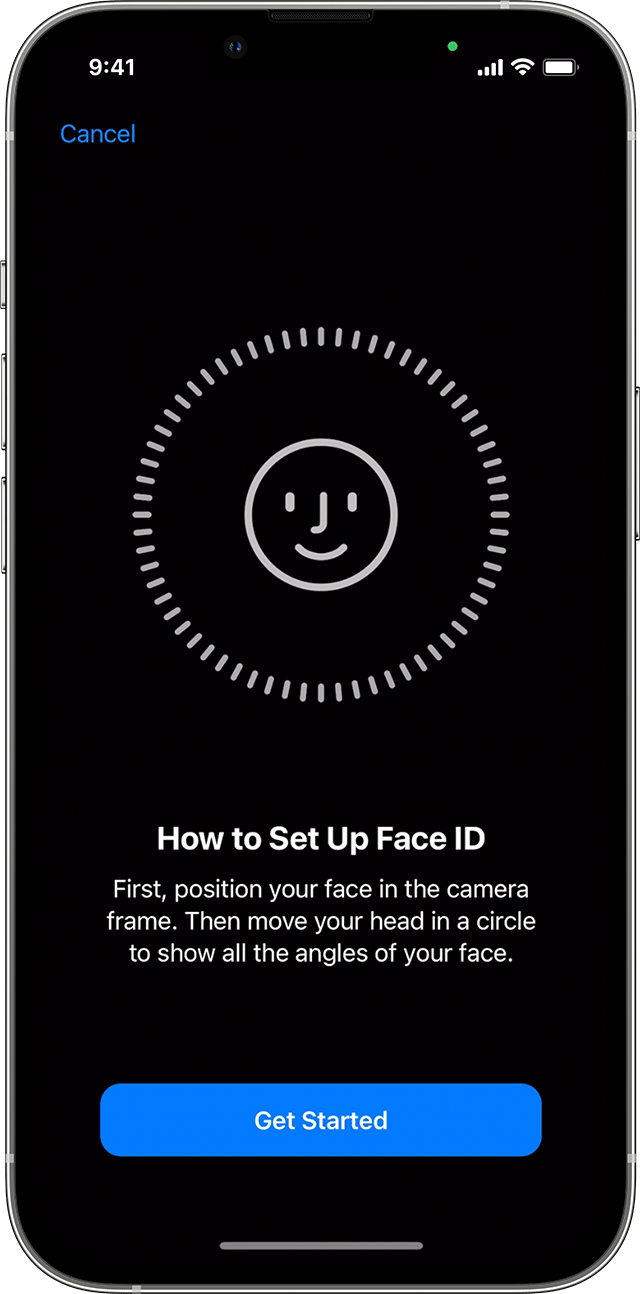
3. Hold your device in portrait orientation, position your face in front of your device, then tap Get Started.
4. Position your face inside the frame and gently move your head to complete the circle. If you're unable to move your head, tap Accessibility Options.
5. When you finish the first Face ID scan, tap Continue.
6. Gently move your head to complete the circle for a second time.
7. Tap Done.
To choose features that you want to use Face ID with or reset Face ID, go to Settings, then tap Face ID & Passcode.
Need help with Face ID? Learn which iPhone and iPad models support Face ID.
You can't use Face ID in landscape mode with Face ID with
a Mask turned on.
You can find these steps on the following page, along with guidance on how to unlock your device with Face ID, and use Face ID to make purchases once you have it set up.
Use Face ID on your iPhone or iPad Pro
We hope this helps!
Thanks for posting I the Apple Support Communities Johnraymarzan,
First you'll need to go through the set up steps for Face ID.
Set up Face ID
Make sure that nothing is covering the TrueDepth camera or your face. If something is obstructing your nose or mouth, like glasses or a face mask, you might be asked to temporarily remove these items during setup.
You can also use Face ID with face masks if you use iPhone 12 or later with iOS 15.4 and later. Face ID works best when your iPhone or iPad is approximately 10–20 inches from your face.
To set up Face ID:
1. Go to Settings, then tap Face ID & Passcode. If asked, enter your passcode. If you didn’t set a passcode, you’ll be asked to create one to use as an alternate way to verify your identity.
2. Tap Set Up Face ID.
3. Hold your device in portrait orientation, position your face in front of your device, then tap Get Started.
4. Position your face inside the frame and gently move your head to complete the circle. If you're unable to move your head, tap Accessibility Options.
5. When you finish the first Face ID scan, tap Continue.
6. Gently move your head to complete the circle for a second time.
7. Tap Done.
To choose features that you want to use Face ID with or reset Face ID, go to Settings, then tap Face ID & Passcode.
Need help with Face ID? Learn which iPhone and iPad models support Face ID.
You can't use Face ID in landscape mode with Face ID with
a Mask turned on.
You can find these steps on the following page, along with guidance on how to unlock your device with Face ID, and use Face ID to make purchases once you have it set up.
Use Face ID on your iPhone or iPad Pro
We hope this helps!
Face id