Disk Not Ejected Properly -- AGAIN AGAIN AGAIN AND AGAIN...

Because I have been getting the error message in the subject for quite some time, I eject (Command E) the Storeva external hard drive, I unplug it, I shut down the Mac.


When I start up I plug in the Storeva. Yet, I still get hundreds of repeating error messages, over and over almost one per minute or less: "Disk Not Ejected Properly | Eject 'Storeva' before disconnecting or turning it off."


It seems to happen after the MacBook goes to sleep.


Apple: please fix this.


MacBook Pro 13.3.1 (22E261)


MacBook Pro 15″, macOS 13.3

Posted on Apr 16, 2023 9:35 AM

Reply
Question marked as Top-ranking reply

Posted on Nov 3, 2023 12:30 PM

While is good data and expected/true, the problem is wide spread across many drive manufacturers. What has happened here is Apple set a precedent in pre-Venture OSes with sleep patterns and then it changed them. LaCIE, OWC, and other drives now exhibit this problem. A large part of the problem here is that Apple removed the ability to control sleep modes -- is Sonoma on a Mac Studio there are virtually no options to control this.


Rather this has to do with Apple changing sleep behaviors in the OS that do now work well with Thunderbolt connected NVME drives, which are not considered classic removable USB 'thumb drives' drives. Apple could address this with a fix by seeing what device is mounted and control sleep of that port accordingly. If PCI-EXPRESS, then do NOT sleep the power modes. If USB, then sleep aggressively.


I have had to resort to using an application called Amphetamine (was Caffeine) and set the 'Drive Alive' mode to prevent sleep. All the problems went away. It has nothing to do with 'frayed cables' or 'drives going bad'.


85 replies
Question marked as Top-ranking reply

Nov 3, 2023 12:30 PM in response to Grant Bennet-Alder

While is good data and expected/true, the problem is wide spread across many drive manufacturers. What has happened here is Apple set a precedent in pre-Venture OSes with sleep patterns and then it changed them. LaCIE, OWC, and other drives now exhibit this problem. A large part of the problem here is that Apple removed the ability to control sleep modes -- is Sonoma on a Mac Studio there are virtually no options to control this.


Rather this has to do with Apple changing sleep behaviors in the OS that do now work well with Thunderbolt connected NVME drives, which are not considered classic removable USB 'thumb drives' drives. Apple could address this with a fix by seeing what device is mounted and control sleep of that port accordingly. If PCI-EXPRESS, then do NOT sleep the power modes. If USB, then sleep aggressively.


I have had to resort to using an application called Amphetamine (was Caffeine) and set the 'Drive Alive' mode to prevent sleep. All the problems went away. It has nothing to do with 'frayed cables' or 'drives going bad'.


Dec 2, 2023 10:27 PM in response to Jayne De Sesa

Noticed that some of Community members on this thread indicated the "Disk Not Ejected Properly" pop-ups never existed with Monterey... not in my case. Continue reading for a possible solution....


Purchased a 5 TB Lacie Rugged Thunderbolt USB-C drive in September 2023 to use solely for Time Machine for my 16" MacBook Pro. Just spent hours on the line with Apple tonight before discovering this thread.


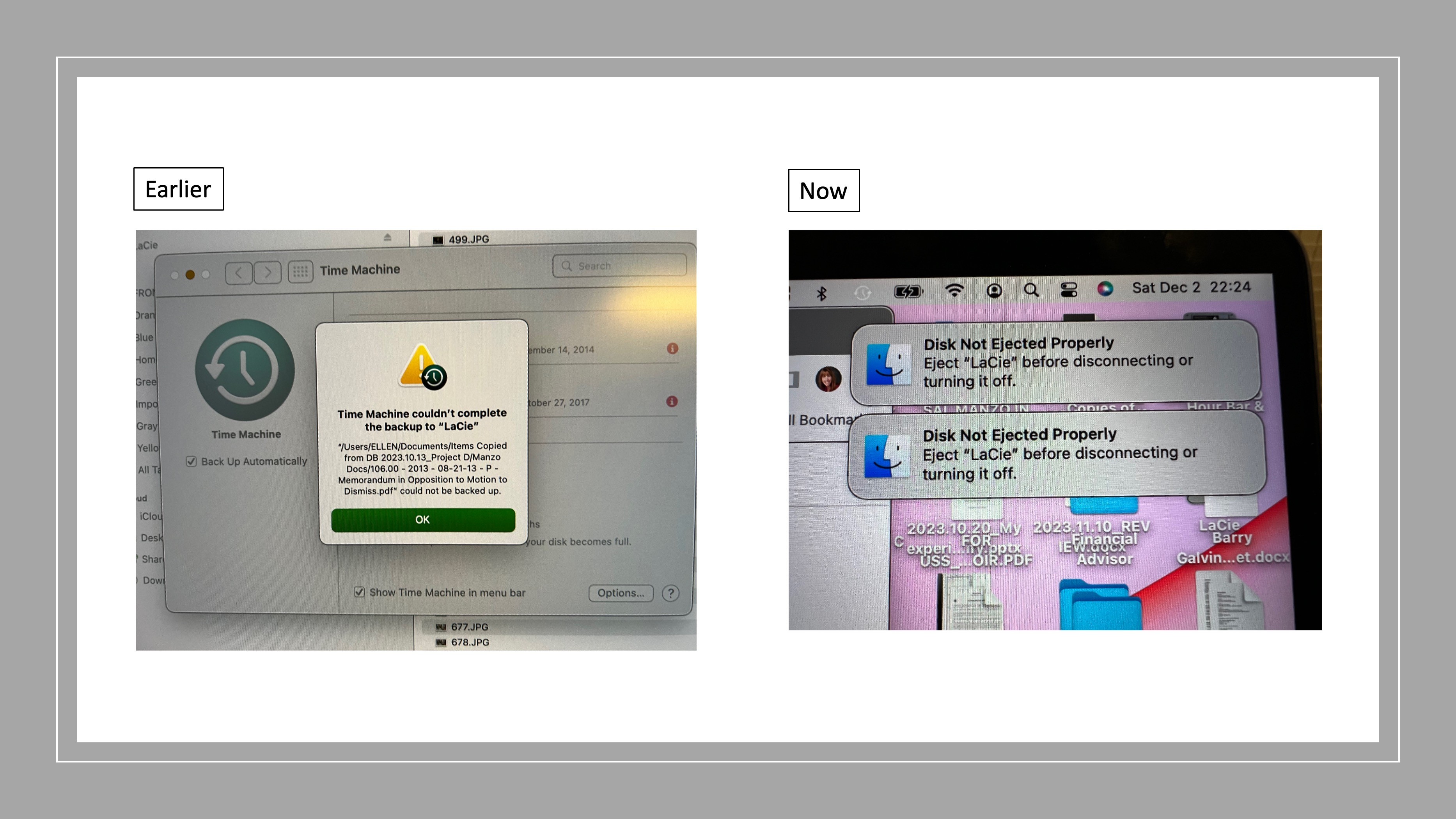
The drive worked fine the first two times I used it to backup my system. Time Machine created one backup file on day one and 12 backup files on day 2. Thereafter, the drive hasn't worked properly since. I have received repeated issues when running Time Machine for backup. On two occasions, Time Machine stopped and issued a message "Time Machine couldn't complete the backup to 'LaCie'. And then Time Machine indicated that a particular file couldn't be backed up. And Time Machine ceased to operate.


I removed the file from the system in Round 1 when the popup occurred, and then did the same for Round 2 when I received the same popup however with a different file name.


Rounds 3,4,5: No longer seeing the blame on a PDF file creating the issue. Next received "Disk Not Ejected Properly" pop-ups identical to those in this stream. And Time Machine would cease to run. The latest backup files were those from Days 1 and 2. Appeared that Time Machine would get to approximately 37% to 47% of its processes before it would cease and desist. The result? No backup file whatsoever. Also noticed that the Time Machine icon on the top bar of my display screen for Time Machine turned from a symbol in black font to a symbol in white font and then sometimes back again. (What's that about?)


Apple's Tech and I went into System Preferences and experimented by changing the screensaver timeout feature from 20 minutes to an hour. (Great Tech BTW.) FOR THE FIRST TIME SINCE HAVING THESE ISSUES, I was able to backup 69% of my system (previously Time Machine only got to about 37% - 45%,) without the interruption of a "Disk Not Ejected Properly" and Time Machine failing to continue.


And then post Apple assist call, as the Time Machine backup percentage was continuing to climb to levels it hasn't seen since my run of failures, I went into preferences and decided to eliminate use of the screen saver altogether. (Opted for a solid color on desktop. ) Hey, when nothing else works, what's the saying? "Desperation becomes the mother of invention?" I'm desperate for a backup so that I can comfortably and securely without worry, update / upgrade my OS. I am still on Monterey.


Voila! Success! Time Machine reached 100% of its backup processes for the first time since these issues raised their ugly head. I was able to obtain a full Time Machine backup without experiencing another Time Machine mystery cease and desist and/or "Disk Not Ejected Properly" pop-up.


That tells me that some of the "hunches" around display timeout is most definitely linked to the issues reported in this Community stream. So folks, try eliminating use of your screen saver and see if that also eradicates all the "Disk Not Ejected Properly" pop-ups from your desktops.


Now for a note to Apple...

Apple, heads up. This is a critical issue. Apple protocol is to advise users to backup their systems prior to bringing in a MAC for a Genius appointment or for any software update or upgrade. If your users are incapable of completing a full Time Machine backup, imagine the problems that could become commonplace when users run into issues with updates and/or upgrades. Second, users will perform backups when converting over to your latest and greatest technology. Same concern. Imagine the user who telephones the Apple Care line with their new system (presuming he/she didn't use iCloud for the transition) and identifies the fact that files and folders are MIA and didn't come across in the conversion. Uggghhh! I certainly wouldn't want to be on that helpline call.


Apple sells LaCie drives. Apple sells MacBooks. Seems to me that this one is clearly in your wheelhouse. And I think our experimentation tonight provides a great head start for where to begin the debugging effort. Your help would be appreciated. Thanks!


Photos follow of a sample of the Round 1 error message (Round 2 error message was similar,) followed by the "Disk Not Ejected Properly" pop-ups so many others have reported to you.

Apr 17, 2024 11:10 AM in response to Jayne De Sesa

I've encountered this recently on three different Mac Minis (OSX 13.6.5) using three different drives (8T SSD) connected with three different cables to (USBC-to-SATA). I've tried all the things: re-install the system, reset SMC, reset NVRAM, etc. Maddening! However, yesterday it occurred to me that I'd never noticed it happening when the WiFi was turned off. So I tried an experiment by letting the computer run overnight with the WiFi off and returned to the shop in the morning to find no "Disk Not Ejected Properly..." messages. The moment I turned on the WiFi they started appearing again, in rapid succession. When I turned off the WiFi they stopped.


When I opened System Settings>Network>Wi-Fi, I saw that the error messages coincided exactly with a spinning gear appearing next to "Other Networks" — every single time. If I forget the known network, it seems the issue is even worse. WiFi off, the behavior stops. Thoughts?

Oct 31, 2023 2:03 PM in response to Jayne De Sesa

I have been having this problem with a 1 Tbyte Crucial X6 solid-state drive on my 2018 MacMini and contacted the supplier. At first, they said I needed to move the drive to a different port on the Mini, which stopped the disk ejection errors for about 10 days before it started again. Yesterday I complained to them again and got the following


"We would like to inform that we would request you to update the system and certain models of internal SATA drives might unexpectedly disconnect from your computer after your Mac wakes from sleep. This can occur if your Mac automatically goes to sleep or if you manually put your Mac to sleep. We would like to inform that to resolve this issue, update to macOS Ventura 13.5 or later." This seems to imply that Crucial thinks it may be an incompatibility between the MacOS and the Crucial drive.


I had already updated to Ventura 13.5, but I upgraded to 13.6.1 and will see what happens.

Nov 3, 2023 11:07 AM in response to Jayne De Sesa

Disk not ejected properly:

This can be caused by a shortcoming of your external Bus Powered drive, and not of your Macintosh computer.


When you Mount any ejectable drive, the Directory from the drive is copied into RAM, and the directory on the drive is marked status = checked out (like a library book that has been borrowed from the lending library). The RAM copy is considered the Master copy, and changes that you make while working are made in the RAM copy of the Directory.


When you Eject/UnMount a drive, the RAM copy of the Directory replaces the copy on the drive, and the status of the directory on the drive is marked status = checked IN and Good.


Some external drives get all their power form the USB Bus. Bus-powered external drives should gracefully transition into standby and accept reduced USB power supplied when your Mac sleeps.


Some drives do this perfectly. Other drives do not transition gracefully and do not run only on standby power. Instead of stand-by, these drives disconnect. The problem is, the Directory from the drive has been checked out, and the Master copy in RAM has no way to get back to the disconnected drive.


Some Time later, when your Mac wakes up again, the drive reports 'I just woke up and am ready to connect'. Your Mac is confused because the drive will not CONTINUE from where it left off, so the Mac says "drive disconnected". The copy of the Directory on the Drive is Stale/checked out (not the Master copy). You get the messages "drive not ejected properly" the same as if you had pulled the cables out while running. The correct state of the Directory can not be determined instantly, but requires Disk Utility 'Repair Disk' procedure.


Summary: this is likely a deficit of the DRIVE, not the Mac. If any one of:

• the drive had external power -OR-

• the drive transitioned gracefully to standby -OR-

• the Mac did not sleep, THEN...

...this would likely not occur.

Oct 19, 2023 6:49 AM in response to smarston15

I have some tentative good news. I checked with Bombich, the publishers of Carbon Copy Cloner, because the "disk not ejected properly" triggered backup problems, and they said the problem was most likely a faulty drive, cable, or port. I then checked with support at Crucial, the maker of the drive that had been giving me problems. They went through a series of questions, then suggested the problem was the connection between the Thunderbolt 3 port on my 2018 MacMini and the drive, and had me move to a different port. That seems to have worked; I have not had a repeat in a couple of the problem in a of days.


I would suggest trying that with a couple of caveats.

• I didn't get the "disk not ejected properly" warning every time the Mac wakes from sleep, so I could just be lucky for a few days and it might come back (at which point I will check with Crucial again and ask for a replacement)

• The problem could be a bad drive or cable, so just moving the drive to another connection might not solve the problem.

That said, it's probably worth trying if you have a spare port.

Nov 3, 2023 10:56 AM in response to reimtime

I have not gotten any more of the Disk Not Ejected Properly messes from my 2018 MacMini regarding my Crucial drive since I turned off all four system setting options under Energy:

• Enable Power Nap

• Put hard disks to sleep when possible

• Wake for network access

• Start up automatically after a power failure.

I'm not sure if I have just been lucky or have somehow found what can fix the problem. I have seen suggestions that the problem may be putting hard disks to sleep when possible, but I'm not sure.

This thread has been closed by the system or the community team. You may vote for any posts you find helpful, or search the Community for additional answers.

Disk Not Ejected Properly -- AGAIN AGAIN AGAIN AND AGAIN...

Welcome to Apple Support Community
A forum where Apple customers help each other with their products. Get started with your Apple Account.