Hi hope this meets you well, I cannot seem to send any email out on my phone and MacBook yet I’m able to receive mail but cannot send, I try editing the outgoing mail Box, to no avail ! Please help
MacBook Pro 13″, macOS 11.6
Hi hope this meets you well, I cannot seem to send any email out on my phone and MacBook yet I’m able to receive mail but cannot send, I try editing the outgoing mail Box, to no avail ! Please help
MacBook Pro 13″, macOS 11.6
Hello saffiyah65,
For difficulties with sending email, you'll want to take the steps below using your iPhone:
Before you begin
There are a few things to keep in mind and check:
• When you make an iOS or iPadOS backup in iCloud or iTunes, it backs up your mail settings, but not your email. If you delete or change your email account settings, previously downloaded email might be removed from your device.
• Make sure that your device is connected to the internet.
• Check with your email service provider to find out if there's a service outage.
• Look for the Undo Send button in your Inbox or list of mailboxes. If Undo Send is available, the message has not been sent.
• Learn what to do if you can't access your iCloud Mail, or you can't send and receive messages with your @icloud.com email address.
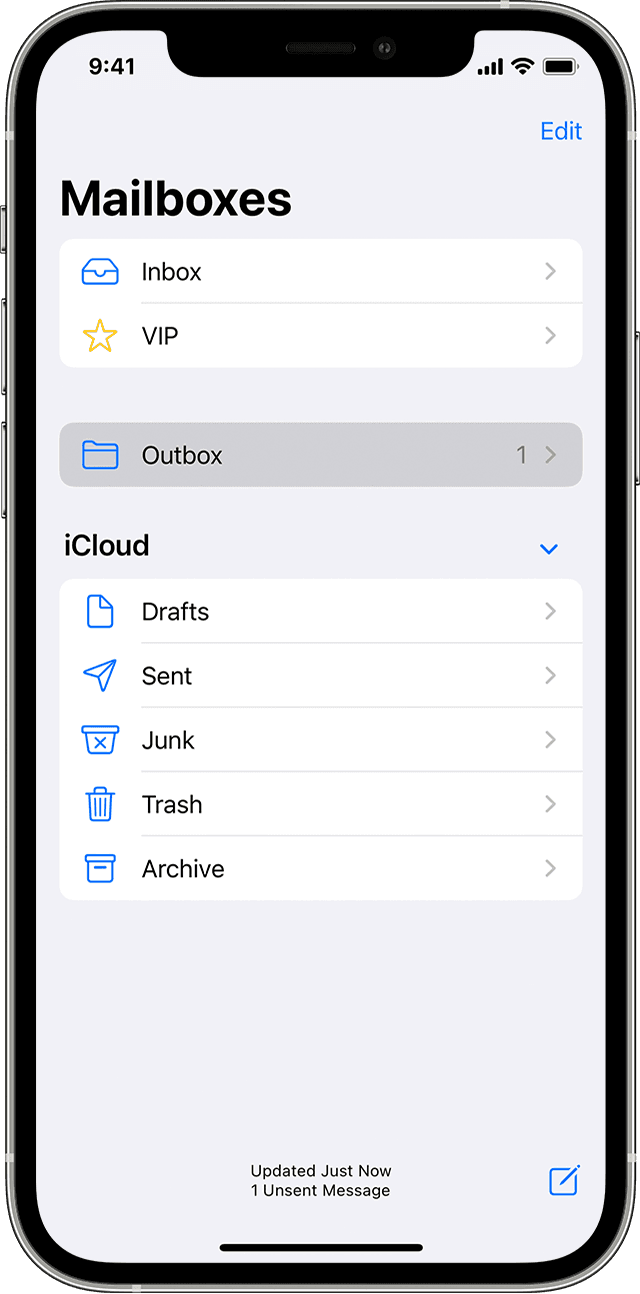
Check the Outbox for unsent email
If you get a message that says your email wasn’t sent, then that email goes to your Outbox. Check your Outbox and try to send the email again with these steps:
1. In Mail, go to your list of mailboxes.
2. Tap Outbox. If you don’t see an Outbox, then your email was sent.
3. Tap an email in the Outbox. Make sure that the recipient’s email address is correct.
4. Tap Send.
Check your email address and password
If Mail asks you to enter a password for your email account, make sure that your password is correct. To check your email address and password, sign in to your email provider's website.
If you still get a user name or password error, contact your email provider or system administrator.
Contact your email provider or system administrator
1. Contact your email provider or check their status webpage to see if there's a service outage.
2. Ask your email provider or system administrator if you turned on any security features or restrictions, like two-step verification, for your email account. You might need a special password or might need to request authorization from your email provider to send and receive email on your device.
3. Check your email account settings with your email provider or system administrator to make sure that they're correct.
Remove your email account and set it up again
1. On your computer, sign in to your email provider’s website. Make sure that all of your email is there or make sure that your email is saved somewhere other than on your iOS or iPadOS device.
2. On your device, go to Settings > Mail, then tap Accounts.
3. Tap the email account that you want to remove.
4. Tap Delete Account.
5. Add your account again.
You can also find those steps in this resource: If you can’t send email on your iPhone or iPad - Apple Support
If that persists with a third party email account, you'll want to reach out to your email provider: Contact a third-party vendor - Apple Support They'll be in the best position to assist further with their particular email service.
If this is occurring with iCloud Mail, you'll want to follow the specific steps below: If iCloud Mail isn't working - Apple Support
Things to check first
1. Check the system status of iCloud Mail.
2. Check that you turned on iCloud Mail:
• On your Mac, open the Mail app then choose Mail >Preferences. Click Accounts, then select your iCloud account in the sidebar. Under Account Information, make sure that the account is turned on and the status is online.
• On your iPhone, iPad, or iPod touch, go to Settings > [your name] > iCloud and check that Mail is turned on.
3. Make sure you that haven't exceeded your iCloud storage limit. If you exceed your iCloud storage limit, learn how to make more space available in iCloud.
4. Make sure that you're using the latest version of software on your device.
If you need help sending or receiving mail on your iPhone, iPad, or iPod touch
1. Check your Internet connection. Open apple.com in Safari on your iPhone, iPad, or iPod touch.
2. To see if you can receive mail for your iCloud email on another device, go to iCloud.com on a Mac or PC.
3. Make sure that you turned on Mail in Settings on your iPhone, iPad, or iPod touch. Tap Settings > [your name] > iCloud and turn on Mail.
4. Make sure that new data is pushed to your device automatically. In iOS 14 or later, tap Settings > Mail > Accounts > Fetch New Data, then turn on Push. In iOS 13 or earlier, tap Settings > Passwords & Accounts > Fetch New Data, then turn on Push.
• Send an email to your account to see if Push is working.
• In Fetch New Data, tap your iCloud account and turn on Push. You can only use Push with one account at a time.
5. Turn your device off and back on.
6. If you still can't send or receive mail, turn off the settings in steps 3 and 4, restart your device, then turn them back on.
Should that persist with iCloud Mail, you'll want to reach out to Apple Support: Apple Support They'll be in the best position to look into this further.
Take care.
Hello saffiyah65,
For difficulties with sending email, you'll want to take the steps below using your iPhone:
Before you begin
There are a few things to keep in mind and check:
• When you make an iOS or iPadOS backup in iCloud or iTunes, it backs up your mail settings, but not your email. If you delete or change your email account settings, previously downloaded email might be removed from your device.
• Make sure that your device is connected to the internet.
• Check with your email service provider to find out if there's a service outage.
• Look for the Undo Send button in your Inbox or list of mailboxes. If Undo Send is available, the message has not been sent.
• Learn what to do if you can't access your iCloud Mail, or you can't send and receive messages with your @icloud.com email address.
Check the Outbox for unsent email
If you get a message that says your email wasn’t sent, then that email goes to your Outbox. Check your Outbox and try to send the email again with these steps:
1. In Mail, go to your list of mailboxes.
2. Tap Outbox. If you don’t see an Outbox, then your email was sent.
3. Tap an email in the Outbox. Make sure that the recipient’s email address is correct.
4. Tap Send.
Check your email address and password
If Mail asks you to enter a password for your email account, make sure that your password is correct. To check your email address and password, sign in to your email provider's website.
If you still get a user name or password error, contact your email provider or system administrator.
Contact your email provider or system administrator
1. Contact your email provider or check their status webpage to see if there's a service outage.
2. Ask your email provider or system administrator if you turned on any security features or restrictions, like two-step verification, for your email account. You might need a special password or might need to request authorization from your email provider to send and receive email on your device.
3. Check your email account settings with your email provider or system administrator to make sure that they're correct.
Remove your email account and set it up again
1. On your computer, sign in to your email provider’s website. Make sure that all of your email is there or make sure that your email is saved somewhere other than on your iOS or iPadOS device.
2. On your device, go to Settings > Mail, then tap Accounts.
3. Tap the email account that you want to remove.
4. Tap Delete Account.
5. Add your account again.
You can also find those steps in this resource: If you can’t send email on your iPhone or iPad - Apple Support
If that persists with a third party email account, you'll want to reach out to your email provider: Contact a third-party vendor - Apple Support They'll be in the best position to assist further with their particular email service.
If this is occurring with iCloud Mail, you'll want to follow the specific steps below: If iCloud Mail isn't working - Apple Support
Things to check first
1. Check the system status of iCloud Mail.
2. Check that you turned on iCloud Mail:
• On your Mac, open the Mail app then choose Mail >Preferences. Click Accounts, then select your iCloud account in the sidebar. Under Account Information, make sure that the account is turned on and the status is online.
• On your iPhone, iPad, or iPod touch, go to Settings > [your name] > iCloud and check that Mail is turned on.
3. Make sure you that haven't exceeded your iCloud storage limit. If you exceed your iCloud storage limit, learn how to make more space available in iCloud.
4. Make sure that you're using the latest version of software on your device.
If you need help sending or receiving mail on your iPhone, iPad, or iPod touch
1. Check your Internet connection. Open apple.com in Safari on your iPhone, iPad, or iPod touch.
2. To see if you can receive mail for your iCloud email on another device, go to iCloud.com on a Mac or PC.
3. Make sure that you turned on Mail in Settings on your iPhone, iPad, or iPod touch. Tap Settings > [your name] > iCloud and turn on Mail.
4. Make sure that new data is pushed to your device automatically. In iOS 14 or later, tap Settings > Mail > Accounts > Fetch New Data, then turn on Push. In iOS 13 or earlier, tap Settings > Passwords & Accounts > Fetch New Data, then turn on Push.
• Send an email to your account to see if Push is working.
• In Fetch New Data, tap your iCloud account and turn on Push. You can only use Push with one account at a time.
5. Turn your device off and back on.
6. If you still can't send or receive mail, turn off the settings in steps 3 and 4, restart your device, then turn them back on.
Should that persist with iCloud Mail, you'll want to reach out to Apple Support: Apple Support They'll be in the best position to look into this further.
Take care.