backup disks did not eject properly message
Awake from system sleep causes "Disk not ejected properly" for time machine disks, new on Ventura, Did not happen on legacy OS. Why?
Awake from system sleep causes "Disk not ejected properly" for time machine disks, new on Ventura, Did not happen on legacy OS. Why?
Hey Fred Bozo,
Thanks for using Apple Support Communities. We’ll be happy to assist you. If the drive you use for Time Machine wasn’t ejected properly prior to your Mac going to sleep this isn’t necessarily unexpected depending on the settings you have enabled. To clarify though, is your Time Machine drive directly connected to your Mac or is it a network attached storage? For more info on the backup disks you can use with Time Machine, check out: Backup disks you can use with Time Machine - Apple Support
For more help backing up your Mac with Time Machine, please review these steps:
Connect a storage device to use for backups
Connect an external storage device to your Mac, such as a USB drive or Thunderbolt drive. Or learn about other backup disks that you can use with Time Machine.
* Use this storage device only as your Time Machine backup disk, not for storage of other files.
* Ideally, your backup disk should have at least twice the storage capacity of every disk or volume you're backing up. If your backup disk doesn't have enough storage space to contain a complete backup, Time Machine will let you know.
Select your storage device in Time Machine settings
When you connect the storage device to your Mac, your Mac might ask if you want to use it for Time Machine backups. If it doesn't ask, follow these steps.
1. Open Time Machine settings:
* macOS Ventura or later: Choose Apple menu > System Settings, click General in the sidebar, then click Time Machine on the right.
* Earlier versions of macOS: Choose Apple menu > System Preferences, then click Time Machine.
2. In Time Machine settings, select your external storage device as your backup destination:
* macOS Ventura or later: Click the add button (+), then follow the onscreen instructions.
* Earlier versions of macOS: Click Select Backup Disk, then follow the onscreen instructions.
3. If the storage device contains Time Machine backups from another Mac, you might be asked to claim the existing backups so that they become part of the backups for this Mac. Or you can choose to start a new backup instead.
Make a backup
Back up automatically. After you select your storage device in Time Machine settings, Time Machine automatically begins making periodic backups.
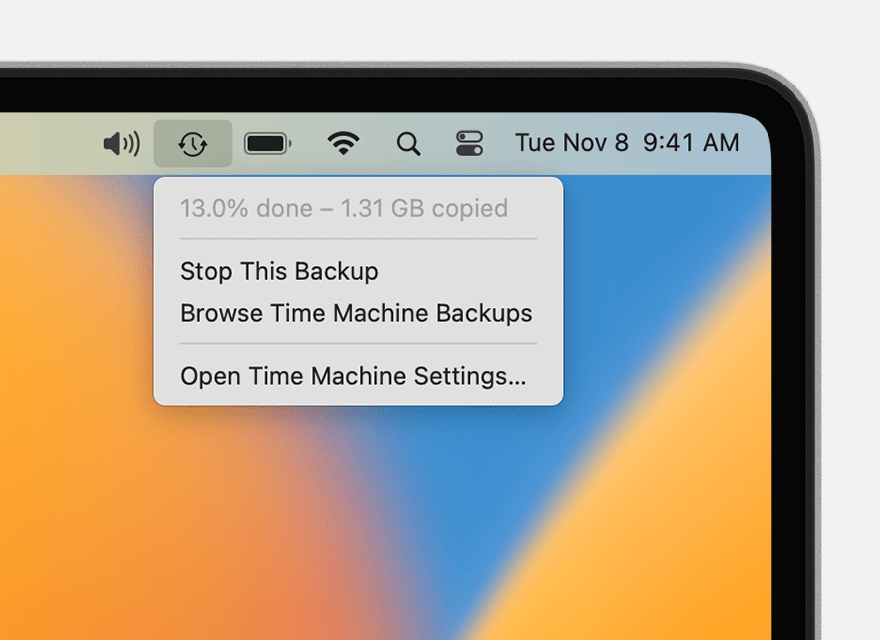
Back up manually. To start a backup manually, without waiting for the next automatic backup, choose Back Up Now from the Time Machine menuin the menu bar.
Check backup status. Use the Time Machine menu
This is all outlined further here: Back up your Mac with Time Machine - Apple Support
If the issues persist, you’ll need to contact Apple for further support on any unexpected behavior experienced using this link: Get Support
Take care!
backup disks did not eject properly message