Purchases
How can I stop purchases from a certain devices?
iPhone 12, iOS 16
How can I stop purchases from a certain devices?
iPhone 12, iOS 16
Hello Markapple1231,
Screen Time can help prevent unauthorized purchases. These instructions on how to use Screen Time can be found at Prevent in-app purchases from the App Store - Apple Support:
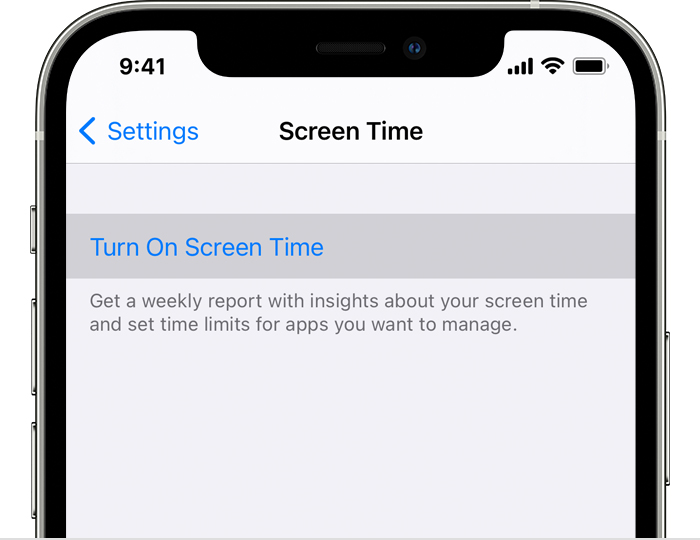
1. To turn on Screen Time, go to Settings > Screen Time, then tap Turn on Screen Time. If you already use Screen Time, skip to step 3.
2. Tap Continue, then choose "This is My [device]" or "This is My Child's [device]."
* If you're the parent or guardian of your device and want to prevent another family member from changing your settings, tap Use Screen Time Passcode to create a passcode, then re-enter the passcode to confirm. After you confirm your passcode, enter your Apple ID and password. This can be used to reset your Screen Time passcode if you forget it.
* If you're setting up Screen Time on your child's device, follow the prompts until you get to Parent Passcode and enter a passcode. Re-enter the passcode to confirm. After you confirm your passcode, enter your Apple ID and password. This can be used to reset your Screen Time passcode if you forget it.
Make sure to choose a passcode that's different from the passcode you use to unlock your device. Learn what to do if you forget your Screen Time passcode.
3. Tap Content & Privacy Restrictions. If asked, enter your passcode, then turn on Content & Privacy Restrictions.
4. Tap iTunes & App Store Purchases.
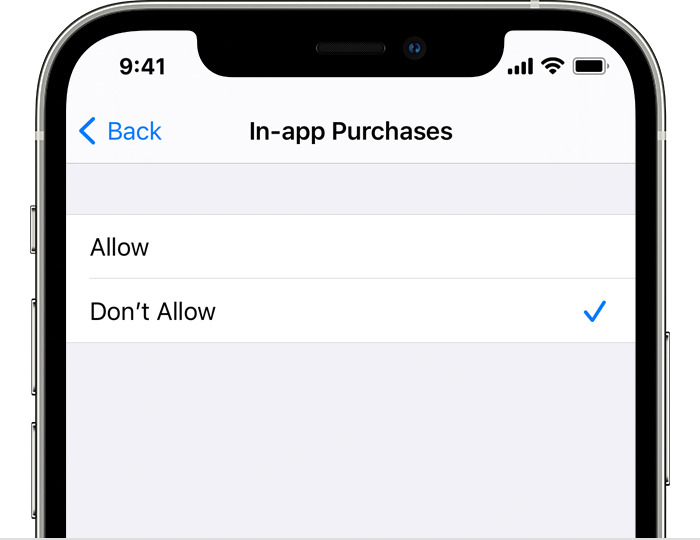
5. Tap In-app Purchases and set to Don't Allow.
There are other suggestions on how to control purchases on that same page.
Cheers
Hello Markapple1231,
Screen Time can help prevent unauthorized purchases. These instructions on how to use Screen Time can be found at Prevent in-app purchases from the App Store - Apple Support:
1. To turn on Screen Time, go to Settings > Screen Time, then tap Turn on Screen Time. If you already use Screen Time, skip to step 3.
2. Tap Continue, then choose "This is My [device]" or "This is My Child's [device]."
* If you're the parent or guardian of your device and want to prevent another family member from changing your settings, tap Use Screen Time Passcode to create a passcode, then re-enter the passcode to confirm. After you confirm your passcode, enter your Apple ID and password. This can be used to reset your Screen Time passcode if you forget it.
* If you're setting up Screen Time on your child's device, follow the prompts until you get to Parent Passcode and enter a passcode. Re-enter the passcode to confirm. After you confirm your passcode, enter your Apple ID and password. This can be used to reset your Screen Time passcode if you forget it.
Make sure to choose a passcode that's different from the passcode you use to unlock your device. Learn what to do if you forget your Screen Time passcode.
3. Tap Content & Privacy Restrictions. If asked, enter your passcode, then turn on Content & Privacy Restrictions.
4. Tap iTunes & App Store Purchases.
5. Tap In-app Purchases and set to Don't Allow.
There are other suggestions on how to control purchases on that same page.
Cheers
Purchases