iPad stuck on black screen with loading circle

I don't know which one mine exactly is, but it is on iPadOS 14.7.1, and is model A1980.

The icons and names of some apps were missing after turning it back on so I turned the iPad off and turned it back on, but when I logged back on, I saw that the icon of the settings app was gone. And then it got stuck on a black screen with a frozen loading circle, which started moving. I get worried easily by stuff like this because of things that happened before. Sometimes the loading circle disappears, so I try clicking the power button, and then the loading circle comes back. Both times that I tried turning it on, it took longer than normal.

iPad Pro (3rd generation)

Posted on Jun 9, 2023 10:35 AM

Reply
Question marked as Top-ranking reply

Posted on Jun 9, 2023 12:03 PM

See >>> If your iOS or iPadOS device restarts or displays the Apple logo or a spinning gear unexpectedly - Apple Support


If your iPad is unresponsive, connect your iPad to its Power Adapter and allow the iPad to charge. Then, while still connected to external power, try a forced-restart:


Force restart iPad (models with Face ID or with Touch ID in the top button)

If your iPad doesn’t have the Home button, do the following:

  1. Press and quickly release the volume button nearest to the top button.
  2. Press and quickly release the volume button farthest from the top button.
  3. Press and hold the top button.
  4. When the Apple logo appears, release the top button.
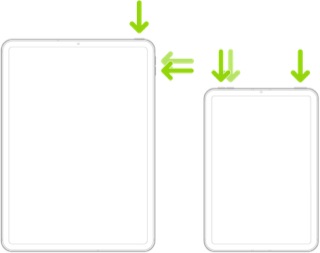


Force restart iPad (models with the Home button)

Press and hold the top button and the Home button at the same time. When the Apple logo appears, release both buttons.



If iPad still doesn’t turn on, or if it gets stuck during start up, see the Apple Support article If your iPhone, iPad, or iPod touch won’t turn on or is frozen. Or if your iPad isn’t working correctly after you restart it, see the iPad Support website.


If you continue to experience difficulties, you will need to seek assistance directly from from Apple Support. You can contact the Support Team using the Support link at top-right or bottom-left of this page. Alternatively, you can initiate and manage your support cases using the excellent Apple Support App. If not already installed on your iPad, the App can be downloaded from the App Store:

https://apps.apple.com/gb/app/apple-support/id1130498044


You might also visit the Genius Bar at your local Apple Store or Apple Authorised Service Provider (AASP) - where the technicians will be able to test and assess your iPad:

Genius Bar Reservation and Apple Support Options - Apple

6 replies
Question marked as Top-ranking reply

Jun 9, 2023 12:03 PM in response to anabel249

See >>> If your iOS or iPadOS device restarts or displays the Apple logo or a spinning gear unexpectedly - Apple Support


If your iPad is unresponsive, connect your iPad to its Power Adapter and allow the iPad to charge. Then, while still connected to external power, try a forced-restart:


Force restart iPad (models with Face ID or with Touch ID in the top button)

If your iPad doesn’t have the Home button, do the following:

  1. Press and quickly release the volume button nearest to the top button.
  2. Press and quickly release the volume button farthest from the top button.
  3. Press and hold the top button.
  4. When the Apple logo appears, release the top button.


Force restart iPad (models with the Home button)

Press and hold the top button and the Home button at the same time. When the Apple logo appears, release both buttons.


If iPad still doesn’t turn on, or if it gets stuck during start up, see the Apple Support article If your iPhone, iPad, or iPod touch won’t turn on or is frozen. Or if your iPad isn’t working correctly after you restart it, see the iPad Support website.


If you continue to experience difficulties, you will need to seek assistance directly from from Apple Support. You can contact the Support Team using the Support link at top-right or bottom-left of this page. Alternatively, you can initiate and manage your support cases using the excellent Apple Support App. If not already installed on your iPad, the App can be downloaded from the App Store:

https://apps.apple.com/gb/app/apple-support/id1130498044


You might also visit the Genius Bar at your local Apple Store or Apple Authorised Service Provider (AASP) - where the technicians will be able to test and assess your iPad:

Genius Bar Reservation and Apple Support Options - Apple

Jun 12, 2023 5:55 AM in response to anabel249

All models of iPad Pro are capable of update to iPadOS 16.5 - this being the most recent version of iPadOS. If you haven’t already updated to this version - as suggested in your initial post - you should do so.


These support pages outline both the available methods by which the update can be performed - and troubleshooting should you experience difficulties:

Update your iPhone, iPad or iPod touch – Apple Support

If you can't update or restore your iPhone, iPad or iPod touch – Apple Support

If your iPhone, iPad or iPod touch won’t update - Apple Support

iOS update and restore errors – Apple Support


Be aware that while an iPad may be capable of update, in some circumstances you may need to use a computer to perform the update. To do so, you will need access to either a Windows PC (with iTunes for Windows installed) or a Mac (with iTunes or Finder - as appropriate for the installed version of macOS). Ensure that your installed version of iTunes has been updated to the most recent version; the essential device drivers are included.

Download and use iTunes for Windows – Apple Support

Update to the latest version of iTunes – Apple Support

Update software on iPhone, iPad or iPod touch in iTunes on PC - Apple Support


If you have a beta profile installed, ensure this has been removed from your iPad - as, otherwise, installation of production software updates may be inhibited. This support page provides the necessary information to remove the beta from your iPad:

How to uninstall iOS beta software - Apple Support


You should note that for your iPad to install an available update, its battery must be charged to at least 50% capacity - and/or be connected to its Power Adapter. Similarly, the iPad can only be updated over a standard WiFi connection - or be updated by a PC or Mac using iTunes or Finder - over a USB connection.

Jun 15, 2023 10:22 AM in response to LotusPilot

I know this, and I was worried about doing it because I always get scared when it updates, as it is starting to randomly shut off. And I don't like iOS 7+, but I can't use iOS 4-6 because they've blocked it off and I need to pay for a device to get it, and the only app that allowed me to do it is not joinable anymore, hasn't had updates in a long time, and the already existing versions expired.

This thread has been closed by the system or the community team. You may vote for any posts you find helpful, or search the Community for additional answers.

iPad stuck on black screen with loading circle

Welcome to Apple Support Community
A forum where Apple customers help each other with their products. Get started with your Apple Account.