My iPad Pro 11 update fails

My iPad Pro 11 has always processed updates thru my home Wi-Fi with no difficulty . For 16.5.1 it starts out normally then after 5 min or so it shows paused. If I leave it alone it says update failed and gives 2 choices, cancel or settings.

whats going on with this update?


[Re-Titled by Moderator]


iPad Pro (6th generation)

Posted on Jun 26, 2023 8:12 AM

Reply
Question marked as Top-ranking reply

Posted on Jun 27, 2023 2:26 PM

Thanks for reaching out rich_IB42,


It sounds like you're having some trouble updating your iPad over Wi-Fi. We can help.


While we can't say for certain why you're not able to update your iPad, we can recommend a different method to update instead. If you have access to a Mac or Windows PC, you can follow these steps to Update your iPhone, iPad, or iPod touch with iTunes:


If you have a Mac, check that your computer is running macOS Mojave or earlier. Using a Mac with macOS Catalina or later? Update your device using the Finder instead. If you're not sure which macOS you have, you can find out which macOS your Mac is using.

Update your iPhone, iPad, or iPod touch using iTunes
1. Open iTunes on your Mac with macOS Mojave or earlier or on your Windows PC.
2. Connect your device to your computer.
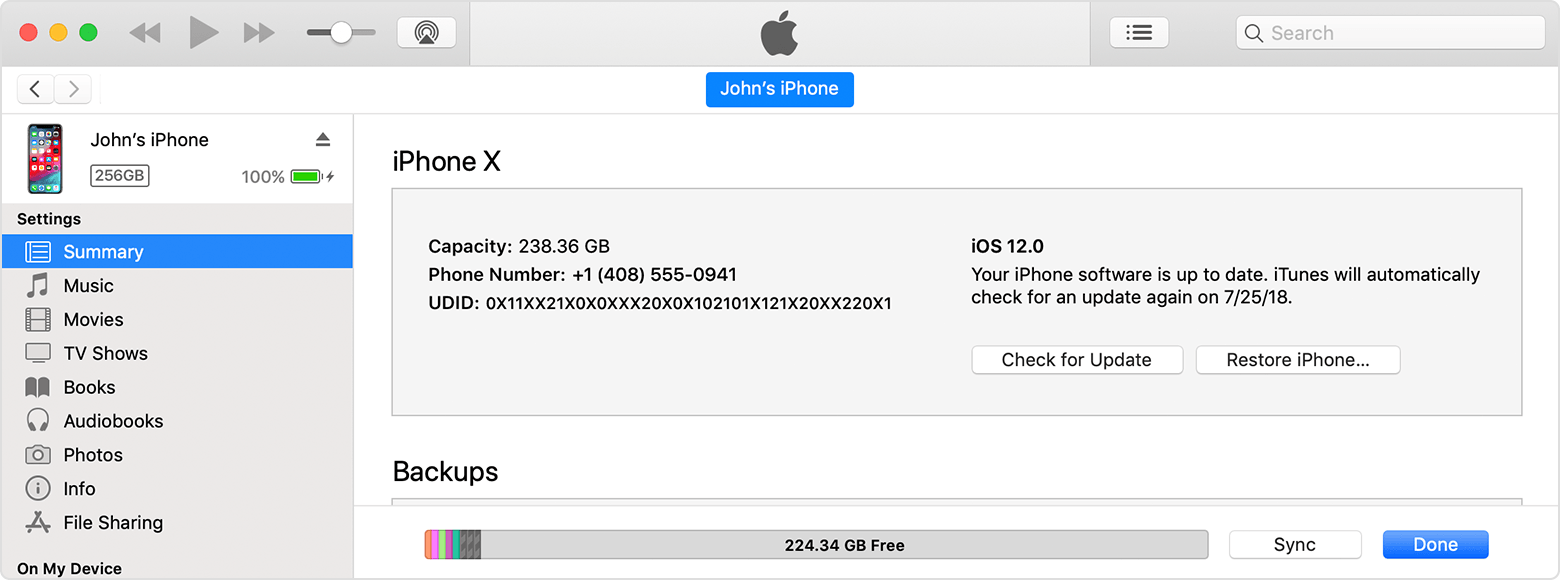
3. Click the device button in iTunes toolbar. If you don't see your device, learn what to do.
4. In the Summary tab, click Check for Update.
An iTunes window showing the Summary tab.


5. Click Download and Update. Continue by following the onscreen instructions.
6. If asked, enter your passcode. If you don't know your passcode, learn what to do.


Hope that helps.


Take care.


2 replies
Question marked as Top-ranking reply

Jun 27, 2023 2:26 PM in response to rich_IB42

Thanks for reaching out rich_IB42,


It sounds like you're having some trouble updating your iPad over Wi-Fi. We can help.


While we can't say for certain why you're not able to update your iPad, we can recommend a different method to update instead. If you have access to a Mac or Windows PC, you can follow these steps to Update your iPhone, iPad, or iPod touch with iTunes:


If you have a Mac, check that your computer is running macOS Mojave or earlier. Using a Mac with macOS Catalina or later? Update your device using the Finder instead. If you're not sure which macOS you have, you can find out which macOS your Mac is using.

Update your iPhone, iPad, or iPod touch using iTunes
1. Open iTunes on your Mac with macOS Mojave or earlier or on your Windows PC.
2. Connect your device to your computer.
3. Click the device button in iTunes toolbar. If you don't see your device, learn what to do.
4. In the Summary tab, click Check for Update.
An iTunes window showing the Summary tab.


5. Click Download and Update. Continue by following the onscreen instructions.
6. If asked, enter your passcode. If you don't know your passcode, learn what to do.


Hope that helps.


Take care.


Jun 27, 2023 3:18 PM in response to rich_IB42

If your iPad is capable of update to a more recent version of iOS/iPadOS than is currently installed, these support pages outline both the available methods by which the update can be performed - and troubleshooting should you experience difficulties:

Update your iPhone, iPad or iPod touch – Apple Support

If you can't update or restore your iPhone, iPad or iPod touch – Apple Support

If your iPhone, iPad or iPod touch won’t update - Apple Support

iOS update and restore errors – Apple Support


Be aware that while an iPad may be capable of update, in some circumstances you may need to use a computer to perform the update. To do so, you will need access to either a Windows PC (with iTunes for Windows installed) or a Mac (with iTunes or Finder - as appropriate for the installed version of macOS). Ensure that your installed version of iTunes has been updated to the most recent version; the essential device drivers are included.

Download and use iTunes for Windows – Apple Support

Update to the latest version of iTunes – Apple Support

Update software on iPhone, iPad or iPod touch in iTunes on PC - Apple Support


If you have a beta profile installed, ensure this has been removed from your iPad - as, otherwise, installation of production software updates may be inhibited. This support page provides the necessary information to remove the beta from your iPad:

How to uninstall iOS beta software - Apple Support


You should note that for your iPad to install an available update, its battery must be charged to at least 50% capacity - and/or be connected to its Power Adapter. Similarly, the iPad can only be updated over a standard WiFi connection - or be updated by a PC or Mac using iTunes or Finder - over a USB connection.

This thread has been closed by the system or the community team. You may vote for any posts you find helpful, or search the Community for additional answers.

My iPad Pro 11 update fails

Welcome to Apple Support Community
A forum where Apple customers help each other with their products. Get started with your Apple Account.