My EarPods once put in ears will play 10 sec then disconnect
Why when I put my AirPods in my ears they play like 10 sec then dosconnect
AirPods (1st generation)
Why when I put my AirPods in my ears they play like 10 sec then dosconnect
AirPods (1st generation)
Thanks for reaching out Geezcruz,
It sounds like you're having some trouble with your AirPods staying connected. We can help.
We see you came to us from If your AirPods won't connect, which has the best steps to help resolve this:
If you can't connect to your iPhone, iPad, or iPod touch
1. Make sure that your iPhone or iPod touch has the latest version of iOS or that your iPad has the latest version of iPadOS.
2. Put both AirPods in the charging case and make sure that both AirPods are charging.
3. To make sure that Bluetooth is on, go to Settings > Bluetooth.
4. If your AirPods are connected, make sure that they're selected as your audio device. If your AirPods appear in the list of devices but they don't connect, go to the next step.
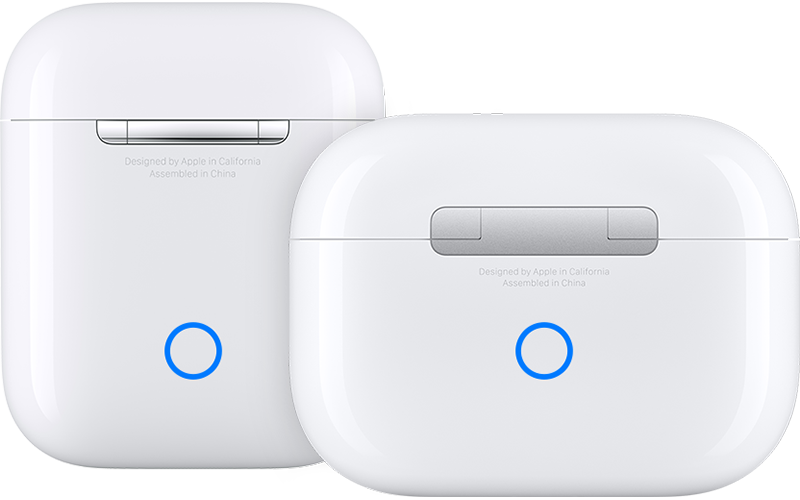
5. Close the lid, wait 15 seconds, then open the lid. Press and hold the setup button on the back of the charging case for up to 10 seconds. The status light on the front of the charging case should flash white, which means that your AirPods are ready to connect.
6. Hold the charging case, with your AirPods inside and the lid open, next to your iPhone, iPad, or iPod touch.
7. Follow the steps on the screen of your iPhone, iPad, or iPod touch.
8. Test your AirPods. If you still can't connect, reset your AirPods.
If you can't connect to your Mac
1. Make sure that you have a Mac with the latest version of macOS.
2. Put both AirPods in the charging case and make sure that both AirPods are charging.
3. To make sure that Bluetooth is on, choose Apple menu > System Settings, then click Bluetooth.
4. If your AirPods are connected, make sure that they're selected as your audio device. If your AirPods appear in the list of devices but they don't connect, click the X to the right of your AirPods to remove them from the list.
5. Close the lid, wait 15 seconds, then open the lid. Press and hold the setup button on the charging case for up to 10 seconds. The status light should flash white, which means that your AirPods are ready to connect.
6. Hold the charging case, with your AirPods inside and the lid open, next to your Mac.
7. Follow the steps on the screen of your Mac.
8. Test your AirPods. If you still can't connect, reset your AirPods.
If those steps don't help, let us know the following to help ensure the best troubleshooting steps moving forward:
Hope that helps.
Take care.
Thanks for reaching out Geezcruz,
It sounds like you're having some trouble with your AirPods staying connected. We can help.
We see you came to us from If your AirPods won't connect, which has the best steps to help resolve this:
If you can't connect to your iPhone, iPad, or iPod touch
1. Make sure that your iPhone or iPod touch has the latest version of iOS or that your iPad has the latest version of iPadOS.
2. Put both AirPods in the charging case and make sure that both AirPods are charging.
3. To make sure that Bluetooth is on, go to Settings > Bluetooth.
4. If your AirPods are connected, make sure that they're selected as your audio device. If your AirPods appear in the list of devices but they don't connect, go to the next step.
5. Close the lid, wait 15 seconds, then open the lid. Press and hold the setup button on the back of the charging case for up to 10 seconds. The status light on the front of the charging case should flash white, which means that your AirPods are ready to connect.
6. Hold the charging case, with your AirPods inside and the lid open, next to your iPhone, iPad, or iPod touch.
7. Follow the steps on the screen of your iPhone, iPad, or iPod touch.
8. Test your AirPods. If you still can't connect, reset your AirPods.
If you can't connect to your Mac
1. Make sure that you have a Mac with the latest version of macOS.
2. Put both AirPods in the charging case and make sure that both AirPods are charging.
3. To make sure that Bluetooth is on, choose Apple menu > System Settings, then click Bluetooth.
4. If your AirPods are connected, make sure that they're selected as your audio device. If your AirPods appear in the list of devices but they don't connect, click the X to the right of your AirPods to remove them from the list.
5. Close the lid, wait 15 seconds, then open the lid. Press and hold the setup button on the charging case for up to 10 seconds. The status light should flash white, which means that your AirPods are ready to connect.
6. Hold the charging case, with your AirPods inside and the lid open, next to your Mac.
7. Follow the steps on the screen of your Mac.
8. Test your AirPods. If you still can't connect, reset your AirPods.
If those steps don't help, let us know the following to help ensure the best troubleshooting steps moving forward:
Hope that helps.
Take care.
My EarPods once put in ears will play 10 sec then disconnect