My left side of my airpod won’t contact. I cleaned my AirPod and restart and it wouldn’t work.
My left side of my airpod won’t contact. I cleaned my AirPod and restart and it wouldn’t work.
My left side of my airpod won’t contact. I cleaned my AirPod and restart and it wouldn’t work.
Hello shiran82,
Welcome to Apple Support Communities!
We understand your left AirPod won't connect. We're here to help.
The article you came from, If your AirPods won't connect, is the best resource for when your AirPods won't connect.
If you can't connect to your iPhone, iPad, or iPod touch
1. Make sure that your iPhone or iPod touch has the latest version of iOS or that your iPad has the latest version of iPadOS.
2. Put both AirPods in the charging case and make sure that both AirPods are charging.
3. To make sure that Bluetooth is on, go to Settings > Bluetooth.
4. If your AirPods are connected, make sure that they're selected as your audio device. If your AirPods appear in the list of devices but they don't connect, go to the next step.
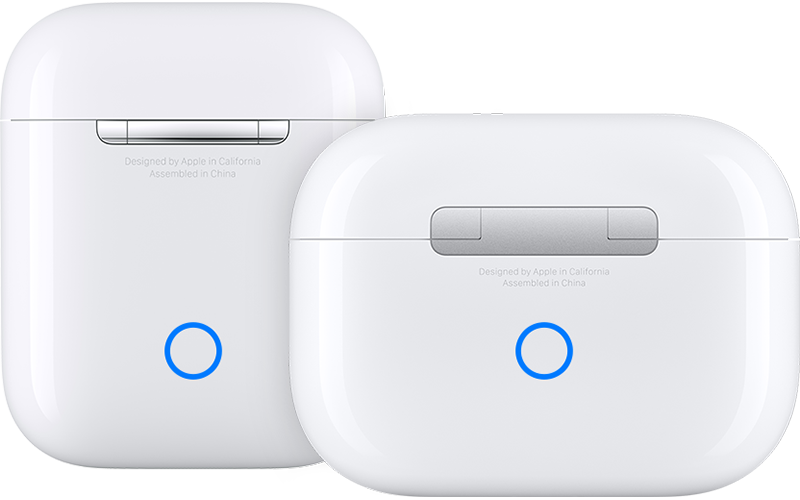
5. Close the lid, wait 15 seconds, then open the lid. Press and hold the setup button on the back of the charging case for up to 10 seconds. The status light on the front of the charging case should flash white, which means that your AirPods are ready to connect.
6. Hold the charging case, with your AirPods inside and the lid open, next to your iPhone, iPad, or iPod touch.
7. Follow the steps on the screen of your iPhone, iPad, or iPod touch.
8. Test your AirPods. If you still can't connect, reset your AirPods.
Thank you for using Apple Support Communities.
Take care!
Hello shiran82,
Welcome to Apple Support Communities!
We understand your left AirPod won't connect. We're here to help.
The article you came from, If your AirPods won't connect, is the best resource for when your AirPods won't connect.
If you can't connect to your iPhone, iPad, or iPod touch
1. Make sure that your iPhone or iPod touch has the latest version of iOS or that your iPad has the latest version of iPadOS.
2. Put both AirPods in the charging case and make sure that both AirPods are charging.
3. To make sure that Bluetooth is on, go to Settings > Bluetooth.
4. If your AirPods are connected, make sure that they're selected as your audio device. If your AirPods appear in the list of devices but they don't connect, go to the next step.
5. Close the lid, wait 15 seconds, then open the lid. Press and hold the setup button on the back of the charging case for up to 10 seconds. The status light on the front of the charging case should flash white, which means that your AirPods are ready to connect.
6. Hold the charging case, with your AirPods inside and the lid open, next to your iPhone, iPad, or iPod touch.
7. Follow the steps on the screen of your iPhone, iPad, or iPod touch.
8. Test your AirPods. If you still can't connect, reset your AirPods.
Thank you for using Apple Support Communities.
Take care!
My left side of my airpod won’t contact. I cleaned my AirPod and restart and it wouldn’t work.