
i locked my iphone by accident
i locked my iphone by accident
i locked my iphone by accident
Hello Luismartin2015,
Thank you for reaching out to Apple Support Communities, and we'll be happy to help in any way we can. We understand you're having issues with your iPhone being locked. If you're referring to forgetting the passcode, follow the steps here to resolve the issue: If you forgot your iPhone passcode - Apple Support
"Forgot your iPhone passcode? Learn how to put your iPhone into recovery mode so you can erase it and set it up again.
If you enter the wrong passcode on your iPhone Lock Screen too many times, an alert lets you know that your iPhone is disabled. (Learn what to do if you see "[Device] unavailable" or "Security Lockout" on your iPhone or iPad.)
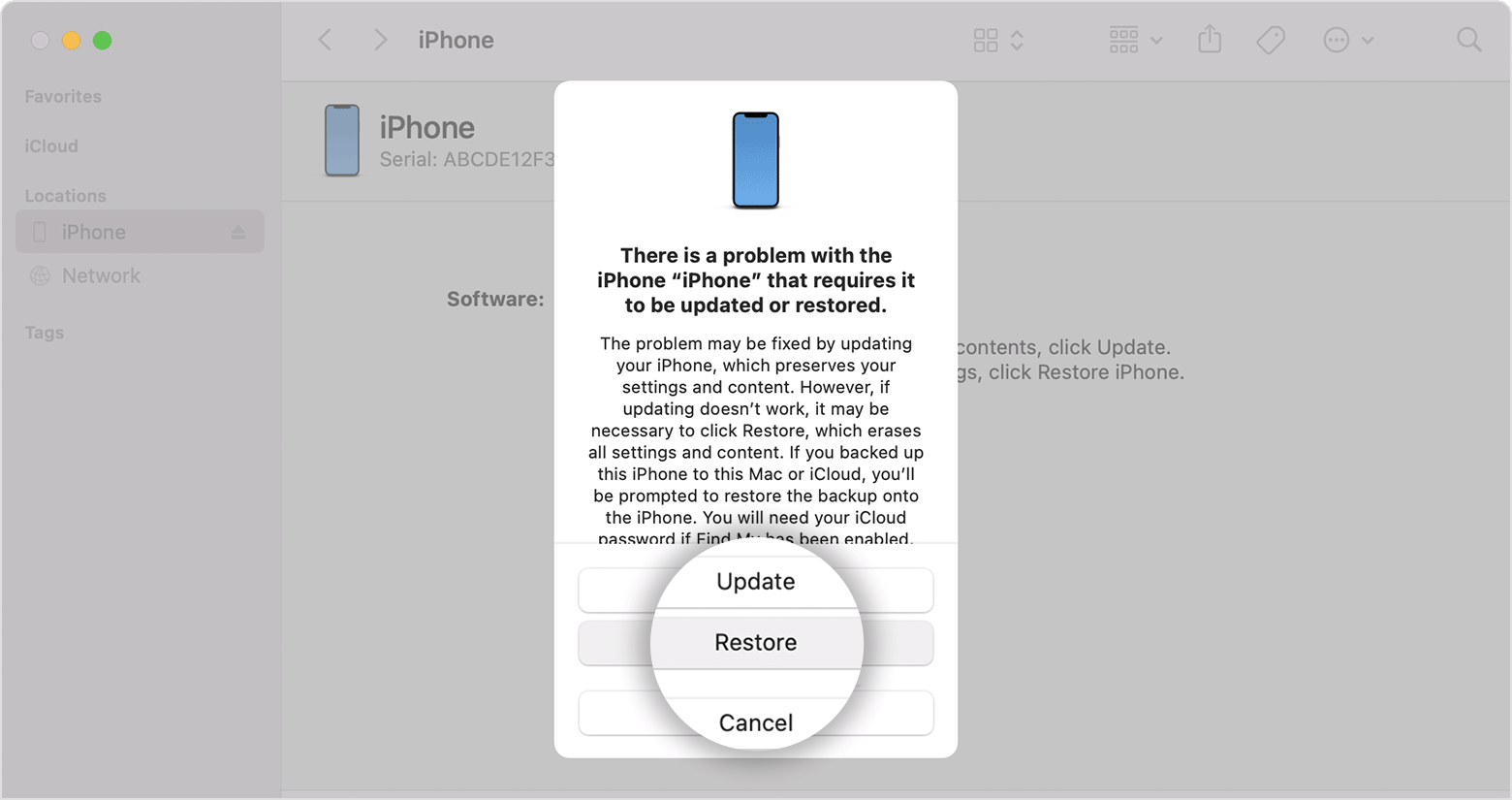
If you can’t remember your passcode when you try again, use a computer to put your iPhone in recovery mode. Recovery mode allows you to erase the iPhone, giving you access to set it up again.
After you erase your iPhone, you can restore your data and settings from a backup. If you didn't back up your iPhone, you can set it up as a new device and then download any data that you have in iCloud.

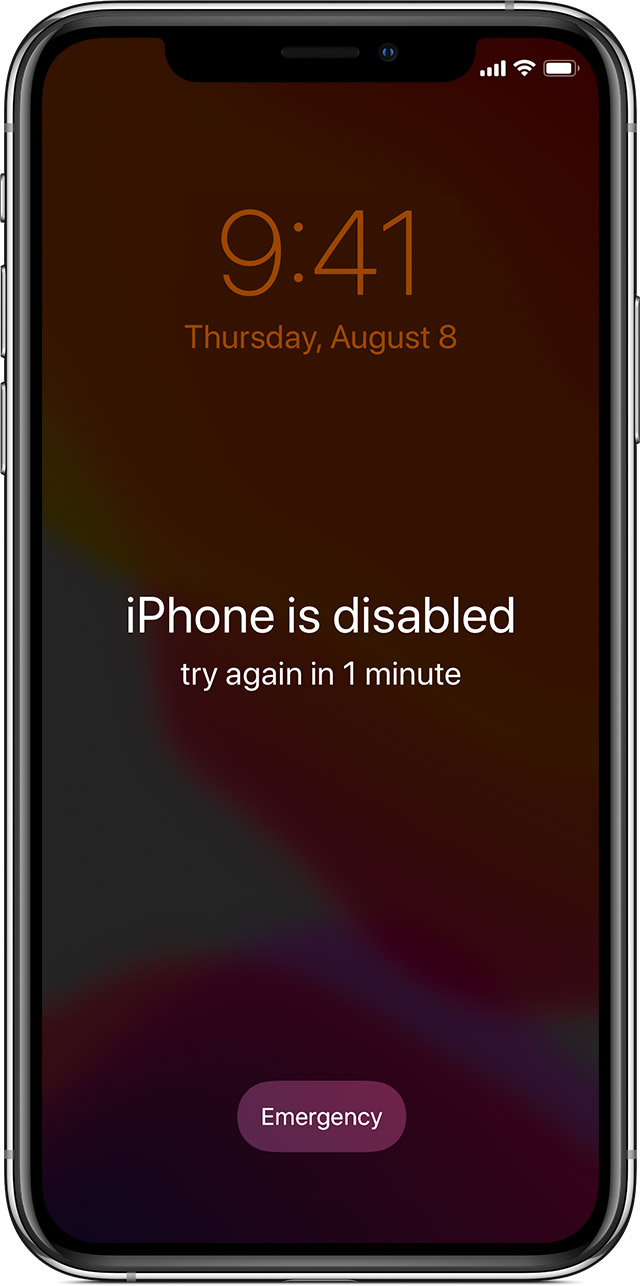
Step 1: Make sure that you have a computer (Mac or PC)
This process requires a Mac or PC. If you're using a PC, make sure that it has Windows 10 or later, and that iTunes is installed. You also need the cable that came with your iPhone, or another compatible cable, to connect your iPhone to the computer.
If you don't have a computer and you can't borrow one, you need to go to an Apple Retail Store or Apple Authorized Service Provider for help.

Step 2: Turn off your iPhone
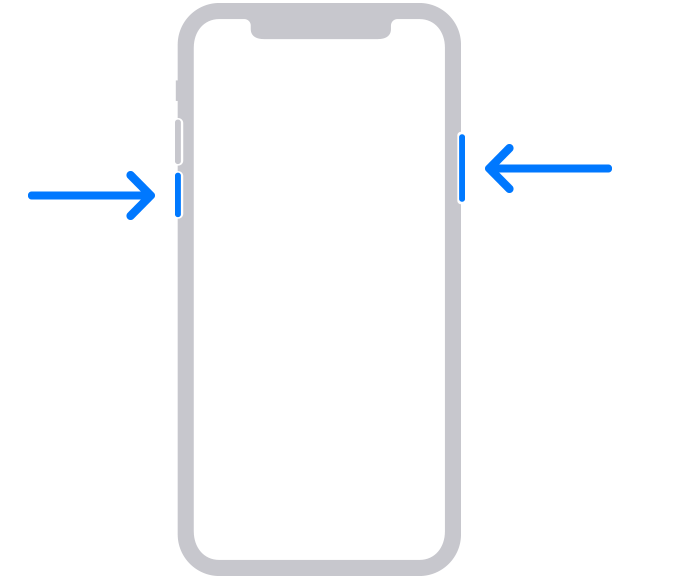
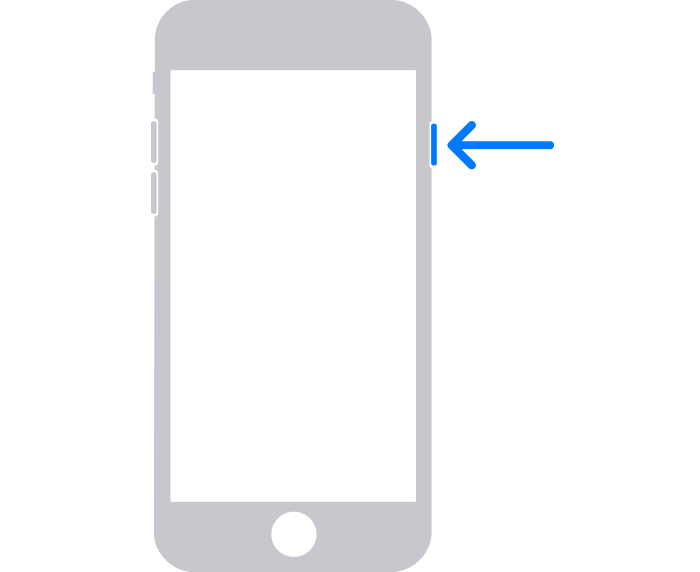
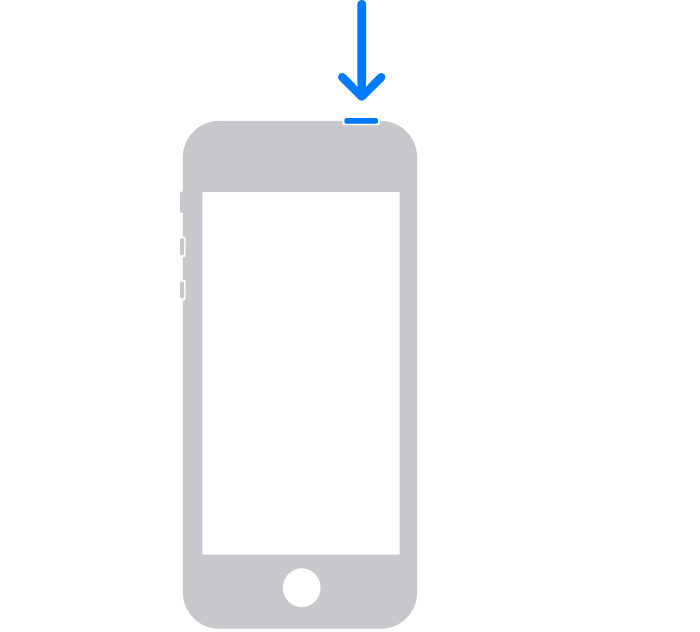
Step 3: Put your iPhone in recovery mode
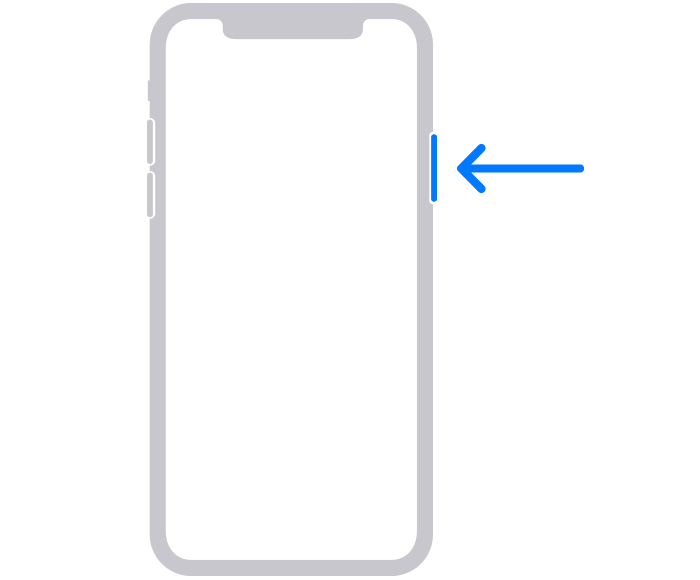
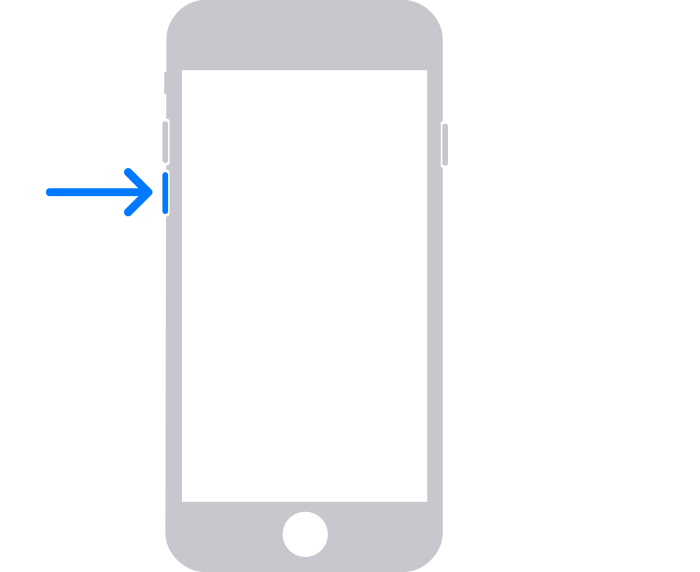
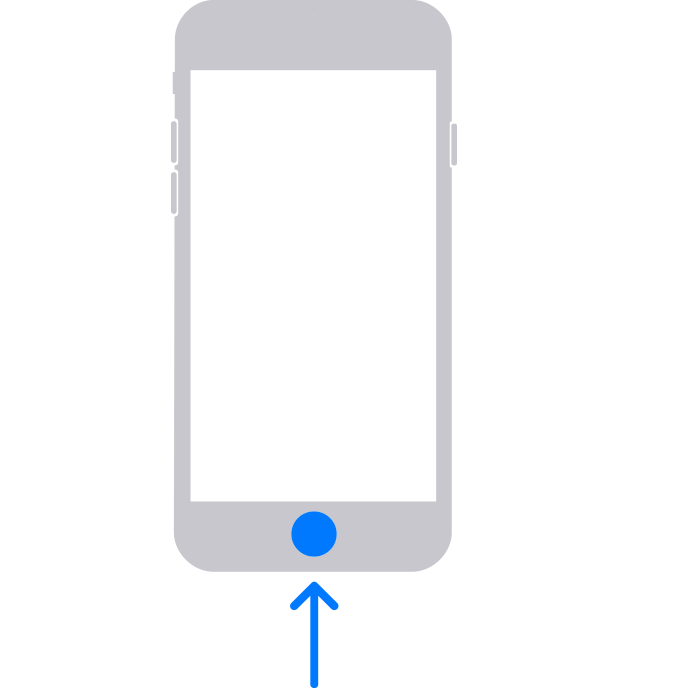
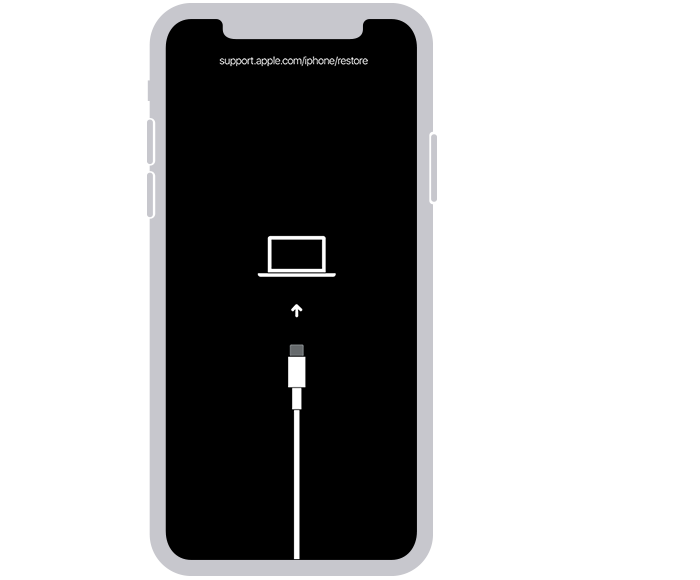
If you can’t get your iPhone to show the recovery mode screen and you need help, contact Apple Support.
Step 4: Restore your iPhone
Need more help?
Learn what to do if you see an error when you update or restore your iPhone, iPad, or iPod.
If you can't complete any of these steps, if you're still prompted for a passcode, or if you need any other assistance, contact Apple Support."
If you're referring to Activation Lock on your Apple ID, follow the steps here instead: Activation Lock for iPhone, iPad, and iPod touch - Apple Support
"Find My includes Activation Lock — a feature that's designed to prevent anyone else from using your iPhone, iPad, or iPod touch, if it's ever lost or stolen. Activation Lock turns on automatically when you turn on Find My on your device.
Activation Lock helps you keep your device secure, even if it's in the wrong hands, and can improve your chances of recovering it. Even if you erase your device remotely, Activation Lock can continue to deter anyone from reactivating your device without your permission. All you need to do is keep Find My turned on, and remember your Apple ID and password.
Here's how it works
Each time an iPhone, iPad, iPod touch, Apple Watch, or Mac computer that has an Apple T2 security chip or Apple silicon is activated or recovered, the device contacts Apple to check whether Activation Lock is turned on.
Activation Lock turns on automatically when you set up Find My.* After it's turned on, Apple securely stores your Apple ID on its activation servers and links it to your device. Your Apple ID password or device passcode is required before anyone can turn off Find My, erase your device, or reactivate and use your device.
* Learn how Activation Lock works for devices enrolled in Mobile Device Management
If your device is lost or stolen
If you ever misplace your device — whether it’s lost or you think it might have been stolen — you should immediately use Mark As Lost in the Find My app.
Mark As Lost locks your screen with a passcode and lets you display a custom message with your phone number to help you get it back. You can also remotely erase your device if needed. Your custom message continues to display even after the device is erased.
While Activation Lock works in the background to make it more difficult for someone to use or sell your missing device, Lost Mode clearly shows anyone who finds your device that it still belongs to you and can’t be reactivated without your password.
Learn what to do if your device is lost or stolen
If you forget your Apple ID or password
If you can't find your Apple ID or reset your password, you'll lose access to your account and might be unable to use or reactivate your device. To help prevent this, visit your Apple ID account page periodically to review and update your account information.
Check for Activation Lock before you buy a device from someone else
Before you buy an iPhone, iPad, or iPod touch from someone other than Apple or an Apple Authorized Reseller, make sure that the device is erased and no longer linked to the previous owner’s account.
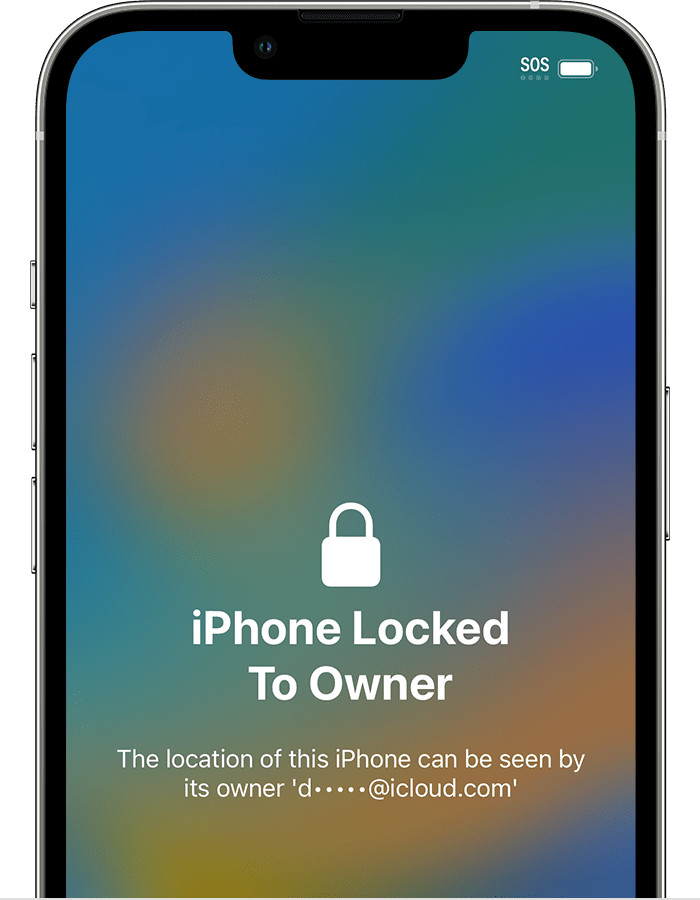
On a device with iOS or iPadOS 15 or later that is protected by Activation Lock, you see an "iPhone Locked to Owner" screen when you turn on or wake the device. Don't take ownership of any used iPhone, iPad, or iPod touch if it's protected by Activation Lock.
If you don't see that screen, follow these steps to check if the device is ready to use:
A device is ready for you to use when you see the Hello screen."
We hope this helps.
Cheers!
Hello Luismartin2015,
Thank you for reaching out to Apple Support Communities, and we'll be happy to help in any way we can. We understand you're having issues with your iPhone being locked. If you're referring to forgetting the passcode, follow the steps here to resolve the issue: If you forgot your iPhone passcode - Apple Support
"Forgot your iPhone passcode? Learn how to put your iPhone into recovery mode so you can erase it and set it up again.
If you enter the wrong passcode on your iPhone Lock Screen too many times, an alert lets you know that your iPhone is disabled. (Learn what to do if you see "[Device] unavailable" or "Security Lockout" on your iPhone or iPad.)
If you can’t remember your passcode when you try again, use a computer to put your iPhone in recovery mode. Recovery mode allows you to erase the iPhone, giving you access to set it up again.
After you erase your iPhone, you can restore your data and settings from a backup. If you didn't back up your iPhone, you can set it up as a new device and then download any data that you have in iCloud.
Step 1: Make sure that you have a computer (Mac or PC)
This process requires a Mac or PC. If you're using a PC, make sure that it has Windows 10 or later, and that iTunes is installed. You also need the cable that came with your iPhone, or another compatible cable, to connect your iPhone to the computer.
If you don't have a computer and you can't borrow one, you need to go to an Apple Retail Store or Apple Authorized Service Provider for help.
Step 2: Turn off your iPhone
Step 3: Put your iPhone in recovery mode
If you can’t get your iPhone to show the recovery mode screen and you need help, contact Apple Support.
Step 4: Restore your iPhone
Need more help?
Learn what to do if you see an error when you update or restore your iPhone, iPad, or iPod.
If you can't complete any of these steps, if you're still prompted for a passcode, or if you need any other assistance, contact Apple Support."
If you're referring to Activation Lock on your Apple ID, follow the steps here instead: Activation Lock for iPhone, iPad, and iPod touch - Apple Support
"Find My includes Activation Lock — a feature that's designed to prevent anyone else from using your iPhone, iPad, or iPod touch, if it's ever lost or stolen. Activation Lock turns on automatically when you turn on Find My on your device.
Activation Lock helps you keep your device secure, even if it's in the wrong hands, and can improve your chances of recovering it. Even if you erase your device remotely, Activation Lock can continue to deter anyone from reactivating your device without your permission. All you need to do is keep Find My turned on, and remember your Apple ID and password.
Here's how it works
Each time an iPhone, iPad, iPod touch, Apple Watch, or Mac computer that has an Apple T2 security chip or Apple silicon is activated or recovered, the device contacts Apple to check whether Activation Lock is turned on.
Activation Lock turns on automatically when you set up Find My.* After it's turned on, Apple securely stores your Apple ID on its activation servers and links it to your device. Your Apple ID password or device passcode is required before anyone can turn off Find My, erase your device, or reactivate and use your device.
* Learn how Activation Lock works for devices enrolled in Mobile Device Management
If your device is lost or stolen
If you ever misplace your device — whether it’s lost or you think it might have been stolen — you should immediately use Mark As Lost in the Find My app.
Mark As Lost locks your screen with a passcode and lets you display a custom message with your phone number to help you get it back. You can also remotely erase your device if needed. Your custom message continues to display even after the device is erased.
While Activation Lock works in the background to make it more difficult for someone to use or sell your missing device, Lost Mode clearly shows anyone who finds your device that it still belongs to you and can’t be reactivated without your password.
Learn what to do if your device is lost or stolen
If you forget your Apple ID or password
If you can't find your Apple ID or reset your password, you'll lose access to your account and might be unable to use or reactivate your device. To help prevent this, visit your Apple ID account page periodically to review and update your account information.
Check for Activation Lock before you buy a device from someone else
Before you buy an iPhone, iPad, or iPod touch from someone other than Apple or an Apple Authorized Reseller, make sure that the device is erased and no longer linked to the previous owner’s account.
On a device with iOS or iPadOS 15 or later that is protected by Activation Lock, you see an "iPhone Locked to Owner" screen when you turn on or wake the device. Don't take ownership of any used iPhone, iPad, or iPod touch if it's protected by Activation Lock.
If you don't see that screen, follow these steps to check if the device is ready to use:
A device is ready for you to use when you see the Hello screen."
We hope this helps.
Cheers!
i locked my iphone by accident

