Payment issue

I have been trying for two weeks to update my payment information and the system just keeps telling me that they already have this card number but I keep getting a notification to update it. I would really appreciate it if someone could fix this for me.

iPhone 11, iOS 16

Posted on Jul 4, 2023 5:32 AM

Reply
Question marked as Top-ranking reply

Posted on Jul 5, 2023 12:16 PM

Hello J-c_k,


Thank you for reaching out to Apple Support Communities, and we'll be happy to help in any way we can. We understand you're having issues with updating your payment information. Try the steps listed here to see if they resolve the issue: If you need to change or update your Apple ID payment method - Apple Support


"Learn how to edit the payment method that you use for subscriptions like iCloud+ and Apple Music, apps from the App Store, and other Apple media purchases.


If you change your address, the credit or debit card information that you use with your Apple ID might be automatically updated by your financial institution, and you don't need to take action. But if there's an issue, add a new card first, then remove the old card.


Update your payment method on your iPhone or iPad

  1. Open the Settings app.
  2. Tap your name.
  3. Tap Payment & Shipping. You might be asked to sign in with your Apple ID.
  4. Tap Add Payment Method, enter the new payment method, then tap Done.
  5. Tap Edit.
  6. Tap the red delete button next to the old payment method, then tap Delete.
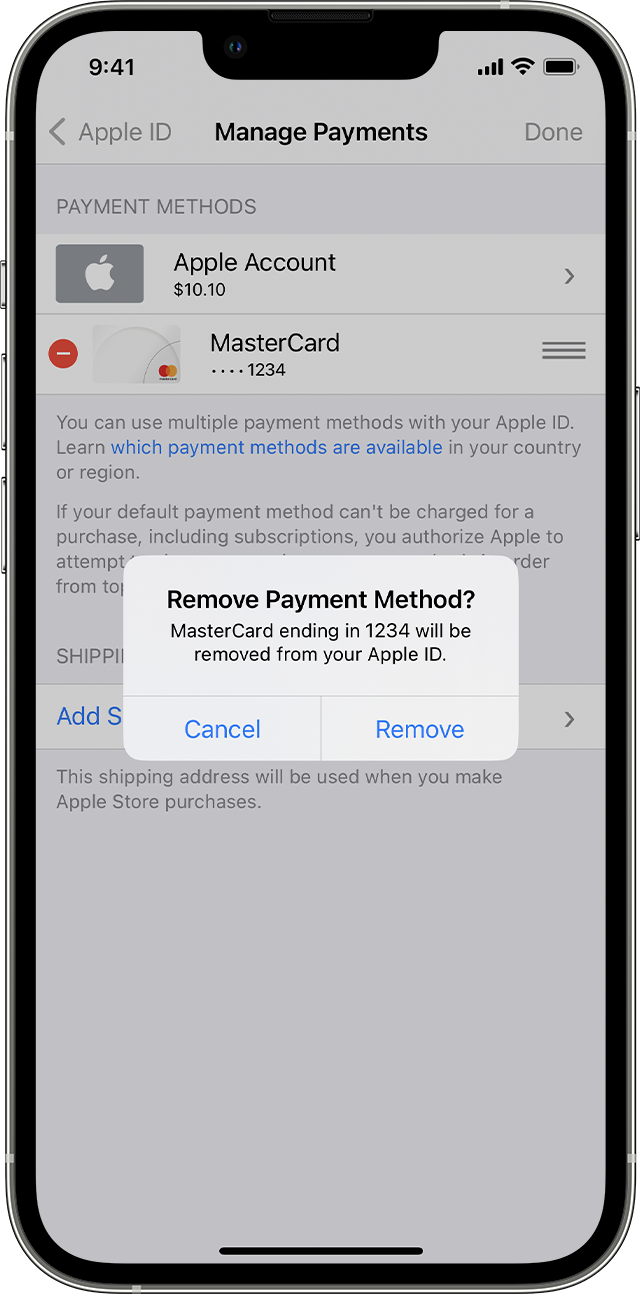
On iPhone, a message says Remove Payment Method. 

Update your payment method on your Mac

  1. Open the App Store.
  2. Click your name or the Sign In button.
  3. Click Account Settings.
  4. Next to Payment Information, click Manage Payments. (If you're using an older version of macOS, click Edit next to Payment Type.)
  5. Click Add Payment, then enter the new payment method. Click Done.
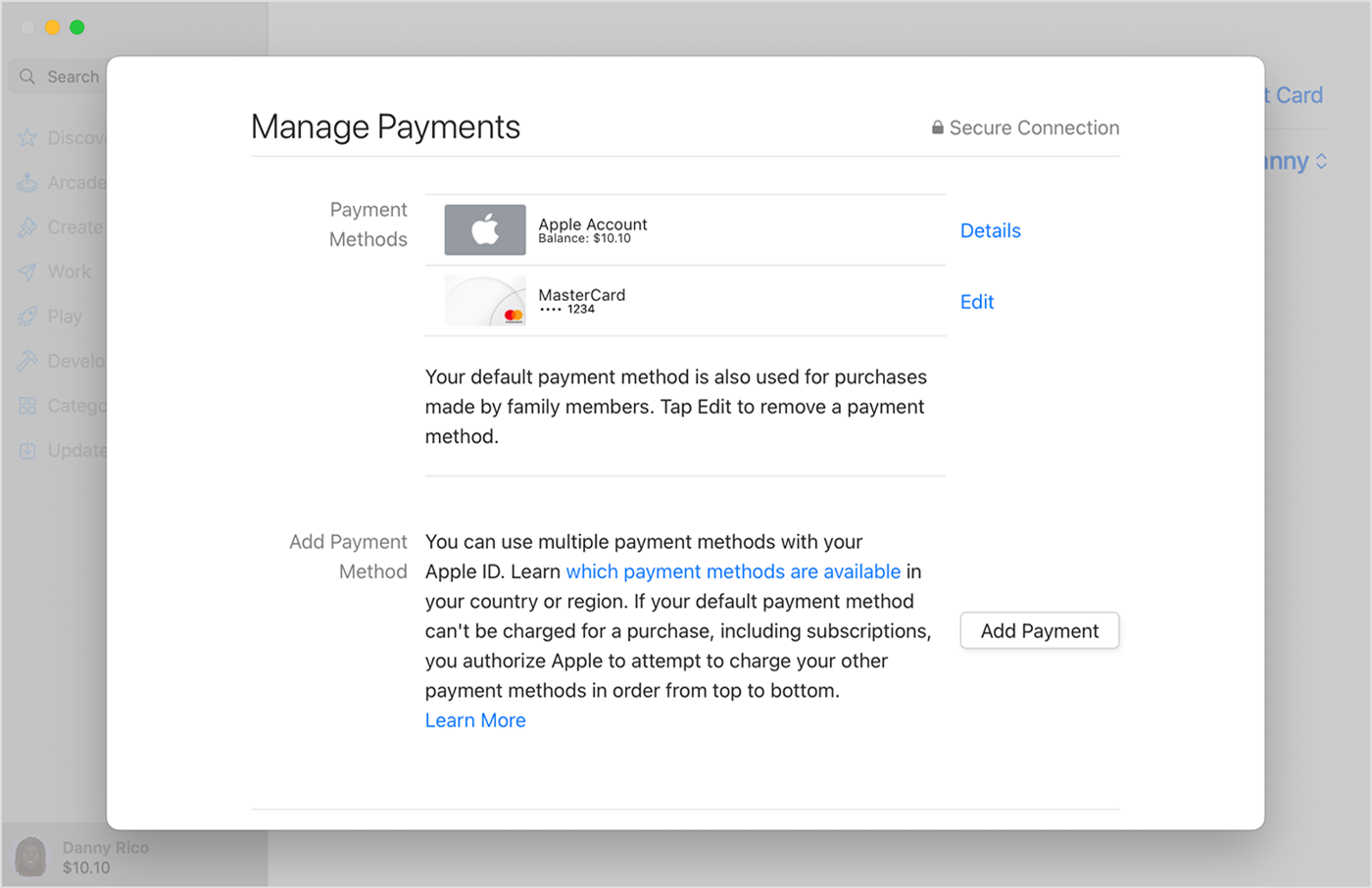
On Mac, a credit card and Apple Account balance appear in the list of payment methods.    

       6. Click Edit next to the old payment method, then click Remove Payment Method.
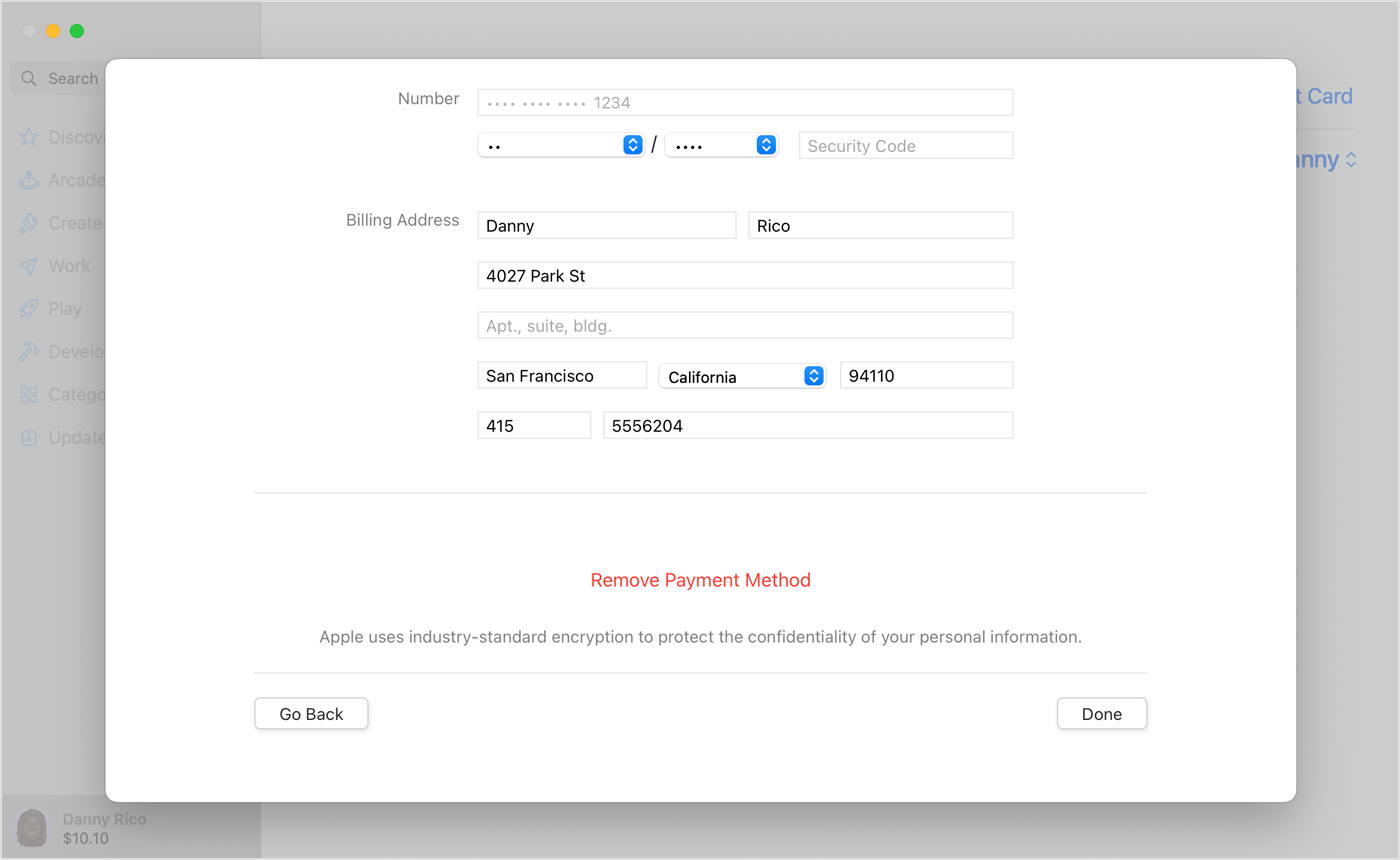
On Mac, payment details like name and address appear above the Remove Payment Method button. 

Update your payment method on your Windows PC or Microsoft Surface

  1. Open iTunes.
  2. In the menu bar at the top of the iTunes window, choose Account, then choose View My Account.
  3. Choose Manage Payments. (If you're using an older version of iTunes, tap or click Edit next to Payment Type.)
  4. Choose Add Payment. 
  5. Enter your new payment method, then choose Done."


If not, please reach out to Apple's billing team directly for assistance here: Get Support


We hope this helps.


Cheers!


1 reply
Question marked as Top-ranking reply

Jul 5, 2023 12:16 PM in response to J-c_k

Hello J-c_k,


Thank you for reaching out to Apple Support Communities, and we'll be happy to help in any way we can. We understand you're having issues with updating your payment information. Try the steps listed here to see if they resolve the issue: If you need to change or update your Apple ID payment method - Apple Support


"Learn how to edit the payment method that you use for subscriptions like iCloud+ and Apple Music, apps from the App Store, and other Apple media purchases.


If you change your address, the credit or debit card information that you use with your Apple ID might be automatically updated by your financial institution, and you don't need to take action. But if there's an issue, add a new card first, then remove the old card.


Update your payment method on your iPhone or iPad

  1. Open the Settings app.
  2. Tap your name.
  3. Tap Payment & Shipping. You might be asked to sign in with your Apple ID.
  4. Tap Add Payment Method, enter the new payment method, then tap Done.
  5. Tap Edit.
  6. Tap the red delete button next to the old payment method, then tap Delete.

On iPhone, a message says Remove Payment Method. 

Update your payment method on your Mac

  1. Open the App Store.
  2. Click your name or the Sign In button.
  3. Click Account Settings.
  4. Next to Payment Information, click Manage Payments. (If you're using an older version of macOS, click Edit next to Payment Type.)
  5. Click Add Payment, then enter the new payment method. Click Done.

On Mac, a credit card and Apple Account balance appear in the list of payment methods.    

       6. Click Edit next to the old payment method, then click Remove Payment Method.

On Mac, payment details like name and address appear above the Remove Payment Method button. 

Update your payment method on your Windows PC or Microsoft Surface

  1. Open iTunes.
  2. In the menu bar at the top of the iTunes window, choose Account, then choose View My Account.
  3. Choose Manage Payments. (If you're using an older version of iTunes, tap or click Edit next to Payment Type.)
  4. Choose Add Payment. 
  5. Enter your new payment method, then choose Done."


If not, please reach out to Apple's billing team directly for assistance here: Get Support


We hope this helps.


Cheers!


This thread has been closed by the system or the community team. You may vote for any posts you find helpful, or search the Community for additional answers.

Payment issue

Welcome to Apple Support Community
A forum where Apple customers help each other with their products. Get started with your Apple Account.