Photos from iPhone 13 showing error on iPhone 14 Pro?

Hi,


I recently upgraded from an iPhone 13 to a 14 Pro. When I was transferring everything over to the 14 Pro, I had no issues. However, when I go and attempt to look at Live Photos, or really any photo, taken on my 13 I am getting an error message stating “Unable to Load Photo” and “An error occurred while trying to load a higher quality image of this photo”. (see attached photo)


How can I fix this and prevent this from happening? My photos are also synced to Google Photos and the issue shows on my phone, but not on my MacBook.

iPhone 14 Pro, iOS 16

Posted on Jul 4, 2023 5:07 PM

Reply
Question marked as Top-ranking reply

Posted on Jul 5, 2023 2:40 PM

Hello AmbHilbish,


It sound like you're running into an issue syncing photos from iCloud to your new iPhone. We have a great support article that might help with this. Please take a look at it here: If your iCloud Photos aren't syncing to your device - Apple Support. Follow this guidance:


"Check the status of your library in Photos

If your photos aren't syncing, check the status bar in the Photos app for a status message, then follow the onscreen directions or learn what your status message means


On your iPhone or iPad

      1. Open the Photos app. 
      2. In the Library tab, tap All Photos.
      3. Scroll to the bottom to see the status bar. 
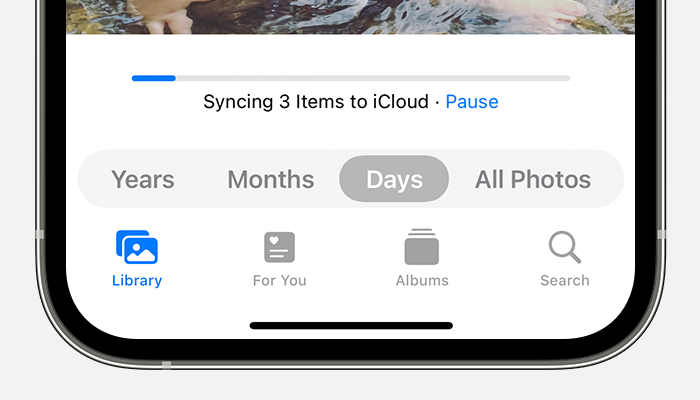
      4. The status bar at the bottom of the Photos app shows that 3 items are syncing to iCloud.


On your Mac

      1. Open the Photos app.
      2. Select Library in the Photos sidebar.
      3. Click All Photos in the toolbar at the top of the window, then scroll to the bottom.


What your status message means

If your iCloud Photos aren't syncing, do not turn iCloud Photos off. Syncing with iCloud might be paused for a variety of reasons, including if you turn on certain device settings or need more iCloud storage.


      • If you see Saving Cellular Data or Low Cellular Data Mode

iCloud Photos automatically pauses syncing until you're connected to Wi-Fi for a variety of reasons. If this happens, you might see a status message and the option to Sync Now. To sync your photos to iCloud, tap Sync Now. Or, turn off Low Data Mode


      • If you see Saving Battery Power or Low Power Mode

iCloud Photos temporarily pauses syncing if your device is on Low Power Mode or if it's low on power. To sync your photos to iCloud, you can charge your device's battery, turn off Low Power Mode, or tap Sync Now next to the status message.


      • If you see Waiting to Sync

If you see a status message that says Waiting to Sync, make sure that your device is connected to the internet and wait a few minutes for the sync to complete.


      • If your iCloud storage is full or almost full

If you exceed your iCloud storage limit, photos and videos won't sync to iCloud and your library won’t stay up to date across your devices. To continue using iCloud Photos, you can upgrade your storage plan or reduce the amount of storage that you're using.


      • If you see Move Photos to Personal Library to Continue Syncing

If you're a participant in an iCloud Shared Photo Library and the owner's storage is full, you won't be able to sync your Personal Library until the Shared Library owner upgrades their storage plan or reduces the amount of storage that they're using. 


If your photos still aren't syncing to iCloud

Learn what to do if you don't see a status message at the bottom of the Photos app that explains why your photos aren't syncing, or syncing is taking a long time. If you see a Couldn’t Sync [number of items] to iCloud status message, learn how to move these photos to your library


      • Connect your device to power

If your device seems to be stuck on a status message that says Syncing [number of items] to iCloud or Syncing with iCloud…, connect your iPhone or iPad to power and to Wi-Fi.


      • Check your Apple ID

Make sure that you signed in to iCloud with the correct Apple ID on your device.

Learn how to sign in to iCloud


      • Check which Library view you're in

If you set up iCloud Shared Photo Library in iOS 16.1 or later, iPadOS 16.1 or later, or macOS Ventura or later, check which Library view you're in. When you move photos to your Shared Library, you no longer see them in your Personal Library. You also won't see photos moved to your Shared Library if you're on a device with an earlier version of iOS, iPadOS, or macOS or if the iCloud Shared Photo Library owner has run out of iCloud storage.


Learn how to switch between your Personal Library and Shared Library."


We hope this helps. Let us know if we can assist with anything else at all. Take care.


5 replies
Question marked as Top-ranking reply

Jul 5, 2023 2:40 PM in response to AmbHilbish

Hello AmbHilbish,


It sound like you're running into an issue syncing photos from iCloud to your new iPhone. We have a great support article that might help with this. Please take a look at it here: If your iCloud Photos aren't syncing to your device - Apple Support. Follow this guidance:


"Check the status of your library in Photos

If your photos aren't syncing, check the status bar in the Photos app for a status message, then follow the onscreen directions or learn what your status message means


On your iPhone or iPad

      1. Open the Photos app. 
      2. In the Library tab, tap All Photos.
      3. Scroll to the bottom to see the status bar. 
      4. The status bar at the bottom of the Photos app shows that 3 items are syncing to iCloud.


On your Mac

      1. Open the Photos app.
      2. Select Library in the Photos sidebar.
      3. Click All Photos in the toolbar at the top of the window, then scroll to the bottom.


What your status message means

If your iCloud Photos aren't syncing, do not turn iCloud Photos off. Syncing with iCloud might be paused for a variety of reasons, including if you turn on certain device settings or need more iCloud storage.


      • If you see Saving Cellular Data or Low Cellular Data Mode

iCloud Photos automatically pauses syncing until you're connected to Wi-Fi for a variety of reasons. If this happens, you might see a status message and the option to Sync Now. To sync your photos to iCloud, tap Sync Now. Or, turn off Low Data Mode


      • If you see Saving Battery Power or Low Power Mode

iCloud Photos temporarily pauses syncing if your device is on Low Power Mode or if it's low on power. To sync your photos to iCloud, you can charge your device's battery, turn off Low Power Mode, or tap Sync Now next to the status message.


      • If you see Waiting to Sync

If you see a status message that says Waiting to Sync, make sure that your device is connected to the internet and wait a few minutes for the sync to complete.


      • If your iCloud storage is full or almost full

If you exceed your iCloud storage limit, photos and videos won't sync to iCloud and your library won’t stay up to date across your devices. To continue using iCloud Photos, you can upgrade your storage plan or reduce the amount of storage that you're using.


      • If you see Move Photos to Personal Library to Continue Syncing

If you're a participant in an iCloud Shared Photo Library and the owner's storage is full, you won't be able to sync your Personal Library until the Shared Library owner upgrades their storage plan or reduces the amount of storage that they're using. 


If your photos still aren't syncing to iCloud

Learn what to do if you don't see a status message at the bottom of the Photos app that explains why your photos aren't syncing, or syncing is taking a long time. If you see a Couldn’t Sync [number of items] to iCloud status message, learn how to move these photos to your library


      • Connect your device to power

If your device seems to be stuck on a status message that says Syncing [number of items] to iCloud or Syncing with iCloud…, connect your iPhone or iPad to power and to Wi-Fi.


      • Check your Apple ID

Make sure that you signed in to iCloud with the correct Apple ID on your device.

Learn how to sign in to iCloud


      • Check which Library view you're in

If you set up iCloud Shared Photo Library in iOS 16.1 or later, iPadOS 16.1 or later, or macOS Ventura or later, check which Library view you're in. When you move photos to your Shared Library, you no longer see them in your Personal Library. You also won't see photos moved to your Shared Library if you're on a device with an earlier version of iOS, iPadOS, or macOS or if the iCloud Shared Photo Library owner has run out of iCloud storage.


Learn how to switch between your Personal Library and Shared Library."


We hope this helps. Let us know if we can assist with anything else at all. Take care.


This thread has been closed by the system or the community team. You may vote for any posts you find helpful, or search the Community for additional answers.

Photos from iPhone 13 showing error on iPhone 14 Pro?

Welcome to Apple Support Community
A forum where Apple customers help each other with their products. Get started with your Apple Account.