If you can't see the option to add a data plan on your iPhone 11, there could be a few possible reasons and troubleshooting steps you can try:
- You already have a data plan activated. If you already have a data plan activated on your iPhone, you won't see the "Add Data Plan" option.
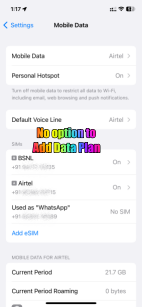
- Your carrier doesn't support adding data plans through the Settings app. Some carriers only allow you to add data plans by calling their customer service line or visiting their website.
- Check your carrier settings: Ensure that your iPhone 11 is connected to a compatible carrier network. Sometimes, carrier settings or network issues can affect the visibility of certain options. Go to "Settings" > "General" > "About" and make sure you have the latest carrier settings update installed.

- Contact your carrier: Reach out to your mobile carrier's customer support to inquire about the availability of data plans for your account and if there are any specific steps required to activate or add a data plan.
- Sometimes, a simple restart can resolve temporary software glitches. Turn off your iPhone, wait for a few seconds, and then turn it back on.
- Restart the device. That's it.

- Still not solved --> Force restart iPhone - Apple Support

- If the issue persists, you can try resetting all settings on your iPhone. This will not erase your data but will reset all personalized settings to their default values. Go to Settings > General > Transfer & Reset > Reset > Reset All Settings and confirm the action. Note that you will need to reconfigure your settings afterward. All settings—including network settings, the keyboard dictionary, the Home screen layout, location settings, privacy settings, and Apple Pay cards—are removed or reset to their defaults. No data or media are deleted.
- Reset All Settings: Return iPhone settings to their defaults - Apple Support:- Return iPhone settings to their defaults
- You can return settings to their defaults without erasing your content.
- If you want to save your settings, back up your iPhone before returning them to their defaults. For example, if you’re trying to solve a problem but returning settings to their defaults doesn’t help, you might want to restore your previous settings from a backup.
- Make sure you have the latest updates installed.
- Update Over-the-Air (OTA) —> Update your iPhone or iPad - Apple Support (IN)
- Update using iTunes/Finder —> Update your iPhone, iPad, or iPod touch - Apple Support (IN)
If none of the above steps resolve the issue, it is recommended to reach out to Apple Support or visit an authorized service center for further assistance. They can provide specific guidance based on your device model and iOS version.

