
Retrieve old text messages
How to retrieve text messages from 2021
iPhone 13 mini, iOS 16
How to retrieve text messages from 2021
iPhone 13 mini, iOS 16
Hi CGEASTCOAST,
Thank you for posting in the Apple Support Community. In order to retrieve messages that were deleted from your device, you would need to restore from a backup that included those messages. Here's how to restore from an iCloud backup:
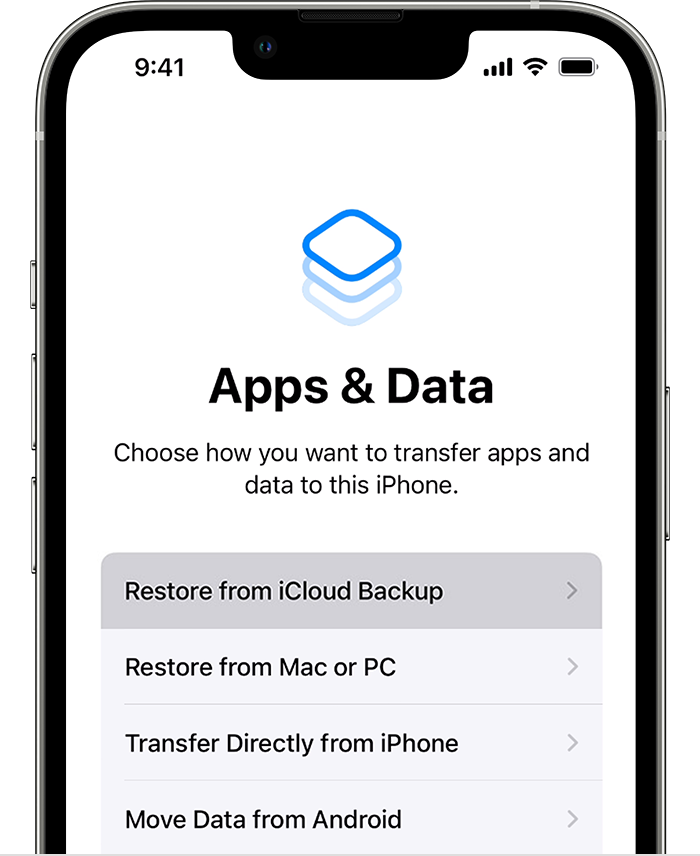
3. Sign in to iCloud with your Apple ID.
4. Choose a backup. Look at the date and size of each and pick the most relevant. After you choose a backup, the transfer starts. If a message says that a newer version of software is required, follow the onscreen steps to update. If you don't see onscreen steps to help you update, learn what to do.
5. When asked, sign in with your Apple ID to restore your apps and purchases. If you've purchased iTunes or App Store content using multiple Apple IDs, you'll be asked to sign in to each. If you can't remember your password, you can tap Skip this Step and sign in later. You won't be able to use the apps until you sign in with your Apple ID.
6. Stay connected to Wi-Fi and wait for a progress bar to appear and complete. Depending on the size of the backup and the network speed, the progress bar might need a few minutes to an hour to complete. If you disconnect from Wi-Fi too soon, the progress will pause until you reconnect.
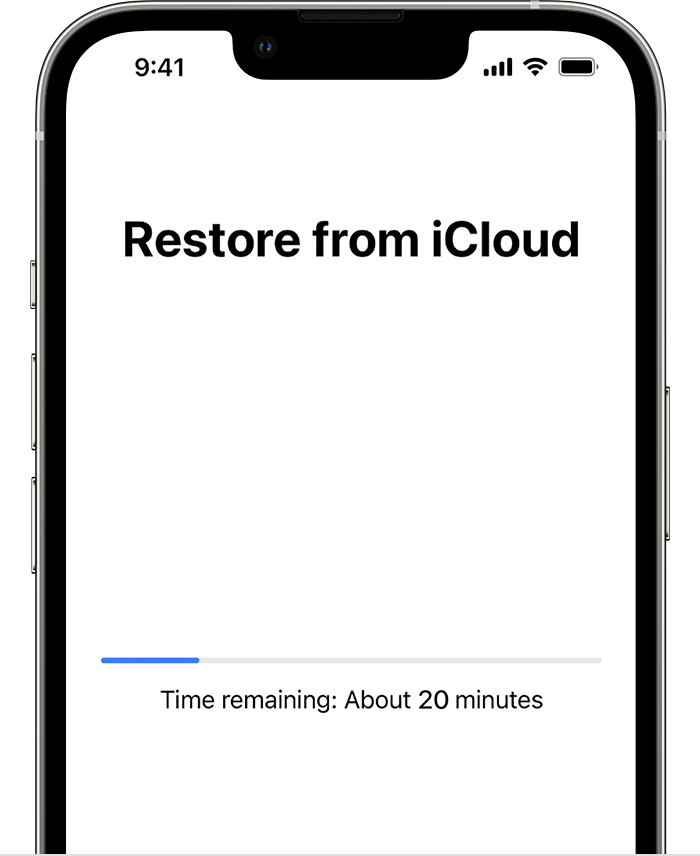
7. Now you can finish setup and enjoy your device. Content like your apps, photos, music, and other information will continue to restore in the background for the next several hours or days, depending on the amount of information there is. Try to connect often to Wi-Fi and power to let the process complete."
Find these steps, along with steps for restoring from an iTunes backup, in the article Restore your iPhone, iPad, or iPod touch from a backup.
Without the messages being included in a backup, there wouldn't be a way to retrieve them.
Hope that helps!
Hi CGEASTCOAST,
Thank you for posting in the Apple Support Community. In order to retrieve messages that were deleted from your device, you would need to restore from a backup that included those messages. Here's how to restore from an iCloud backup:
3. Sign in to iCloud with your Apple ID.
4. Choose a backup. Look at the date and size of each and pick the most relevant. After you choose a backup, the transfer starts. If a message says that a newer version of software is required, follow the onscreen steps to update. If you don't see onscreen steps to help you update, learn what to do.
5. When asked, sign in with your Apple ID to restore your apps and purchases. If you've purchased iTunes or App Store content using multiple Apple IDs, you'll be asked to sign in to each. If you can't remember your password, you can tap Skip this Step and sign in later. You won't be able to use the apps until you sign in with your Apple ID.
6. Stay connected to Wi-Fi and wait for a progress bar to appear and complete. Depending on the size of the backup and the network speed, the progress bar might need a few minutes to an hour to complete. If you disconnect from Wi-Fi too soon, the progress will pause until you reconnect.
7. Now you can finish setup and enjoy your device. Content like your apps, photos, music, and other information will continue to restore in the background for the next several hours or days, depending on the amount of information there is. Try to connect often to Wi-Fi and power to let the process complete."
Find these steps, along with steps for restoring from an iTunes backup, in the article Restore your iPhone, iPad, or iPod touch from a backup.
Without the messages being included in a backup, there wouldn't be a way to retrieve them.
Hope that helps!
I have not tried this resolution yet. I wanted to be clear that I am trying to find text messages with a specific person from July 2021. They were never deleted (by me) and I am trying to scroll back (or other method) to locate them. Thank you.
Retrieve old text messages

