Restore from iCloud backup
I can’t see an option to restore my new phone to my iCloud backup. I can only see an option to manually set up
iPhone SE (3rd generation)
I can’t see an option to restore my new phone to my iCloud backup. I can only see an option to manually set up
iPhone SE (3rd generation)
Hello ChanelBr,
Thank you for reaching out in Apple Support Communities. There are steps available to verify if an iCloud backup is available under your Apple ID account. Here are the steps on how to do that:
Find and manage backups stored in iCloud
If you use iCloud Backup, you won't find a list of your backups on iCloud.com. Here's how to find your iCloud backups on your iOS or iPadOS device, Mac, or PC.
On your iPhone, iPad, or iPod touch:
1. Go to Settings > [your name] > iCloud.
2. Tap Manage Account Storage, then tap Backups.
3. Tap a backup to see more details about it, choose which information to back up, or delete the backup.
You can choose which content to back up only from the Settings menu of the device that stores that content. For example, while you can view your iPad backup from your iPhone, you can choose which iPad content to back up only from the Settings menu of your iPad.
Following these steps can help and is outlined in this article: Locate backups of your iPhone, iPad, and iPod touch - Apple Support
If an iCloud backup exist, you can follow these steps to restore your data:
Restore your device from an iCloud backup
1. Turn on your device. You should see a Hello screen. If you already set up your device, you need to erase all of its content before you can use these steps to restore from your backup.
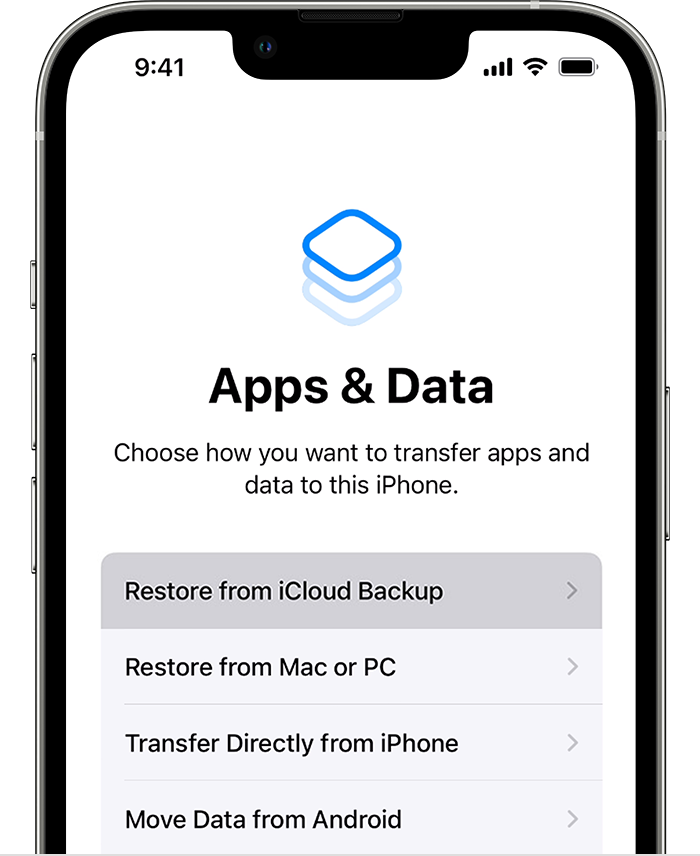
2. Follow the onscreen setup steps until you reach the Apps & Data screen, then tap Restore from iCloud Backup.
3. Sign in to iCloud with your Apple ID.
4. Choose a backup. Look at the date and size of each and pick the most relevant. After you choose a backup, the transfer starts. If a message says that a newer version of software is required, follow the onscreen steps to update. If you don't see onscreen steps to help you update, learn what to do.
5. When asked, sign in with your Apple ID to restore your apps and purchases. If you've purchased iTunes or App Store content using multiple Apple IDs, you'll be asked to sign in to each. If you can't remember your password, you can tap Skip this Step and sign in later. You won't be able to use the apps until you sign in with your Apple ID.
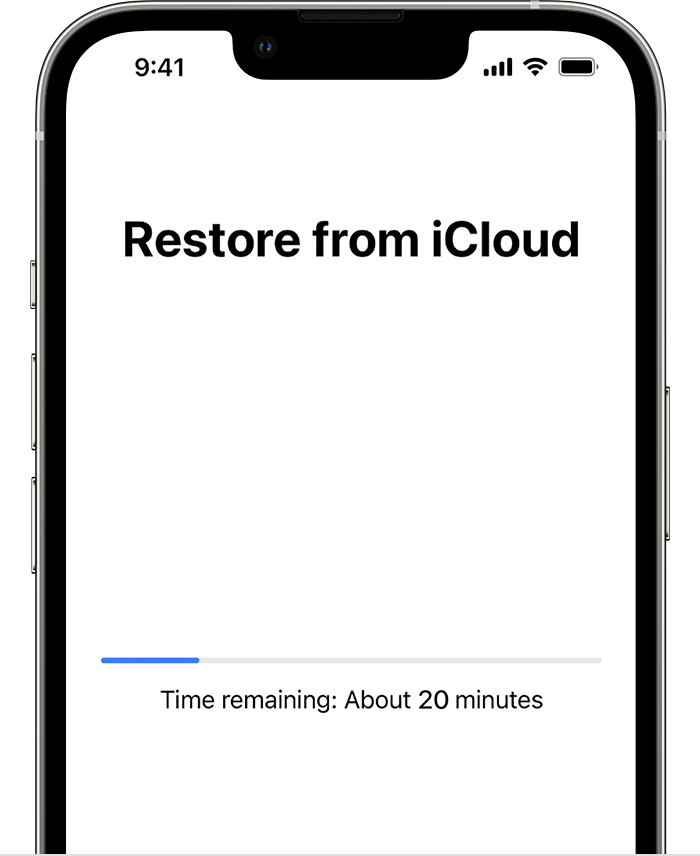
6. Stay connected to Wi-Fi and wait for a progress bar to appear and complete. Depending on the size of the backup and the network speed, the progress bar might need a few minutes to an hour to complete. If you disconnect from Wi-Fi too soon, the progress will pause until you reconnect.
7. Now you can finish setup and enjoy your device. Content like your apps, photos, music, and other information will continue to restore in the background for the next several hours or days, depending on the amount of information there is. Try to connect often to Wi-Fi and power to let the process complete.
Get help with restoring from your iCloud backup.
These steps are outlined in this article if you need to reference them: Restore your iPhone, iPad, or iPod touch from a backup - Apple Support
Kind regards.
Hello ChanelBr,
Thank you for reaching out in Apple Support Communities. There are steps available to verify if an iCloud backup is available under your Apple ID account. Here are the steps on how to do that:
Find and manage backups stored in iCloud
If you use iCloud Backup, you won't find a list of your backups on iCloud.com. Here's how to find your iCloud backups on your iOS or iPadOS device, Mac, or PC.
On your iPhone, iPad, or iPod touch:
1. Go to Settings > [your name] > iCloud.
2. Tap Manage Account Storage, then tap Backups.
3. Tap a backup to see more details about it, choose which information to back up, or delete the backup.
You can choose which content to back up only from the Settings menu of the device that stores that content. For example, while you can view your iPad backup from your iPhone, you can choose which iPad content to back up only from the Settings menu of your iPad.
Following these steps can help and is outlined in this article: Locate backups of your iPhone, iPad, and iPod touch - Apple Support
If an iCloud backup exist, you can follow these steps to restore your data:
Restore your device from an iCloud backup
1. Turn on your device. You should see a Hello screen. If you already set up your device, you need to erase all of its content before you can use these steps to restore from your backup.
2. Follow the onscreen setup steps until you reach the Apps & Data screen, then tap Restore from iCloud Backup.
3. Sign in to iCloud with your Apple ID.
4. Choose a backup. Look at the date and size of each and pick the most relevant. After you choose a backup, the transfer starts. If a message says that a newer version of software is required, follow the onscreen steps to update. If you don't see onscreen steps to help you update, learn what to do.
5. When asked, sign in with your Apple ID to restore your apps and purchases. If you've purchased iTunes or App Store content using multiple Apple IDs, you'll be asked to sign in to each. If you can't remember your password, you can tap Skip this Step and sign in later. You won't be able to use the apps until you sign in with your Apple ID.
6. Stay connected to Wi-Fi and wait for a progress bar to appear and complete. Depending on the size of the backup and the network speed, the progress bar might need a few minutes to an hour to complete. If you disconnect from Wi-Fi too soon, the progress will pause until you reconnect.
7. Now you can finish setup and enjoy your device. Content like your apps, photos, music, and other information will continue to restore in the background for the next several hours or days, depending on the amount of information there is. Try to connect often to Wi-Fi and power to let the process complete.
Get help with restoring from your iCloud backup.
These steps are outlined in this article if you need to reference them: Restore your iPhone, iPad, or iPod touch from a backup - Apple Support
Kind regards.
Hi ChanelBr,
With the steps shared, this would be the correct guidance and expectations for this to work. If this is not appearing as it should, there seems to be an issue that is not expected and we would be unable to address here, and recommend contacting Apple Support.
Thanks for using Apple Support Communities.
This is the problem, I am not seeing the option Apps and Data. It is bypassing that stage ☹️
Ok thanx
Restore from iCloud backup