GarageBand not running on Studio Mac

Two months ago, I migrated from a 2015 iMac to a Studio Mac M1. I used the clean install method. I copied my GarageBand project files from the old drive to the new one and put them in the same place on the Studio Mac. When I tried for the first time on my new computer to run GarageBand, project files opened and started to play, and then after a few seconds, the application froze with the message:

Error while trying to synchronize Audio and MIDI.

Sample Rate 48,000 recognized.

Check conflict between GarageBand and external device.”

The file continues to play, but all controls are frozen, including, “quit GarageBand.


I got the same result with three different project files. None of these projects were made with midi devices. They all consist of multiple MP3 music tracks grouped for rehearsing.


I have an M1 MacBook Air model A2337. It’s running Ventura 13.5 and the same version of GarageBand(V 10.4.8) as the Studio Mac.  When I transfer the GarageBand project with a thumb drive (the exact same project that freezes on the Studio Mac) to the MacBook Air it plays fine. 


I uninstalled the GarageBand app from my Studio Mac using CleanmyMac to purge accessory files. I then reinstalled GarageBand, but I’m getting the same error message and the same freeze as I did before. Should I conclude that there's something wrong with the Studio Mac?

Mac Studio (2022)

Posted on Aug 11, 2023 8:05 PM

Reply
Question marked as Top-ranking reply

Posted on Aug 12, 2023 3:30 PM

Hi danmadsen,


Welcome to Apple Support Communities. There are steps available that may help resolve GarageBand from unexpectedly freezing. Here the steps we recommend for you to follow that can help:


Try these steps in order
After trying each step below, test GarageBand again to see if you've fixed your issue. 

Restart your Mac
Choose Restart from the Apple menu .

Update GarageBand
Choose Apple menu  > App Store, then click Updates in the toolbar. If a GarageBand update is available, click the Update button to download and install it.

Check device or software compatibility
If you're using an external audio interface, MIDI interface, storage system, control surface, or plug-in not made by Apple, make sure that it’s compatible with the latest version of GarageBand. Contact the manufacturer for support. If an update is available, follow the manufacturer’s instructions to update the device or software.

Use built-in audio with GarageBand
If you’re using an external audio interface, try using the built-in audio on your Mac instead of the interface.

1. Unplug your external audio interface from your Mac.
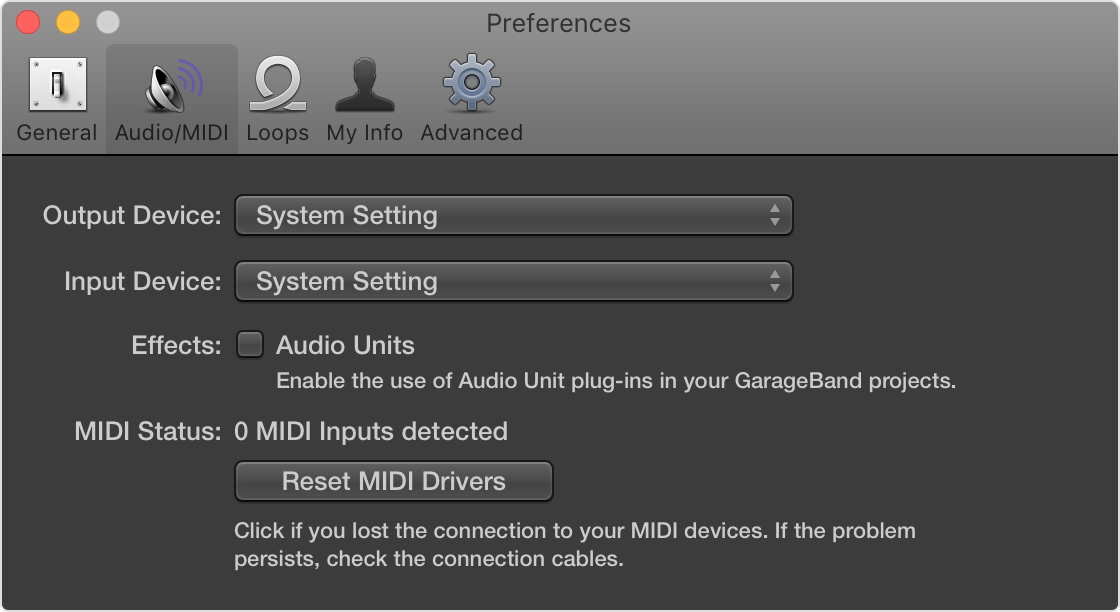
2. Open GarageBand, then choose GarageBand > Preferences > Audio/MIDI.
3. Choose Built-in Output from the Output Device pop-up menu.
4. Choose Built-in Microphone (or Built-in Input, depending on your computer) from the Input Device pop-up menu.
5. Open and play back a project that has been experiencing issues. 

If the project opens and plays back properly, you might need to update or service your audio interface. Contact the manufacturer for support.

Open GarageBand without audio input and output
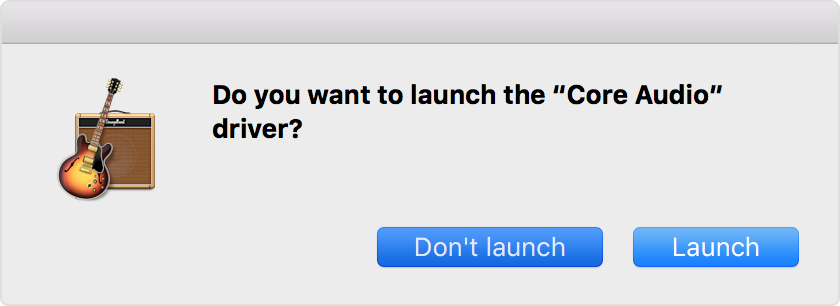
1. Open GarageBand and immediately press and hold the Control key before a project opens.
2. In the alert, click Don’t Launch.
If GarageBand opens, it can indicate the following:

* You might need to update or service your external audio interface. Contact the manufacturer for support.

* An Audio Units plug-in might be damaged, or it might not be compatible with your version of GarageBand. You can try disabling plug-ins to troubleshoot your issue.

Disable Audio Units plug-ins
If you're using Audio Units plug-ins, try disabling them. Damaged or incompatible Audio Units plug-ins can create unexpected behavior in GarageBand.

To disable Audio Units plug-ins:
1. Open a project in GarageBand.
2. Go to GarageBand > Preferences > Audio/MIDI, and deselect Audio Units. 
3. Play back a project that has been experiencing issues. 

If the project opens and plays back properly, a plug-in you're using in the project might be damaged or incompatible with your version of GarageBand. Check with the manufacturer of the plug-in for support. 

Test with a new project
You can create a new project and test to check if the issue is with your project or with the GarageBand app.
1. If GarageBand is open, quit the app.
2. Open GarageBand and choose File > New.
3. Choose Empty Project in the New Project window. 
4. Add audio files or Apple Loops to the new project.
5. Try to recreate the issue you were having. For example, if the project you're having an issue with uses a particular third-party plug-in, add it to the test project. If the problem reappears, the plug-in might be damaged or might need to be updated.

Test GarageBand with a new user account
Create another user account on your Mac, then try to recreate the issue in the new user account. If the issue doesn't occur in the new user account, settings in the original account might be causing the issue.

Reset GarageBand preferences
Resetting preferences doesn't affect your project files, presets, or patches. However, you do lose any custom preference settings you might have made.

1. Choose GarageBand > Preferences, and note any specific preference settings you've made.

2. Close GarageBand.

3. In the Finder, choose Utilities from the Go menu. 

4. Open Terminal.

5. Copy this command, paste it into Terminal, then press Return:
defaults delete com.apple.garageband10

6. If you have ever updated from a previous version of GarageBand, also copy this command, paste it into Terminal, then press Return:
defaults delete com.apple.garageband

7. Restart your computer.

After your Mac restarts, open GarageBand and try to reproduce the issue you were experiencing. If the issue no longer occurs, open GarageBand preferences and reapply your custom settings.

Following these steps may help and is outlined in this article: If GarageBand isn't working on your Mac - Apple Support


If that doesn't help and you continue to experience the same behavior, we recommend for you to contact Apple Support, as they can review this further. Here's the link to contact them: Get Support


Kind regards.


Similar questions

1 reply
Question marked as Top-ranking reply

Aug 12, 2023 3:30 PM in response to danmadsen

Hi danmadsen,


Welcome to Apple Support Communities. There are steps available that may help resolve GarageBand from unexpectedly freezing. Here the steps we recommend for you to follow that can help:


Try these steps in order
After trying each step below, test GarageBand again to see if you've fixed your issue. 

Restart your Mac
Choose Restart from the Apple menu .

Update GarageBand
Choose Apple menu  > App Store, then click Updates in the toolbar. If a GarageBand update is available, click the Update button to download and install it.

Check device or software compatibility
If you're using an external audio interface, MIDI interface, storage system, control surface, or plug-in not made by Apple, make sure that it’s compatible with the latest version of GarageBand. Contact the manufacturer for support. If an update is available, follow the manufacturer’s instructions to update the device or software.

Use built-in audio with GarageBand
If you’re using an external audio interface, try using the built-in audio on your Mac instead of the interface.

1. Unplug your external audio interface from your Mac.
2. Open GarageBand, then choose GarageBand > Preferences > Audio/MIDI.
3. Choose Built-in Output from the Output Device pop-up menu.
4. Choose Built-in Microphone (or Built-in Input, depending on your computer) from the Input Device pop-up menu.
5. Open and play back a project that has been experiencing issues. 

If the project opens and plays back properly, you might need to update or service your audio interface. Contact the manufacturer for support.

Open GarageBand without audio input and output
1. Open GarageBand and immediately press and hold the Control key before a project opens.
2. In the alert, click Don’t Launch.
If GarageBand opens, it can indicate the following:

* You might need to update or service your external audio interface. Contact the manufacturer for support.

* An Audio Units plug-in might be damaged, or it might not be compatible with your version of GarageBand. You can try disabling plug-ins to troubleshoot your issue.

Disable Audio Units plug-ins
If you're using Audio Units plug-ins, try disabling them. Damaged or incompatible Audio Units plug-ins can create unexpected behavior in GarageBand.

To disable Audio Units plug-ins:
1. Open a project in GarageBand.
2. Go to GarageBand > Preferences > Audio/MIDI, and deselect Audio Units. 
3. Play back a project that has been experiencing issues. 

If the project opens and plays back properly, a plug-in you're using in the project might be damaged or incompatible with your version of GarageBand. Check with the manufacturer of the plug-in for support. 

Test with a new project
You can create a new project and test to check if the issue is with your project or with the GarageBand app.
1. If GarageBand is open, quit the app.
2. Open GarageBand and choose File > New.
3. Choose Empty Project in the New Project window. 
4. Add audio files or Apple Loops to the new project.
5. Try to recreate the issue you were having. For example, if the project you're having an issue with uses a particular third-party plug-in, add it to the test project. If the problem reappears, the plug-in might be damaged or might need to be updated.

Test GarageBand with a new user account
Create another user account on your Mac, then try to recreate the issue in the new user account. If the issue doesn't occur in the new user account, settings in the original account might be causing the issue.

Reset GarageBand preferences
Resetting preferences doesn't affect your project files, presets, or patches. However, you do lose any custom preference settings you might have made.

1. Choose GarageBand > Preferences, and note any specific preference settings you've made.

2. Close GarageBand.

3. In the Finder, choose Utilities from the Go menu. 

4. Open Terminal.

5. Copy this command, paste it into Terminal, then press Return:
defaults delete com.apple.garageband10

6. If you have ever updated from a previous version of GarageBand, also copy this command, paste it into Terminal, then press Return:
defaults delete com.apple.garageband

7. Restart your computer.

After your Mac restarts, open GarageBand and try to reproduce the issue you were experiencing. If the issue no longer occurs, open GarageBand preferences and reapply your custom settings.

Following these steps may help and is outlined in this article: If GarageBand isn't working on your Mac - Apple Support


If that doesn't help and you continue to experience the same behavior, we recommend for you to contact Apple Support, as they can review this further. Here's the link to contact them: Get Support


Kind regards.


This thread has been closed by the system or the community team. You may vote for any posts you find helpful, or search the Community for additional answers.

GarageBand not running on Studio Mac

Welcome to Apple Support Community
A forum where Apple customers help each other with their products. Get started with your Apple Account.