Can I combine some jpeg files into one? For free!

I know how to convert photos into jpegs. But I want to put 7 in to one jpeg file. I have searched the net but don't understand how I can make a Shortcut to do this. Please help.


MacBook Air 13″, macOS 12.6

Posted on Aug 13, 2023 11:41 AM

Reply
Question marked as Top-ranking reply

Posted on Aug 13, 2023 2:15 PM

  1. Launch Shortcuts
  2. File menu : New Shortcut (this will be the highest numbered New Shortcut n.)
    1. Right-click and choose Edit
  3. In the search field, enter select in the Documents section double-click Select File action, and then double-click that action to add it to the workflow window.
  4. In the search field, enter set, and then double-click the Set Variable action to add it below the previous action.
  5. In the search field, enter combine and double-click Combine Images
  6. Finally, in the search field, enter save and double-click Save File.


At this point you will see the stack of actions:
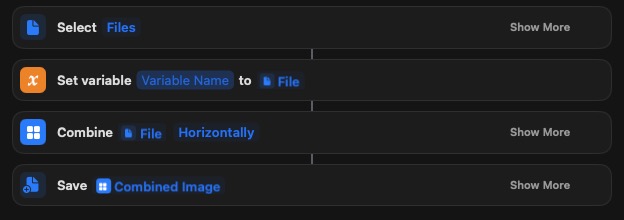


In Select files, click Show More, and choose Select Multiple. Click Show less to close than panel.

In Set variable, single click on Variable Name, press backspace to remove that string, and enter Images.

In the Combine panel, change File to Images by right-clicking on the word File and select the Images variable from the bottom of that menu. Change Horizontally to Grid by clicking on it. If you want image separation (e.g. spacing), then click on Show More and enter the integer spacing amount.


For Save, it should show Combined Image, so don't change that, and click Show More to choose Ask Where to Save and whether you want to overwrite if a file exists.


Shortcuts autosaves your changes, and you can practice running this by just clicking the ▶︎ run button, choosing your image files, and the last file chooser is the prompt to choose the destination folder to right the combined image too.


It will look like this when you are done.
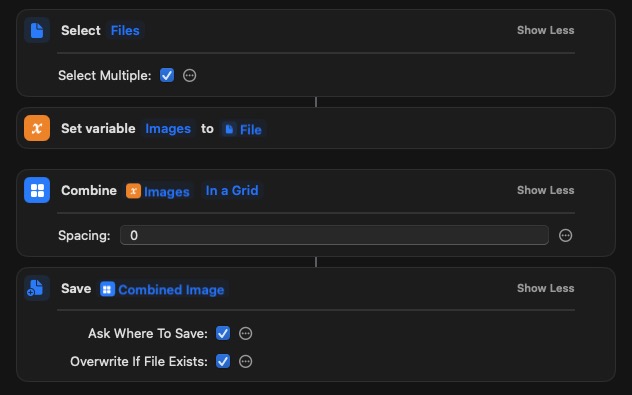


Click on the main Shortcuts window, locate your last New Shortcut n icon, right-click on it and choose Rename and give it a meaningful name. In the left panel of the main Shortcuts window, you will see places where you can drag and drop the Shortcut. You can even drag and drop it onto your Dock for single-click access.


19 replies
Question marked as Top-ranking reply

Aug 13, 2023 2:15 PM in response to barneyhairball

  1. Launch Shortcuts
  2. File menu : New Shortcut (this will be the highest numbered New Shortcut n.)
    1. Right-click and choose Edit
  3. In the search field, enter select in the Documents section double-click Select File action, and then double-click that action to add it to the workflow window.
  4. In the search field, enter set, and then double-click the Set Variable action to add it below the previous action.
  5. In the search field, enter combine and double-click Combine Images
  6. Finally, in the search field, enter save and double-click Save File.


At this point you will see the stack of actions:


In Select files, click Show More, and choose Select Multiple. Click Show less to close than panel.

In Set variable, single click on Variable Name, press backspace to remove that string, and enter Images.

In the Combine panel, change File to Images by right-clicking on the word File and select the Images variable from the bottom of that menu. Change Horizontally to Grid by clicking on it. If you want image separation (e.g. spacing), then click on Show More and enter the integer spacing amount.


For Save, it should show Combined Image, so don't change that, and click Show More to choose Ask Where to Save and whether you want to overwrite if a file exists.


Shortcuts autosaves your changes, and you can practice running this by just clicking the ▶︎ run button, choosing your image files, and the last file chooser is the prompt to choose the destination folder to right the combined image too.


It will look like this when you are done.


Click on the main Shortcuts window, locate your last New Shortcut n icon, right-click on it and choose Rename and give it a meaningful name. In the left panel of the main Shortcuts window, you will see places where you can drag and drop the Shortcut. You can even drag and drop it onto your Dock for single-click access.


Aug 13, 2023 11:54 AM in response to barneyhairball

JPEG isn't a multi-page protocol.

Merging JPEGs would just be putting all of the picture data into a single tableau or sorts.

You'd just have a giant picture file with all of the images as a single image.

If you just want a giant "poster"-type image with all of the individual JPEGs, that can be done as linked by Kurt Lang.

If you want a multi-page document with images on separate pages, tiff is the answer--but, it will be very large.

Aug 13, 2023 1:32 PM in response to barneyhairball

Choosing four jpg images with the Shortcuts app results in a horizontal combination of those four images. You should be aware that this is one image, not four independently accessible images in one file. I have a 32-in 4K display and four combined images horizontally fills the width of my screen when opened in Apple's Preview.


Here is the result of using a grid option and choosing 7 random jpg images:


Aug 13, 2023 1:35 PM in response to VikingOSX

If I am level one I'd be surprised. How did you create your Shortcut? I can enter Shortcut but can't find what you did next. I can select Files, but from thereonin it goes to rodent do do. I'm not too bad but I do like a formula that I can base things on. Could you show me how you made this Shortcut? By the way, I've only just discovered that my mac can make shortcuts. It would be great if you could help further.

Aug 14, 2023 6:37 AM in response to barneyhairball

Shortcuts offers Overlay Text, and Resize Image actions that you can drag and drop before the Save action. I have not used these so you can experiment with them.


Alternatively, use the existing Shortcut that you have created and open its final image in Apple's Preview, where you can apply text annotations and Adjust Size from the Tools menu. I recommend you use a copy of your Shortcut generated image until you are comfortable with the Preview features.


Shortcuts User Guide for Mac - Apple Support


Preview User Guide for Mac - Apple Support


This thread has been closed by the system or the community team. You may vote for any posts you find helpful, or search the Community for additional answers.

Can I combine some jpeg files into one? For free!

Welcome to Apple Support Community
A forum where Apple customers help each other with their products. Get started with your Apple Account.