
Apple Gift Card to purchase iCloud+
I am trying to use a $150 Apple Gift Card to purchase iCloud+ , but this is not an option in my computer or on apple.com. Can you please advise?
I am trying to use a $150 Apple Gift Card to purchase iCloud+ , but this is not an option in my computer or on apple.com. Can you please advise?
Hi Neklaf79,
Thanks for contacting Apple Support Communities!
We understand that you need some help to redeem your Apple Gift Card so that you can purchase additional iCloud storage.
This resource will guide you through the process of redeeming your Apple Gift card: How to redeem your Apple Gift Card or App Store & iTunes gift card - Apple Support
"Redeem a gift card on your Mac
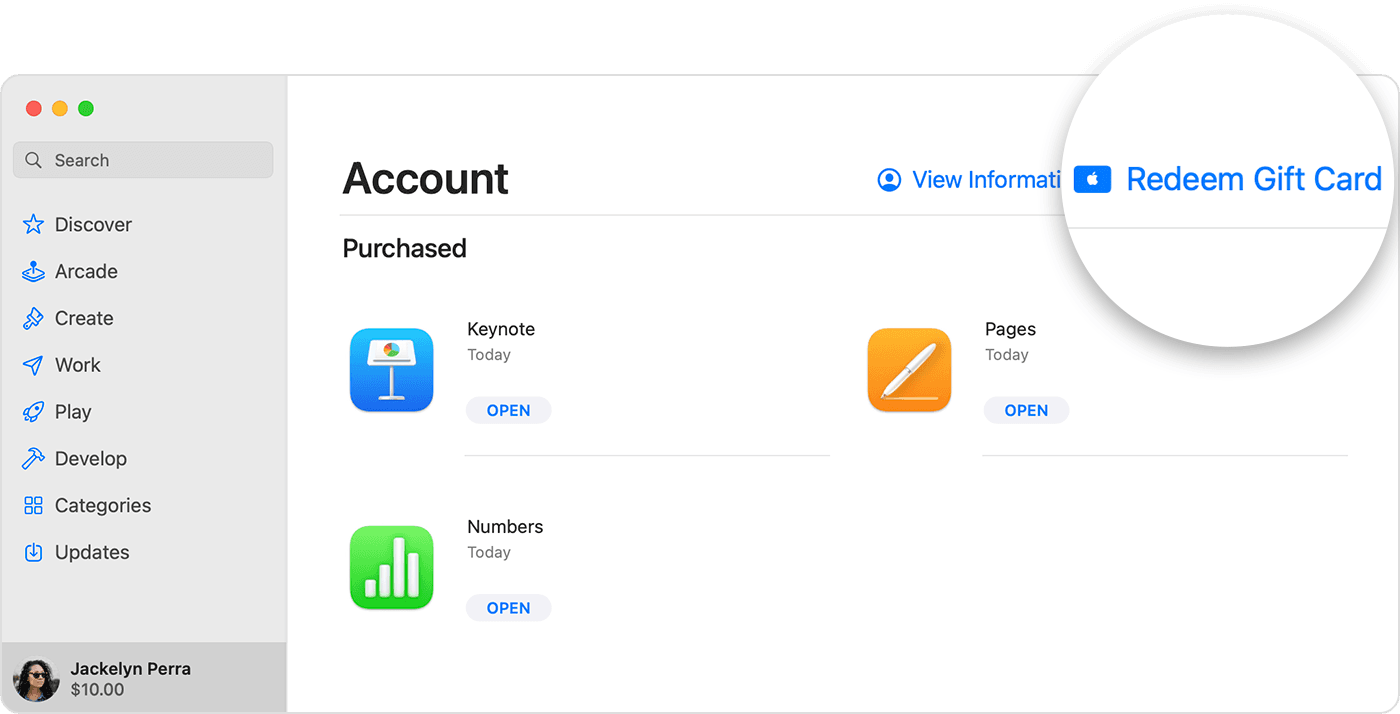
5. Click Use Camera and follow the instructions on the screen. If you have trouble redeeming the card, enter your code manually.
Once you've redeemed your Apple Gift Card and the balance is applied to your Apple ID, you can use that balance to purchase additional iCloud Storage as outlined here: Upgrade to iCloud+ - Apple Support
"How to upgrade on your Mac
We hope this helps you.
Take care!
Hi Neklaf79,
Thanks for contacting Apple Support Communities!
We understand that you need some help to redeem your Apple Gift Card so that you can purchase additional iCloud storage.
This resource will guide you through the process of redeeming your Apple Gift card: How to redeem your Apple Gift Card or App Store & iTunes gift card - Apple Support
"Redeem a gift card on your Mac
5. Click Use Camera and follow the instructions on the screen. If you have trouble redeeming the card, enter your code manually.
Once you've redeemed your Apple Gift Card and the balance is applied to your Apple ID, you can use that balance to purchase additional iCloud Storage as outlined here: Upgrade to iCloud+ - Apple Support
"How to upgrade on your Mac
We hope this helps you.
Take care!
Very helpful, thank you so much!
Apple Gift Card to purchase iCloud+

