how can I restore my new iPad if I forget the passcode
I bought an iPad after I reset my password I turned off the iPad, and when I tried to unlock it, it didn't accept the passcode that I used it.
iPad Air, iPadOS 16
I bought an iPad after I reset my password I turned off the iPad, and when I tried to unlock it, it didn't accept the passcode that I used it.
iPad Air, iPadOS 16
Hey Aaabu,
We want to make sure we provide you with the best assistance, but first we should differentiate between a password and a passcode to make sure we have an understanding of your issue.
Your password is typically associated with your Apple account. It can be alphanumeric with special characters, and you use it for things like checking your iCloud email, downloading apps from the App Store, or similar.
Your passcode is the code you enter to unlock your iPad. You need to enter this code before you can do anything else on your iPad, and it is typically 4-6 digits. It can be alphanumeric as well. If this is one that your iPad is not accepting, you may need to erase it and set it up again. There is no way to recover or change your passcode without starting over.
If you forgot your iPad passcode, these are the steps you'll need to take:
Step 1: Make sure that you have a computer (Mac or PC)
This process requires a Mac or PC. If you're using a PC, make sure that it has Windows 10 or later and that iTunes is installed. You also need the cable that came with your iPad, or another compatible cable, to connect your iPad to the computer.
If you don't have a computer and you can't borrow one, you need to go to an Apple Store or Apple Authorized Service Provider for help.
Step 2: Turn off your iPad
1. Unplug your iPad from the computer if it's connected.
2. Turn off your iPad using the method for your iPad model:
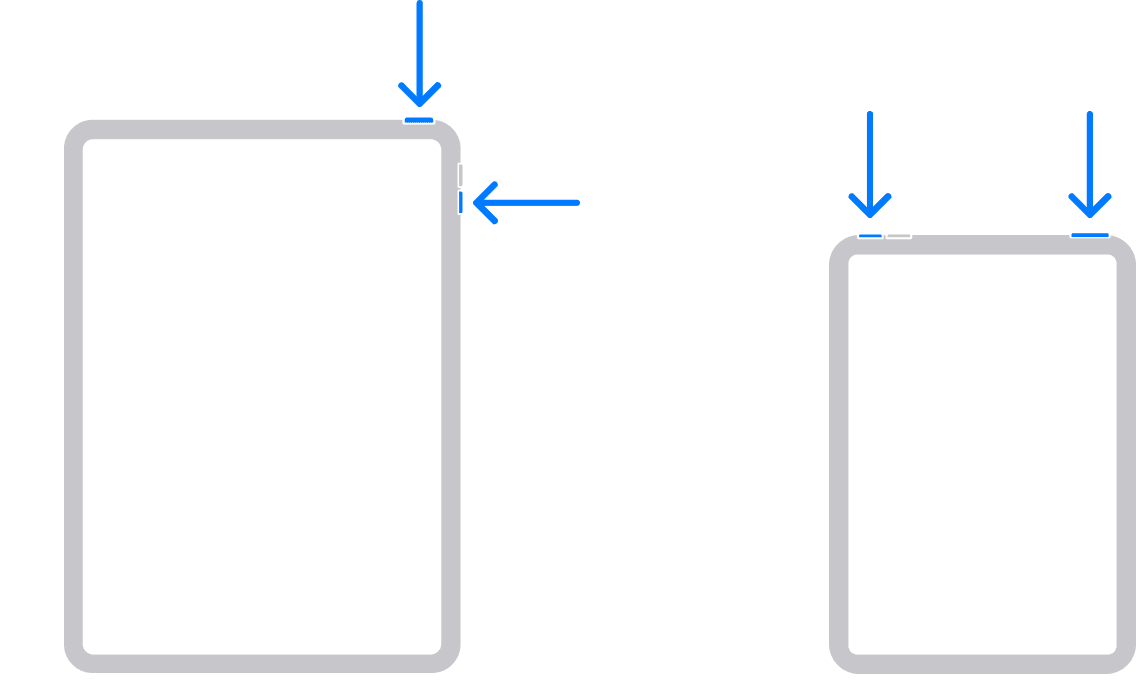
* If your iPad doesn't have a Home button: Press and hold one of the volume buttons and the top button at the same time until the power off slider appears.
* If your iPad has a Home button: Press and hold the top button until the power off slider appears.
3. Drag the slider to turn off your iPad, then wait a minute to make sure that it turns off completely.
Step 3: Put your iPad in recovery mode
1. Get ready by finding the button on your iPad that you'll need to hold in the next step:
* iPad models that don't have a Home button use the top button.
* iPad models that have a Home button use the Home button.
2. Press and hold the correct button for your iPad while immediately connecting your iPad to the computer. Don't let go of the button.
3. Keep holding the button until you see the recovery mode screen on your iPad, then let go.
If you see the passcode screen, you need to turn off your iPad and start again.
If you can't get your iPad to show the recovery mode screen and you need help, contact Apple Support.
Step 4: Restore your iPad
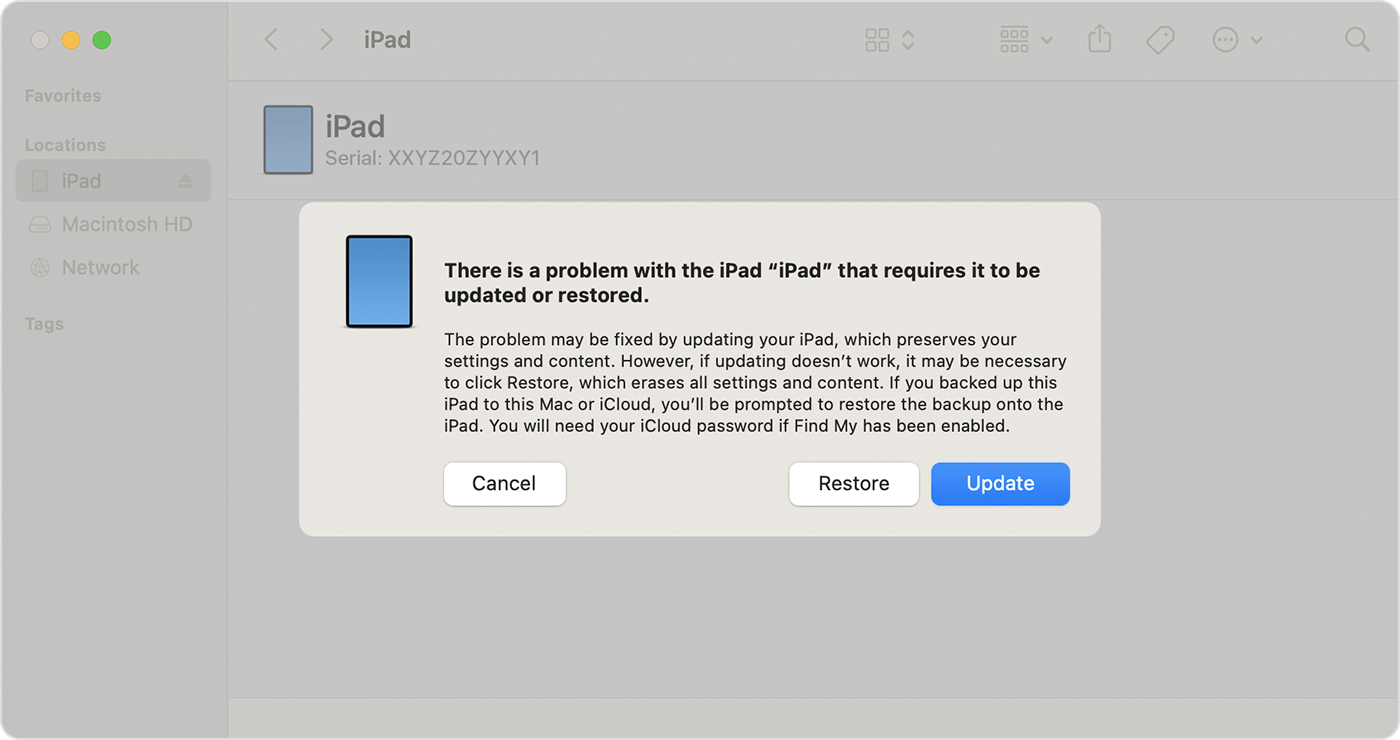
1. Locate your iPad in the Finder or in iTunes on the computer that it's connected to. (Learn how to find your connected iPad.)
2. Choose Restore when you see the option to Restore or Update. Your computer downloads software for your iPad and begins the restore process. If the download takes more than 15 minutes and your device exits the recovery mode screen, let the download finish, then turn off your iPad and start again.
3. Wait for the process to finish.
4. Disconnect your iPad from the computer, then set up and use your iPad.
Apple has an official Apple Support - YouTube channel where you can find answers to questions, learn more about Apple devices, and maybe even discover a few trick two.
For example, this video breaks down the steps using an iPhone, but it is the same concept. It may make it easier to follow along:
If it's your Apple account password that is the issue, let us know. We're happy to continue to assist.
We hope this helps.
Kindest Regards.
Hey Aaabu,
We want to make sure we provide you with the best assistance, but first we should differentiate between a password and a passcode to make sure we have an understanding of your issue.
Your password is typically associated with your Apple account. It can be alphanumeric with special characters, and you use it for things like checking your iCloud email, downloading apps from the App Store, or similar.
Your passcode is the code you enter to unlock your iPad. You need to enter this code before you can do anything else on your iPad, and it is typically 4-6 digits. It can be alphanumeric as well. If this is one that your iPad is not accepting, you may need to erase it and set it up again. There is no way to recover or change your passcode without starting over.
If you forgot your iPad passcode, these are the steps you'll need to take:
Step 1: Make sure that you have a computer (Mac or PC)
This process requires a Mac or PC. If you're using a PC, make sure that it has Windows 10 or later and that iTunes is installed. You also need the cable that came with your iPad, or another compatible cable, to connect your iPad to the computer.
If you don't have a computer and you can't borrow one, you need to go to an Apple Store or Apple Authorized Service Provider for help.
Step 2: Turn off your iPad
1. Unplug your iPad from the computer if it's connected.
2. Turn off your iPad using the method for your iPad model:
* If your iPad doesn't have a Home button: Press and hold one of the volume buttons and the top button at the same time until the power off slider appears.
* If your iPad has a Home button: Press and hold the top button until the power off slider appears.
3. Drag the slider to turn off your iPad, then wait a minute to make sure that it turns off completely.
Step 3: Put your iPad in recovery mode
1. Get ready by finding the button on your iPad that you'll need to hold in the next step:
* iPad models that don't have a Home button use the top button.
* iPad models that have a Home button use the Home button.
2. Press and hold the correct button for your iPad while immediately connecting your iPad to the computer. Don't let go of the button.
3. Keep holding the button until you see the recovery mode screen on your iPad, then let go.
If you see the passcode screen, you need to turn off your iPad and start again.
If you can't get your iPad to show the recovery mode screen and you need help, contact Apple Support.
Step 4: Restore your iPad
1. Locate your iPad in the Finder or in iTunes on the computer that it's connected to. (Learn how to find your connected iPad.)
2. Choose Restore when you see the option to Restore or Update. Your computer downloads software for your iPad and begins the restore process. If the download takes more than 15 minutes and your device exits the recovery mode screen, let the download finish, then turn off your iPad and start again.
3. Wait for the process to finish.
4. Disconnect your iPad from the computer, then set up and use your iPad.
Apple has an official Apple Support - YouTube channel where you can find answers to questions, learn more about Apple devices, and maybe even discover a few trick two.
For example, this video breaks down the steps using an iPhone, but it is the same concept. It may make it easier to follow along:
If it's your Apple account password that is the issue, let us know. We're happy to continue to assist.
We hope this helps.
Kindest Regards.
how can I restore my new iPad if I forget the passcode