My photos are out of sync between my Macbook and my iPhone

I've had a mac laptop, an iphone, and an icloud account for years and never had an issue. But now something is very wrong.


I first noticed that I was missing some important pics on my laptop and panicked, then I found them on my iphone. And yes, I have photos set to sync via icloud on both devices.


This was a few months ago, and at the time, at least new photos WERE syncing to my laptop. But I was still missing photos on my laptop that are on my iphone.


Starting maybe 2 weeks ago, now new photos on my iphone are not syncing to my laptop at all. I have logged out of icloud on both devices, logged back in, and then rebooted. No joy. Tried disabling photo syncing in icloud, then re-enabling. Nothing.


At this point, what I'd like to do is wipe all the photos off my laptop and redownload ALL of them from my phone. I'm nervous that some precious photos will be lost if anything happens with icloud.


Any suggestions on how to get these devices back in sync, and syncing, again?


FYI, I am running the latest version of both operating systems.

Posted on Aug 29, 2023 12:53 PM

Reply
Question marked as Top-ranking reply

Posted on Aug 30, 2023 11:41 AM

Hello conejo61,


Thank you for reaching out to Apple Support Communities, and we'll be happy to help in any way we can. We understand you're having issues with photos not syncing between your Mac and iPhone. You've taken great steps to try to resolve the issue so far. Try the steps here to see if they resolve the issue: If your iCloud Photos aren't syncing to your device - Apple Support


"Check the status of your library in Photos

If your photos aren't syncing, check the status bar in the Photos app for a status message, then follow the onscreen directions or learn what your status message means


On your iPhone or iPad

  1. Open the Photos app. 
  2. In the Library tab, tap All Photos.
  3. Scroll to the bottom to see the status bar. 
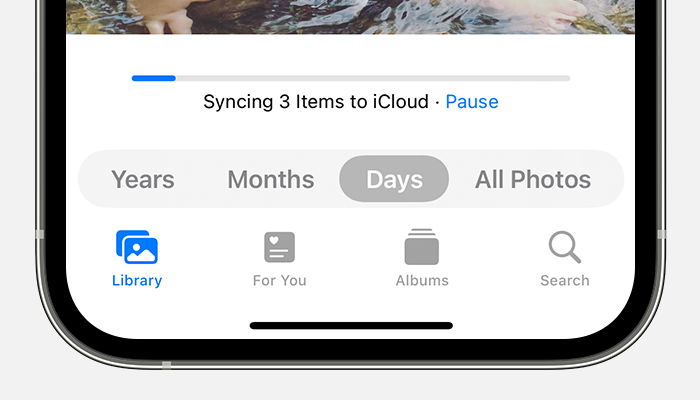

The status bar at the bottom of the Photos app shows that 3 items are syncing to iCloud.

On your Mac

  1. Open the Photos app.
  2. Select Library in the Photos sidebar.
  3. Click All Photos in the toolbar at the top of the window, then scroll to the bottom.

What your status message means

If your iCloud Photos aren't syncing, do not turn iCloud Photos off. Syncing with iCloud might be paused for a variety of reasons, including if you turn on certain device settings or need more iCloud storage.


If you see Saving Cellular Data or Low Cellular Data Mode

iCloud Photos automatically pauses syncing until you're connected to Wi-Fi for a variety of reasons. If this happens, you might see a status message and the option to Sync Now. To sync your photos to iCloud, tap Sync Now. Or, turn off Low Data Mode


If you see Saving Battery Power or Low Power Mode

iCloud Photos temporarily pauses syncing if your device is on Low Power Mode or if it's low on power. To sync your photos to iCloud, you can charge your device's battery, turn off Low Power Mode, or tap Sync Now next to the status message.


If you see Waiting to Sync

If you see a status message that says Waiting to Sync, make sure that your device is connected to the internet and wait a few minutes for the sync to complete.


If your iCloud storage is full or almost full

If you exceed your iCloud storage limit, photos and videos won't sync to iCloud and your library won’t stay up to date across your devices. To continue using iCloud Photos, you can upgrade your storage plan or reduce the amount of storage that you're using.


If you see Move Photos to Personal Library to Continue Syncing

If you're a participant in an iCloud Shared Photo Library and the owner's storage is full, you won't be able to sync your Personal Library until the Shared Library owner upgrades their storage plan or reduces the amount of storage that they're using. 


If your photos still aren't syncing to iCloud

Learn what to do if you don't see a status message at the bottom of the Photos app that explains why your photos aren't syncing, or syncing is taking a long time. If you see a Couldn’t Sync [number of items] to iCloud status message, learn how to move these photos to your library


Connect your device to power

If your device seems to be stuck on a status message that says Syncing [number of items] to iCloud or Syncing with iCloud…, connect your iPhone or iPad to power and to Wi-Fi.


Check your Apple ID

Make sure that you signed in to iCloud with the correct Apple ID on your device.

Learn how to sign in to iCloud


Check which Library view you're in

If you set up iCloud Shared Photo Library in iOS 16.1 or later, iPadOS 16.1 or later, or macOS Ventura or later, check which Library view you're in. When you move photos to your Shared Library, you no longer see them in your Personal Library. You also won't see photos moved to your Shared Library if you're on a device with an earlier version of iOS, iPadOS, or macOS or if the iCloud Shared Photo Library owner has run out of iCloud storage.

Learn how to switch between your Personal Library and Shared Library"


We hope this helps.


Cheers!


Similar questions

3 replies
Question marked as Top-ranking reply

Aug 30, 2023 11:41 AM in response to conejo61

Hello conejo61,


Thank you for reaching out to Apple Support Communities, and we'll be happy to help in any way we can. We understand you're having issues with photos not syncing between your Mac and iPhone. You've taken great steps to try to resolve the issue so far. Try the steps here to see if they resolve the issue: If your iCloud Photos aren't syncing to your device - Apple Support


"Check the status of your library in Photos

If your photos aren't syncing, check the status bar in the Photos app for a status message, then follow the onscreen directions or learn what your status message means


On your iPhone or iPad

  1. Open the Photos app. 
  2. In the Library tab, tap All Photos.
  3. Scroll to the bottom to see the status bar. 


The status bar at the bottom of the Photos app shows that 3 items are syncing to iCloud.

On your Mac

  1. Open the Photos app.
  2. Select Library in the Photos sidebar.
  3. Click All Photos in the toolbar at the top of the window, then scroll to the bottom.

What your status message means

If your iCloud Photos aren't syncing, do not turn iCloud Photos off. Syncing with iCloud might be paused for a variety of reasons, including if you turn on certain device settings or need more iCloud storage.


If you see Saving Cellular Data or Low Cellular Data Mode

iCloud Photos automatically pauses syncing until you're connected to Wi-Fi for a variety of reasons. If this happens, you might see a status message and the option to Sync Now. To sync your photos to iCloud, tap Sync Now. Or, turn off Low Data Mode


If you see Saving Battery Power or Low Power Mode

iCloud Photos temporarily pauses syncing if your device is on Low Power Mode or if it's low on power. To sync your photos to iCloud, you can charge your device's battery, turn off Low Power Mode, or tap Sync Now next to the status message.


If you see Waiting to Sync

If you see a status message that says Waiting to Sync, make sure that your device is connected to the internet and wait a few minutes for the sync to complete.


If your iCloud storage is full or almost full

If you exceed your iCloud storage limit, photos and videos won't sync to iCloud and your library won’t stay up to date across your devices. To continue using iCloud Photos, you can upgrade your storage plan or reduce the amount of storage that you're using.


If you see Move Photos to Personal Library to Continue Syncing

If you're a participant in an iCloud Shared Photo Library and the owner's storage is full, you won't be able to sync your Personal Library until the Shared Library owner upgrades their storage plan or reduces the amount of storage that they're using. 


If your photos still aren't syncing to iCloud

Learn what to do if you don't see a status message at the bottom of the Photos app that explains why your photos aren't syncing, or syncing is taking a long time. If you see a Couldn’t Sync [number of items] to iCloud status message, learn how to move these photos to your library


Connect your device to power

If your device seems to be stuck on a status message that says Syncing [number of items] to iCloud or Syncing with iCloud…, connect your iPhone or iPad to power and to Wi-Fi.


Check your Apple ID

Make sure that you signed in to iCloud with the correct Apple ID on your device.

Learn how to sign in to iCloud


Check which Library view you're in

If you set up iCloud Shared Photo Library in iOS 16.1 or later, iPadOS 16.1 or later, or macOS Ventura or later, check which Library view you're in. When you move photos to your Shared Library, you no longer see them in your Personal Library. You also won't see photos moved to your Shared Library if you're on a device with an earlier version of iOS, iPadOS, or macOS or if the iCloud Shared Photo Library owner has run out of iCloud storage.

Learn how to switch between your Personal Library and Shared Library"


We hope this helps.


Cheers!


Aug 30, 2023 11:52 AM in response to SnickZ.

That's the standard canned response folks always get when they report this kind of a syncing issue with Photos. And I get it, those recommendations make sense, but by the time someone is posting here, honestly, I've never seen this advice solve the issue.


It looks like I've fixed it. The fix was scary. I turned off iCloud photo syncing on my Mac and had it delete all my low res photos. Then I re-enabled it and it started downloading again the thousands of items I had on iCloud. Took about 10-12 hours, but it now looks like I both have everything synced between the two device, and, new photos are now being synced.

Aug 30, 2023 12:29 PM in response to conejo61

Hey conejo61,


The main reason we don’t start out with turning off iCloud settings on any device is the chance of data loss. You even mentioned it was a frightening thing to do.


Since photos are especially important to people, if that became the only way to get it working as it should, we would’ve referred you to Apple Support. They have the tools needed to make sure everything is working as it should. We don’t have access to them when working in Apple Support Communities.


However, congratulations! We’re very happy to learn that the issue has been resolved!


All the best.

This thread has been closed by the system or the community team. You may vote for any posts you find helpful, or search the Community for additional answers.

My photos are out of sync between my Macbook and my iPhone

Welcome to Apple Support Community
A forum where Apple customers help each other with their products. Get started with your Apple Account.