Mail app, notifications

Hi. So I have this issue all the time when I want to use my Mail app (the original one). I set up my email (IMAP and/or POP3), can write emails and receive it normally BUT when the phone is locked or I'm out of the app I'm not receiving notifications about new mail. Notifications center is setup properly, everything is double-checked 3 times and it should be up and running. However I can not get it to work.


What app to use or what setting I should set to get the notifications when new mail is received?


iPhone 13 Pro Max, iOS 16.6

iPhone 11

Posted on Aug 30, 2023 1:05 AM

Reply
Question marked as Top-ranking reply

Posted on Aug 30, 2023 9:12 AM

Hello tomas154,


This is normal behavior for mail accounts that do not support the Push functionality (iCloud Mail does). Many mail provider only support the Fetch functionality. You can check this by going to Settings > Mail > Accounts > Fetch New Data and selecting your provider. If your provider supports Push, select it. You'll then receive notifications right away.


Otherwise, for Fetch-only accounts, the Mail app on the iPhone will only pick up new messages when it's open (or when your iPhone is charging). You can change this behavior by going to Settings > Mail > Accounts > Fetch New Data and setting the "FETCH" parameters, for instance "Every 15 Minutes". Mail would then pick up new emails every 15 minutes and you would be notified.

3 replies
Question marked as Top-ranking reply

Aug 30, 2023 9:12 AM in response to tomas154

Hello tomas154,


This is normal behavior for mail accounts that do not support the Push functionality (iCloud Mail does). Many mail provider only support the Fetch functionality. You can check this by going to Settings > Mail > Accounts > Fetch New Data and selecting your provider. If your provider supports Push, select it. You'll then receive notifications right away.


Otherwise, for Fetch-only accounts, the Mail app on the iPhone will only pick up new messages when it's open (or when your iPhone is charging). You can change this behavior by going to Settings > Mail > Accounts > Fetch New Data and setting the "FETCH" parameters, for instance "Every 15 Minutes". Mail would then pick up new emails every 15 minutes and you would be notified.

Aug 30, 2023 1:13 AM in response to tomas154

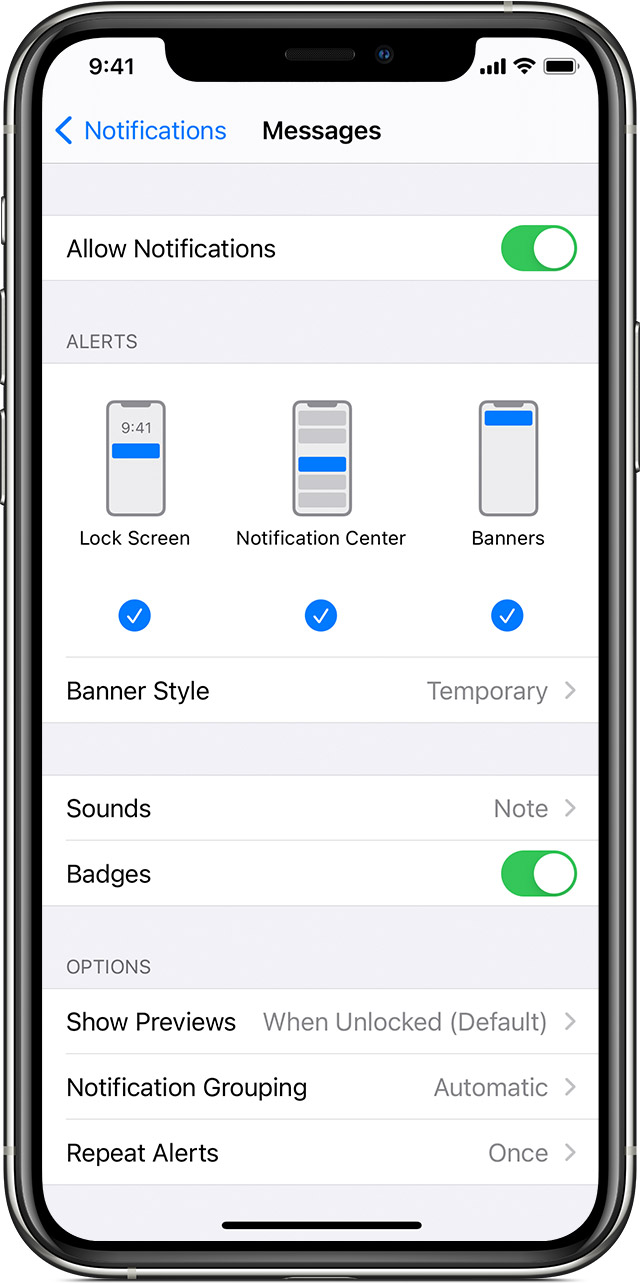
Change alert styles

To add or change an alert style for a notification:

  1. Go to Settings > Notifications.
  2. Select an app under Notification Style. 
  3. Choose a type of alert and banner style. 

You can also turn sounds and badges on or off.

Change group notification settings

You can use group notifications or keep them separate.

  1. Go to Settings > Notifications.
  2. Select an app and tap Notification Grouping.
  3. Select one of these options:
    • Automatic: Notifications from each app will appear in groups based on app alerts.
    • By App: All notifications from each app will be grouped into single expandable alerts.
    • Off: Notifications appear in the order they’re received, without grouping.

From here you can also choose how to show notification previews for specific apps. For example, you can have notification previews show up all the time or never, even when your device is locked.


This thread has been closed by the system or the community team. You may vote for any posts you find helpful, or search the Community for additional answers.

Mail app, notifications

Welcome to Apple Support Community
A forum where Apple customers help each other with their products. Get started with your Apple Account.