
Mac Storage Not Accurate?
Mac storage says applications are using 843.9 GB of storage but when I click info. the numbers don't add up
MacBook Pro 16″, macOS 13.5
Mac storage says applications are using 843.9 GB of storage but when I click info. the numbers don't add up
MacBook Pro 16″, macOS 13.5
Hi LOyster,
When checking your storage, are you looking at all volumes? If not, check out the steps below from the guide here: See used and available storage space on your Mac
"See used and available storage space on your Mac
See how much storage space is used on your Mac and how much space is available.
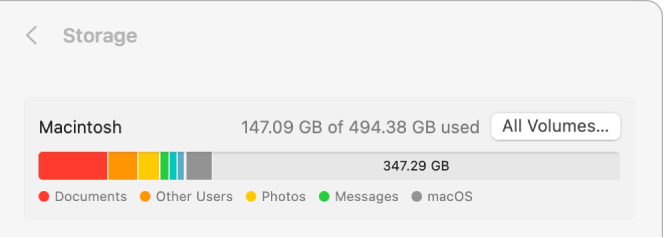
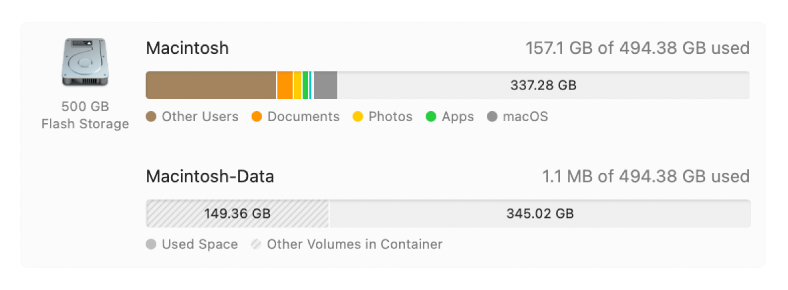
If you see more than one disk in the Storage area of General settings, your internal disk has multiple volumes or containers. See See if your Mac shares space across APFS volumes for information about free space available in containers.
 > System Settings, then click General
  in the sidebar. (You may need to scroll down.)
Move the pointer over a color to see the amount of space each category uses. Light gray space represents free storage space.
 "
"
Be sure to also check your system storage, and empty the Trash. If needed, you can also check and clear storage using the information found here: Free up storage space on your Mac As mentioned in this article "When you move a file to the Trash, its storage space doesn't become available until you empty the Trash."
If the discrepancy is large and you're still unable to locate where it's coming from, reach out to Apple Support directly to further assist. Get Support
Cheers.
Hi LOyster,
When checking your storage, are you looking at all volumes? If not, check out the steps below from the guide here: See used and available storage space on your Mac
"See used and available storage space on your Mac
See how much storage space is used on your Mac and how much space is available.
If you see more than one disk in the Storage area of General settings, your internal disk has multiple volumes or containers. See See if your Mac shares space across APFS volumes for information about free space available in containers.
> System Settings, then click General in the sidebar. (You may need to scroll down.)Move the pointer over a color to see the amount of space each category uses. Light gray space represents free storage space.
"
Be sure to also check your system storage, and empty the Trash. If needed, you can also check and clear storage using the information found here: Free up storage space on your Mac As mentioned in this article "When you move a file to the Trash, its storage space doesn't become available until you empty the Trash."
If the discrepancy is large and you're still unable to locate where it's coming from, reach out to Apple Support directly to further assist. Get Support
Cheers.
Mac Storage Not Accurate?

