Missing specific photos from albums and sent messages

So my mom has an iphone12+. She recently realized she’s missing a bunch of photos from trips and things she did. I thought maybe she was in a wrong album or something and signed onto her iCloud to investigate and sure enough, all her best photos are gone, trips she took, places she visited, family but not ALL the photos, there’s like a couple left from each time, so it’s not like a whole month or day or something is missing, just a bunch of random photos from random different times. She has it automatically backing up and most recent photos, photos from that day showed up in her cloud so I don’t think it was a backup issue as that seems to be working fine. She doesn’t do much on her phone and she swears she’s never messed with albums and stuff and absolutely did NOT delete anything, I did check her deleted folder and they’re not in there. What’s even more bizarre though, is she figured she could at least salvage some from her messages, because she sent a lot of them to friends and stuff at the time she took them, but in EVERY single one of her text conversations, the photos are ALSO gone: you can see where they were, there are blank text bubbles where the photos HAD been, and people’s responses right after so we know they were sent and went through, there were no issues at the time but it’s been a couple months since. What would cause certain random photos to just completely disappear, from her albums in her phone and her cloud, but also from her sent messages and conversations with people for no reason? It’s almost as if the phone had a mind of its own and just didn’t like those particular photos and made sure they didn’t exist. I’ve never seen anything like it. Even if she had unknowingly and accidentally deleted them from her photo library, they would still be in her sent messages. I don’t get it? I’m extremely frustrated, not only because it’s a lot of important stuff, cherished memories and trips, but because I can jot for the life of me figure out WHAT or WHY his happened?! I’ve been wracking my brain and doing tons of research and tried every suggestion I could find and still nothing, not even answers.

iPhone 13 Pro, iOS 16

Posted on Sep 11, 2023 11:35 AM

Reply

Similar questions

1 reply

Sep 12, 2023 9:11 AM in response to Louwho22

Hello Louwho22,


We would confirm you've taken all steps outlined for this issue here: If you're missing photos or videos in the Photos app


If you're missing photos or videos in the Photos app

Check places like your Recently Deleted or Hidden albums, your Shared Library, and iCloud Photos.

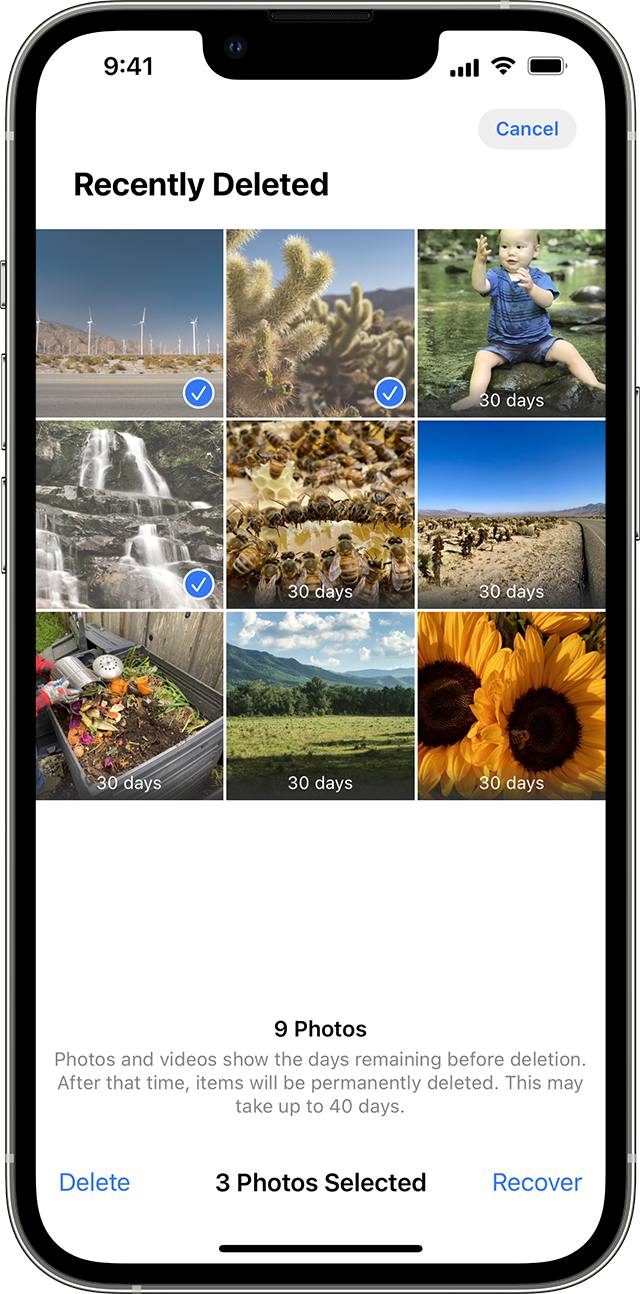
Check your Recently Deleted album

If you accidentally deleted your photo or video, it goes to the Recently Deleted album. Go to Photos > Albums, and tap Recently Deleted in the Utilities section.

On your iPhone or iPad

1. In iOS 16, iPadOS 16.1, or later, use Face ID or Touch ID to unlock your Recently Deleted album.
2. Tap a photo or video, then tap Recover. To recover multiple photos, tap Select, select your photos or videos, then tap Recover.
3. Confirm that you want to recover the photos or videos.

The Recently Deleted album in Photos on iPhone 


Unhide your photos

If you hide photos and videos, you'll see them only in your Hidden album, so it might seem like they're missing. But you can unhide your photos and videos whenever you want. With iOS 14 and later, you can hide the Hidden album so it doesn't appear anywhere in the Photos app. So if you're missing photos or videos, make sure the Hidden album is turned on so you can see it.

If you use iCloud Photos, the photos that you hide on one device are hidden on your other devices too.

On your iPhone or iPad

1. In the Photos app, go to the Albums tab.
2. Tap Hidden under Utilities.
3. In iOS 16, iPadOS 16.1, or later, use Face ID or Touch ID to unlock your Hidden album.
4. Select the photo or video that you want to unhide.
5. Tap the More button , then tap Unhide.

The Hidden album in Photos on iPhone


Make sure that iCloud Photos is turned on

iCloud Photos securely stores all of your photos and videos in iCloud, so that you can access them on all your devices. If you took a photo on your iPhone with iCloud Photos turned on but later turned the feature off, you might still be able to find a missing photo in iCloud Photos.

On your iPhone or iPad
1. Go to Settings > [your name], then tap iCloud.
2. Tap Photos.
3. Turn on iCloud Photos.
On your Mac
1. Go to Photos > Settings.
2. Click the iCloud tab.
3. Select iCloud Photos.
After you turn on iCloud Photos, you might need to connect to Wi-Fi and wait a few minutes. Then look for your photos again.


Check your iCloud Shared Photo Library

In iOS 16.1, iPadOS 16.1, and later, you can start or join an iCloud Shared Photo Library with up to five contacts. Some photos might only appear in certain library views. 

Learn how to switch between your Personal Library and Shared Library on your iPhone or iPad


Sign in with the same Apple ID

For your photos and videos to stay up to date on all your devices, make sure that you sign in to iCloud with the same Apple ID on every device.

You can check which Apple ID your device is using in Settings. You'll see your name and email address. Your email address is your Apple ID.


Learn more

* If you organize a photo or video into an album, then delete it from Photos, it will delete everywhere, including that album. You can recover the photo in the Recently Deleted album for 30 days.

* Learn what to do if your photos aren't syncing to your device


Ensure there is available iCloud storage for these photos: Manage your iCloud storage


If these steps don't help out and the iCloud Storage is available for uploading photos, then it would be best to contact Apple Support directly: Get Support They would need to take it from here.


Take care.

This thread has been closed by the system or the community team. You may vote for any posts you find helpful, or search the Community for additional answers.

Missing specific photos from albums and sent messages

Welcome to Apple Support Community
A forum where Apple customers help each other with their products. Get started with your Apple Account.