my new iphone 14 plus has been installing update 17 over night, what do I need to do
I started the setup for my new iphone 14 plus and it get to the install ios17 and never complete
I started the setup for my new iphone 14 plus and it get to the install ios17 and never complete
Thanks for reaching out dluke61,
It sounds like you're having trouble updating to iOS 17. We can help.
If you're getting stuck doing the update over the air, you can always try updating with a Mac or Windows PC instead. Check out these steps to Update your iPhone, iPad, or iPod touch with iTunes:
Before you update
1. Back up your device using iCloud or your computer.
2. If you have a Mac, check that your computer is running macOS Mojave or earlier. Using a Mac with macOS Catalina or later? Update your device using the Finder instead. If you're not sure which macOS you have, you can find out which macOS your Mac is using.
3. If your computer is using Personal Hotspot on the device that you're updating, connect your computer to a different Wi-Fi or Ethernet network before you update.
Update your iPhone, iPad, or iPod touch using iTunes
1. Open iTunes on your Mac with macOS Mojave or earlier or on your Windows PC.
2. Connect your device to your computer.
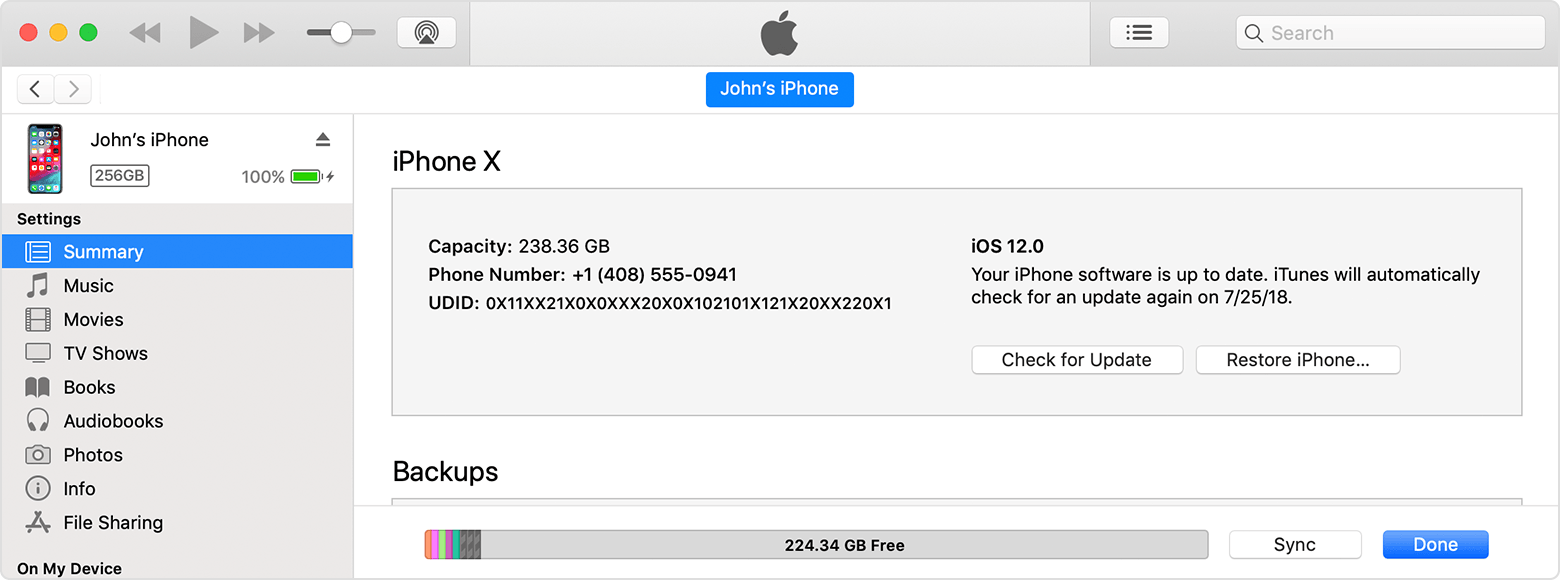
3. Click the device button in iTunes toolbar. If you don't see your device, learn what to do.
4. In the Summary tab, click Check for Update.
5.
6. Click Download and Update. Continue by following the onscreen instructions.
7. If asked, enter your passcode. If you don't know your passcode, learn what to do.
Hope that helps.
Take care.
Thanks for reaching out dluke61,
It sounds like you're having trouble updating to iOS 17. We can help.
If you're getting stuck doing the update over the air, you can always try updating with a Mac or Windows PC instead. Check out these steps to Update your iPhone, iPad, or iPod touch with iTunes:
Before you update
1. Back up your device using iCloud or your computer.
2. If you have a Mac, check that your computer is running macOS Mojave or earlier. Using a Mac with macOS Catalina or later? Update your device using the Finder instead. If you're not sure which macOS you have, you can find out which macOS your Mac is using.
3. If your computer is using Personal Hotspot on the device that you're updating, connect your computer to a different Wi-Fi or Ethernet network before you update.
Update your iPhone, iPad, or iPod touch using iTunes
1. Open iTunes on your Mac with macOS Mojave or earlier or on your Windows PC.
2. Connect your device to your computer.
3. Click the device button in iTunes toolbar. If you don't see your device, learn what to do.
4. In the Summary tab, click Check for Update.
5.
6. Click Download and Update. Continue by following the onscreen instructions.
7. If asked, enter your passcode. If you don't know your passcode, learn what to do.
Hope that helps.
Take care.
my new iphone 14 plus has been installing update 17 over night, what do I need to do