How to update my watch
How to update my watch
Apple Watch Ultra 2
How to update my watch
Apple Watch Ultra 2
Hi Blindg30,
Thanks for posting here in Apple Support Communities. Your Appel Watch can be updated using your iPhone or directly from your watch. The following article will walk you through doing so: Update your Apple Watch - Apple Support
Update your Apple Watch using your iPhone
You can wait until Apple Watch notifies you when a new update is available. Tap Update Tonight in the notification, then go to your iPhone to confirm that you want to update overnight. At the end of the day, leave your Apple Watch and iPhone charging overnight so the update can complete.
Or you can update your Apple Watch with your iPhone manually:
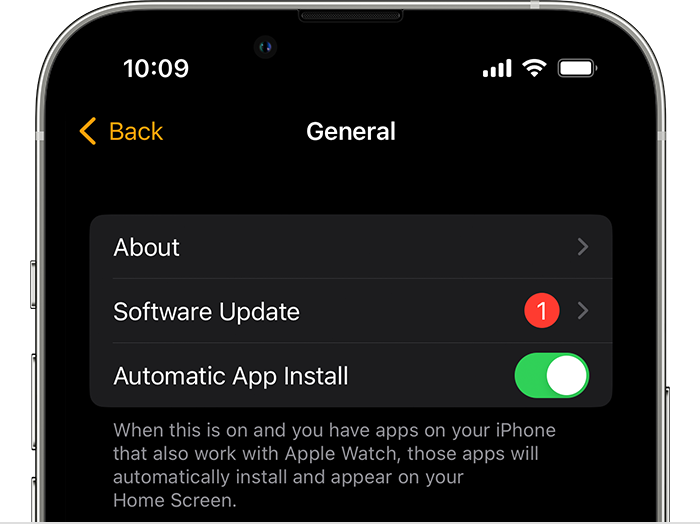
1. On your iPhone, open the Apple Watch app, then tap the My Watch tab.
2. Tap General > Software Update.
3. Download the update. If asked for your iPhone passcode or Apple Watch passcode, enter it.
4. Wait for the progress wheel to appear on your Apple Watch. It could take from several minutes to an hour for the update to complete.
Leave your Apple Watch on its charger while the update completes. Don't restart your iPhone or Apple Watch, and don't quit the Apple Watch app. When the update completes, your Apple Watch restarts on its own.
Update directly on your Apple Watch
If your Apple Watch has watchOS 6 or later, you can install updates without your iPhone:
1. Make sure that your watch is connected to Wi-Fi.
2. On your watch, open the Settings app.
3. Tap General > Software Update.
4. Tap Install if a software update is available, then follow the onscreen instructions.
Leave your Apple Watch on its charger while the update completes, and don't restart your Apple Watch. When the update completes, your Apple Watch restarts on its own.
Take care.
Hi Blindg30,
Thanks for posting here in Apple Support Communities. Your Appel Watch can be updated using your iPhone or directly from your watch. The following article will walk you through doing so: Update your Apple Watch - Apple Support
Update your Apple Watch using your iPhone
You can wait until Apple Watch notifies you when a new update is available. Tap Update Tonight in the notification, then go to your iPhone to confirm that you want to update overnight. At the end of the day, leave your Apple Watch and iPhone charging overnight so the update can complete.
Or you can update your Apple Watch with your iPhone manually:
1. On your iPhone, open the Apple Watch app, then tap the My Watch tab.
2. Tap General > Software Update.
3. Download the update. If asked for your iPhone passcode or Apple Watch passcode, enter it.
4. Wait for the progress wheel to appear on your Apple Watch. It could take from several minutes to an hour for the update to complete.
Leave your Apple Watch on its charger while the update completes. Don't restart your iPhone or Apple Watch, and don't quit the Apple Watch app. When the update completes, your Apple Watch restarts on its own.
Update directly on your Apple Watch
If your Apple Watch has watchOS 6 or later, you can install updates without your iPhone:
1. Make sure that your watch is connected to Wi-Fi.
2. On your watch, open the Settings app.
3. Tap General > Software Update.
4. Tap Install if a software update is available, then follow the onscreen instructions.
Leave your Apple Watch on its charger while the update completes, and don't restart your Apple Watch. When the update completes, your Apple Watch restarts on its own.
Take care.
How to update my watch