iPhone 13 updated to iOS 17
Printer found but won’t print from iPhone
Printer found but won’t print from iPhone
Hello Indycat3813,
Are you taking these steps to print from your iPhone: Use AirPrint to print from your iPhone or iPad
Use AirPrint to print from your iPhone or iPad
Learn how to print from your iPhone or iPad to an AirPrint-enabled printer.
Before you begin
* Confirm that your printer supports AirPrint. Contact your printer's manufacturer for details.
* Make sure that your iPhone or iPad and your printer are connected to the same Wi-Fi network and that you're within range.
Print with AirPrint
1. Open the app that you want to print from.
2. To find the print option, tap the app’s Share buttonor
or the Actions button
.
3. Scroll down and tap the Print buttonor Print. If you can’t find the print option, check the app’s User Guide or Help section. Not all apps support AirPrint.
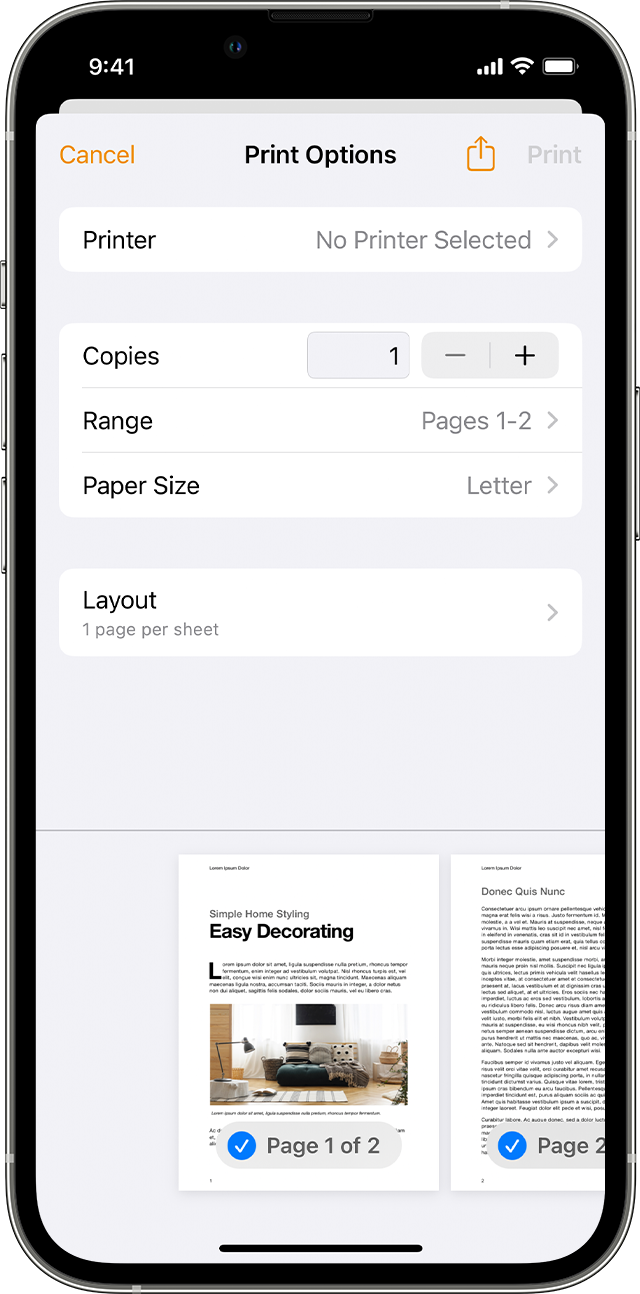
4. Tap No Printer Selected and choose an AirPrint-enabled printer.
5. Choose the number of copies or other options, like which pages you want to print.
6. Tap Print in the upper-right corner.

If these steps don't resolve the issue, then we would make sure you've restarted your network, AirPrinter, and the iPhone. You may need to contact the manufacturer of the printer and your Internet Service Provider for steps to reboot. Here are steps to restart your iPhone: Restart your iPhone
Should you continue to have issues with an AirPrint-enabled printer that is supported, then would be best to contact Apple Support directly: Get Support They will need to take it from here.
Take care.
Hello Indycat3813,
Are you taking these steps to print from your iPhone: Use AirPrint to print from your iPhone or iPad
Use AirPrint to print from your iPhone or iPad
Learn how to print from your iPhone or iPad to an AirPrint-enabled printer.
Before you begin
* Confirm that your printer supports AirPrint. Contact your printer's manufacturer for details.
* Make sure that your iPhone or iPad and your printer are connected to the same Wi-Fi network and that you're within range.
Print with AirPrint
1. Open the app that you want to print from.
2. To find the print option, tap the app’s Share button
3. Scroll down and tap the Print button
4. Tap No Printer Selected and choose an AirPrint-enabled printer.
5. Choose the number of copies or other options, like which pages you want to print.
6. Tap Print in the upper-right corner.
If these steps don't resolve the issue, then we would make sure you've restarted your network, AirPrinter, and the iPhone. You may need to contact the manufacturer of the printer and your Internet Service Provider for steps to reboot. Here are steps to restart your iPhone: Restart your iPhone
Should you continue to have issues with an AirPrint-enabled printer that is supported, then would be best to contact Apple Support directly: Get Support They will need to take it from here.
Take care.
iPhone 13 updated to iOS 17