AIRPODS NOT LETTING ME RESET!!!!!

my airpods are only showing a green light not allowing me to rese them (not letting white light to show up or amber) i have bought a replacement case but i do not know if my airpods are actually charging

iPhone XR, iOS 16

Posted on Sep 29, 2023 12:12 PM

Reply
Question marked as Top-ranking reply

Posted on Oct 1, 2023 8:17 PM

Hello AllanBro,


Thank you for reaching out in Apple Support Communities. When receiving a replacement charging case for the AirPods, there are steps in place to ensure it can be set up correctly. Our recommendation is for you to follow these steps when receiving your replacement:


Set up your replacement AirPods or charging case
When you get your replacement, follow these steps to use your AirPods again.


Set up your AirPods or charging case
1. On your iPhone, iPad, or iPod touch, go to Settings > Bluetooth and tap the Information button  next to your AirPods.
2. Tap Forget This Device.
3. Tap Forget Device, and tap again to confirm.
4. Put both AirPods in your charging case.
5. Open the lid and check the status light. It should flash amber.
6. Press and hold the setup button on the back of the case for a few seconds. The status light should flash white.*
7. Go to the Home Screen on your iPhone, iPad, or iPod touch.
8. Open the case—with your AirPods inside—and hold it next to your iPhone, iPad, or iPod touch. A setup animation appears on your screen.
9. Tap Connect, then tap Done.

* If the status light still flashes amber, connect the case to power, close the lid, and wait 20 minutes. Then open the lid and press and hold the setup button again for a few seconds until the status light flashes white.
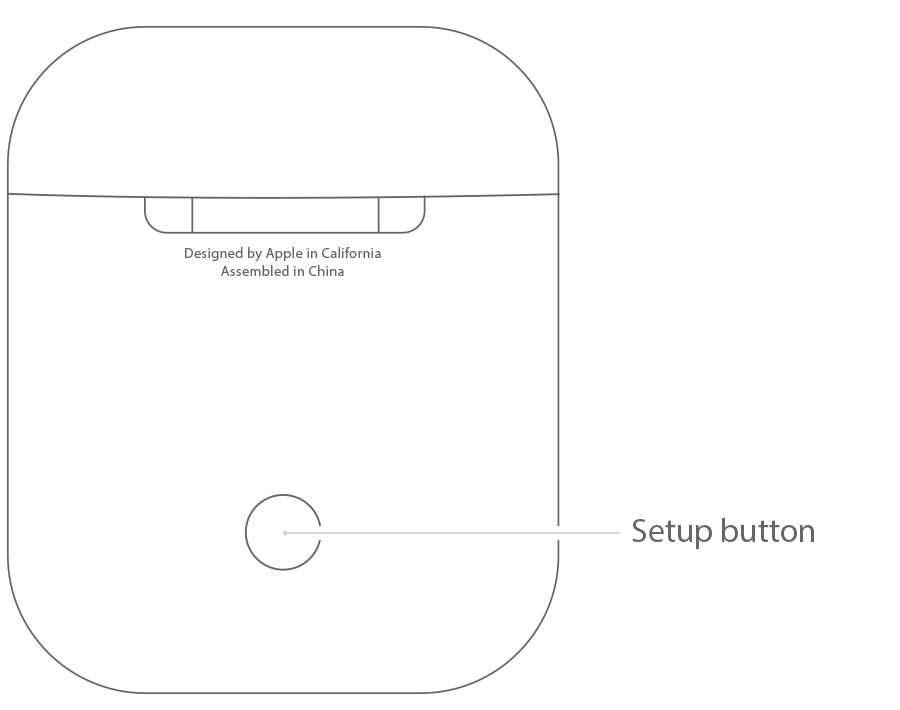
setup button on your AirPods charging case

Following these steps can help and is outlined in this article: Set up your replacement AirPods or charging case - Apple Support


Kind regards.


1 reply
Question marked as Top-ranking reply

Oct 1, 2023 8:17 PM in response to AllanBro

Hello AllanBro,


Thank you for reaching out in Apple Support Communities. When receiving a replacement charging case for the AirPods, there are steps in place to ensure it can be set up correctly. Our recommendation is for you to follow these steps when receiving your replacement:


Set up your replacement AirPods or charging case
When you get your replacement, follow these steps to use your AirPods again.


Set up your AirPods or charging case
1. On your iPhone, iPad, or iPod touch, go to Settings > Bluetooth and tap the Information button  next to your AirPods.
2. Tap Forget This Device.
3. Tap Forget Device, and tap again to confirm.
4. Put both AirPods in your charging case.
5. Open the lid and check the status light. It should flash amber.
6. Press and hold the setup button on the back of the case for a few seconds. The status light should flash white.*
7. Go to the Home Screen on your iPhone, iPad, or iPod touch.
8. Open the case—with your AirPods inside—and hold it next to your iPhone, iPad, or iPod touch. A setup animation appears on your screen.
9. Tap Connect, then tap Done.

* If the status light still flashes amber, connect the case to power, close the lid, and wait 20 minutes. Then open the lid and press and hold the setup button again for a few seconds until the status light flashes white.
setup button on your AirPods charging case

Following these steps can help and is outlined in this article: Set up your replacement AirPods or charging case - Apple Support


Kind regards.


This thread has been closed by the system or the community team. You may vote for any posts you find helpful, or search the Community for additional answers.

AIRPODS NOT LETTING ME RESET!!!!!

Welcome to Apple Support Community
A forum where Apple customers help each other with their products. Get started with your Apple Account.