Hi mimsy55,
We understand how important videos are, and we want to help any way we can.
If you want to import a video to your Mac, please check out this link to ensure the correct process is being used, so we can make sure there aren't any issues there: Import photos from a camera or phone using Photos on Mac
Import photos from a camera, iPhone, or iPad
1. Connect a camera, iPhone, or iPad to your computer.
2. Make sure the camera or device is turned on and the camera is set to the correct mode for importing photos.
For information on which mode to choose, see the instructions provided with your camera.
3. Open Photos (if it isn’t already open), then click the device under Devices in the sidebar.
Note: Devices appears in the sidebar only when a camera or storage device is connected.
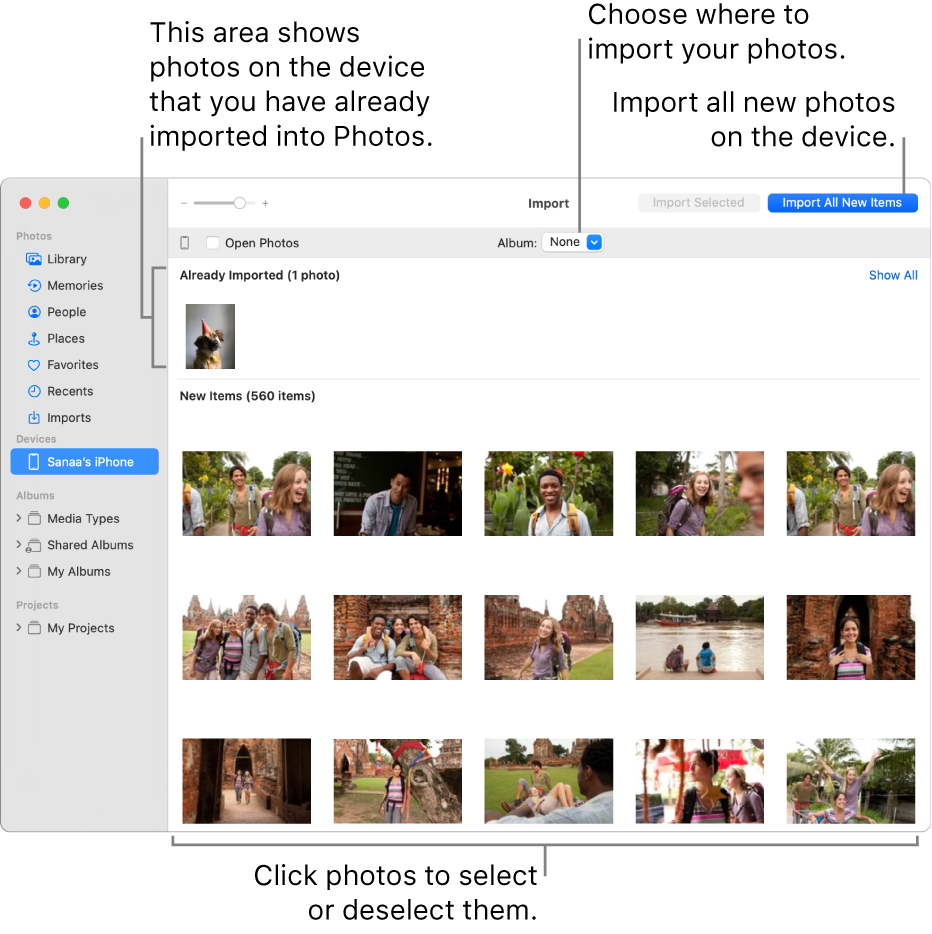
Tip: If you want Photos to open whenever you connect this device, select the Open Photos checkbox.
4. If you want to delete photos from the camera after importing them, select the “Delete items” checkbox.
5. To set where to import the photos, do one of the following:
* Import into an existing album: Click the Album pop-up menu, then choose the album you want from the list.
* Import into a new album: Click the Album pop-up menu, choose New Album, enter an album name, then click OK.
* Import into the Photos library without specifying an album: Click the Album pop-up menu, then choose None.
6. Do one of the following:
* Import all new photos: Click Import All New Items.
* Import a selection of photos: Click the photos you want to import, then click Import Selected.
7. If a message asks whether you want to delete or keep the photos on your camera after they’re imported, click Delete Items to remove the photos, or click Keep Items to keep them on the camera.
To cancel importing, click Stop Import.
8. When all photos have been imported, disconnect the camera or device from your computer.
You mentioned that you receive an error when trying to import that video; to help us better assist you, can you let us know what the exact error said? As for Mail Drop, are you able to Mail Drop other content without an issue? That will help us plan how to proceed.
Thank you.

