
Hide my email

I used Apple's hide my email address to create an account for the NY Times which I either deleted from Keychain or never saved to Keychain passwords. Now I cannot log into my NYT account. Is there a way to recover my hidden email address so I can recreate a new password?


I'm running Ventura 13.5.2

MacBook Air 13″, macOS 13.5

Posted on Oct 11, 2023 9:48 AM

Reply
Question marked as Top-ranking reply

Posted on Oct 12, 2023 9:15 AM

Hi Staynavytom,


Thanks for posting in Apple Support Communities! To see the emails created with Hide My Email, follow the steps below from the article Use Hide My Email on Mac:


  1. "On your Mac, choose Apple menu  > System Settings, then click [your name] at the top of the sidebar.
  2. If you don’t see your name, click “Sign in with your Apple ID,” enter your Apple ID (or a Reachable At email address or phone number that you added in Apple ID settings), then enter your password. If you don’t have an Apple ID, you can create one.
  3. Click iCloud on the right, then click Hide My Email. (You may need to scroll down.)
  4. If requested, enter your Apple ID password and click Continue.
  5. In the options that appear, do any of the following: 

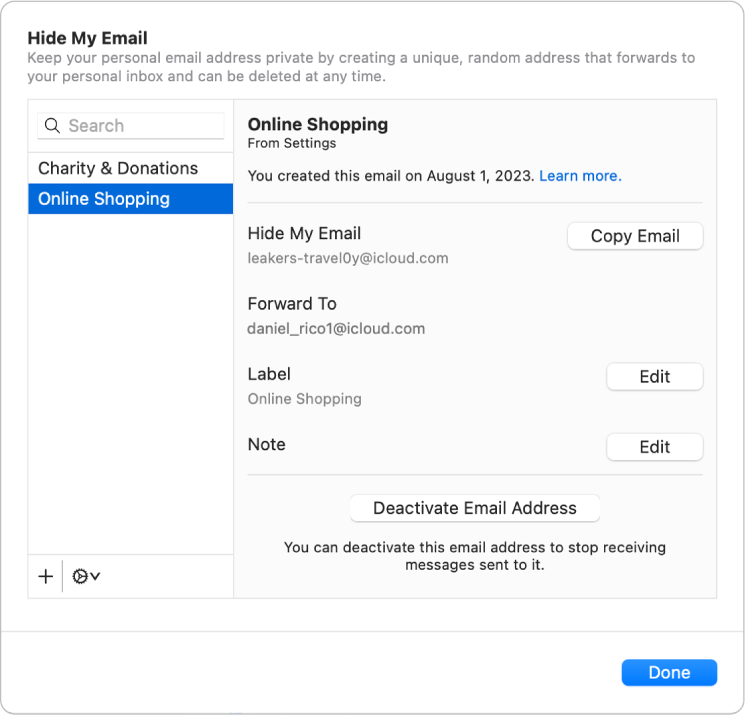
Options for managing email addresses created with Hide My Email.

    • Edit a label: Select an address on the left, click Edit next to Label on the right, make changes to the label, then click Done.
    • Edit a note: Select an address on the left, click Edit next to Note on the right, make changes to the note, then click Done.
    • Deactivate an address: Select an address on the left, click Deactivate Email Address on the right, then click Deactivate.
    • Reactivate an inactive address: Click the Options button  in the lower-left corner, then click Show Inactive Addresses. Select an inactive address in the list on the left, click Reactivate Address on the right, click Reactivate, then click Done.
    • Delete an inactive address: Click the the Options button  in the lower-left corner, then click Show Inactive Addresses. Select an inactive address in the list on the left, click Delete Address, click Delete, then click Done.
    • Choose a personal email address to forward to: If you have more than one personal email address, click the Options button  in the lower-left corner, then click Change Forwarding Address. Select the address that Hide My Email should forward mail to, then click Done.

6. Click Done."


That should help you with locating the address used for your account so that you can regain access.


Hope that helps!


3 replies
Question marked as Top-ranking reply

Oct 12, 2023 9:15 AM in response to Staynavytom

Hi Staynavytom,


Thanks for posting in Apple Support Communities! To see the emails created with Hide My Email, follow the steps below from the article Use Hide My Email on Mac:


  1. "On your Mac, choose Apple menu  > System Settings, then click [your name] at the top of the sidebar.
  2. If you don’t see your name, click “Sign in with your Apple ID,” enter your Apple ID (or a Reachable At email address or phone number that you added in Apple ID settings), then enter your password. If you don’t have an Apple ID, you can create one.
  3. Click iCloud on the right, then click Hide My Email. (You may need to scroll down.)
  4. If requested, enter your Apple ID password and click Continue.
  5. In the options that appear, do any of the following: 

Options for managing email addresses created with Hide My Email.

    • Edit a label: Select an address on the left, click Edit next to Label on the right, make changes to the label, then click Done.
    • Edit a note: Select an address on the left, click Edit next to Note on the right, make changes to the note, then click Done.
    • Deactivate an address: Select an address on the left, click Deactivate Email Address on the right, then click Deactivate.
    • Reactivate an inactive address: Click the Options button  in the lower-left corner, then click Show Inactive Addresses. Select an inactive address in the list on the left, click Reactivate Address on the right, click Reactivate, then click Done.
    • Delete an inactive address: Click the the Options button  in the lower-left corner, then click Show Inactive Addresses. Select an inactive address in the list on the left, click Delete Address, click Delete, then click Done.
    • Choose a personal email address to forward to: If you have more than one personal email address, click the Options button  in the lower-left corner, then click Change Forwarding Address. Select the address that Hide My Email should forward mail to, then click Done.

6. Click Done."


That should help you with locating the address used for your account so that you can regain access.


Hope that helps!


This thread has been closed by the system or the community team. You may vote for any posts you find helpful, or search the Community for additional answers.

Hide my email

Welcome to Apple Support Community
A forum where Apple customers help each other with their products. Get started with your Apple Account.