Hello Ravyank,
It looks like you've had the opportunity to review the details in the related article above: Use Adaptive Audio with your AirPods Pro (2nd generation)
Since you aren't seeing that option, let's reset your AirPods using the steps below: How to reset your AirPods and AirPods Pro
1. Put your AirPods in their charging case, and close the lid.
2. Wait 30 seconds.
3. Open the lid of your charging case, and put your AirPods in your ears.
4. Go to Settings > Bluetooth. Or go to Settings > [your AirPods].
• If your AirPods appear there as connected, tap the More Info button  next to your AirPods, tap Forget This Device, then tap again to confirm.
• If your AirPods don't appear there, continue to the next step.
5. Put your AirPods in their charging case, and keep the lid open.
6. Press and hold the setup button on the back of the case for about 15 seconds, until the status light on the front of the case flashes amber, then white.*
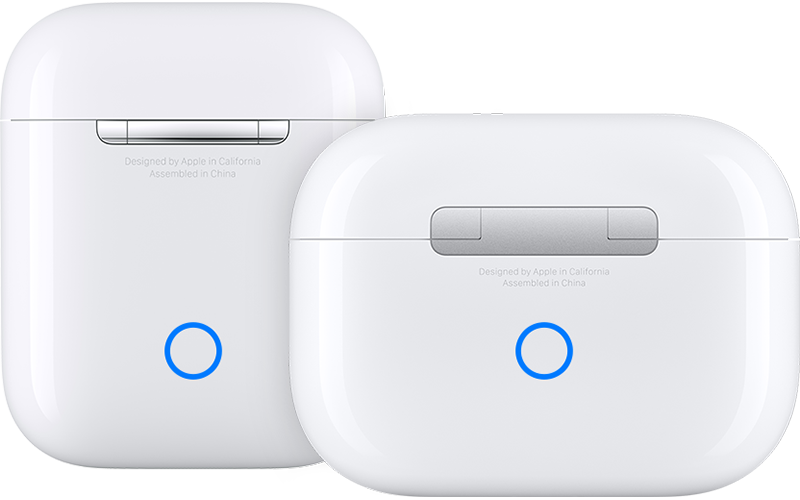
7. Reconnect your AirPods: With your AirPods in their charging case and the lid open, place your AirPods close to your iPhone or iPad. Follow the steps on your device's screen.
Restarting your iPhone can also help address odd behaviors: Restart your iPhone
1. Press and hold either volume button and the side button until the power-off slider appears.
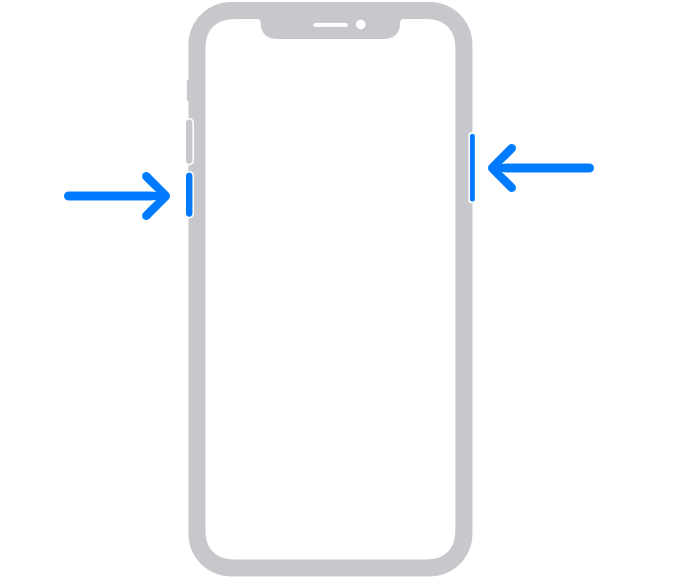
2. Drag the slider, then wait 30 seconds for your device to turn off. If your device is frozen or unresponsive, force restart your device.
3. To turn your device back on, press and hold the side button (on the right side of your iPhone) until you see the Apple logo.
Should you continue to not see that option, are you able to temporarily pair your AirPods with another iPhone to see if that behavior persists?
Let us know, and we'll keep moving forward from there.


