My date is not correct on Apple Watch 9. How do I correct it.
The year and month is incorrect on my Apple Watch 9. How do I correct it.
iPhone 14 Plus, iOS 17
The year and month is incorrect on my Apple Watch 9. How do I correct it.
iPhone 14 Plus, iOS 17
Hello Brickleyperkins,
It looks like you've had the opportunity to review the details in the related article above: Change the time settings on your Apple Watch
Since that persists, let's use the steps below to make sure your Apple Watch is up to date:
Get ready to update
Next, check these things:
1. Make sure that your iPhone is updated to the latest version of iOS.
2. Make sure that your Apple Watch is at least 50 percent charged.
3. Make sure that your iPhone is connected to Wi-Fi.
Keep your iPhone near your Apple Watch throughout the update. It could take from several minutes to an hour for the update to complete, so you might want to update overnight or wait until you have time.
Update your Apple Watch using your iPhone
You can wait until Apple Watch notifies you when a new update is available. Tap Update Tonight in the notification, then go to your iPhone to confirm that you want to update overnight. At the end of the day, leave your Apple Watch and iPhone charging overnight so the update can complete.
Or you can update your Apple Watch with your iPhone manually:
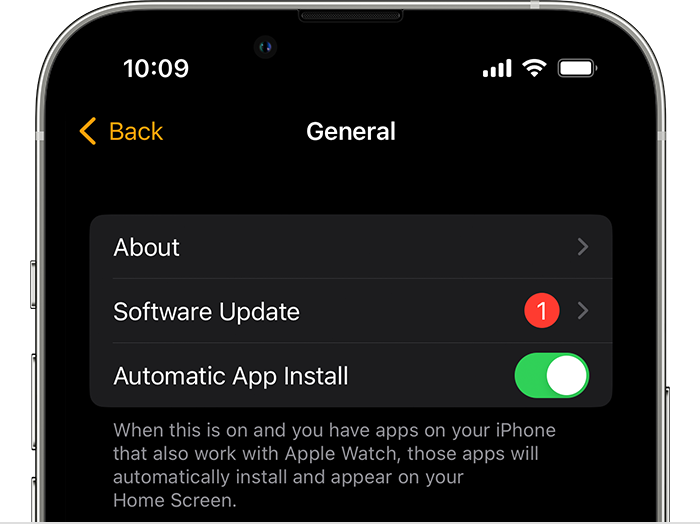
1. On your iPhone, open the Apple Watch app, then tap the My Watch tab.
2. Tap General > Software Update.
3. Download the update. If asked for your iPhone passcode or Apple Watch passcode, enter it.
4. Wait for the progress wheel to appear on your Apple Watch. It could take from several minutes to an hour for the update to complete.
Leave your Apple Watch on its charger while the update completes. Don't restart your iPhone or Apple Watch, and don't quit the Apple Watch app. When the update completes, your Apple Watch restarts on its own.
You can also find those steps in this resource: Update your Apple Watch - Apple Support
If your Apple Watch is all up to date, let's restart both your Apple Watch and iPhone:
Restart Apple Watch - Apple Support
Restart your iPhone - Apple Support
Updating and restarting can sometimes help address odd behavior.
Should that still persist, is your iPhone displaying the correct time?
If you open the Maps app on your Apple Watch, does it accurately reflect your current location?
Let us know, and we'll keep moving forward from there.
Hi Brickleyperkins,
Next, try unpairing then pairing your Apple Watch again. That can resolve most errors and may be helpful here. Use the following guidance from Unpair and erase your Apple Watch - Apple Support.
"How to unpair and erase your Apple Watch if you have your iPhone
 next to the watch that you want to unpair.
 8. Type your Apple ID password to disable Activation Lock, then tap Unpair."
If the same continues after that, it may be best to reach out to Apple Support from Get Support.
Take care.
My phone is updated and my watch is updated. It’s the Apple iwatch 9..
maps does show me in the correct location.
so now what. The only place the time is off is on the face of the watch when I chose my face and complications.
now what?
My date is not correct on Apple Watch 9. How do I correct it.