Hi JakeBbl,
Thanks for posting in Apple Support Communities.
You can see directions directly on your Apple Watch using:
Choose how you want to get there
The Maps app  can give you directions for driving, cycling, walking, and public transit.
Note: Not all transportation options are available in all locations.
1. Open the Maps app  on your Apple Watch.
2. Tap  , then turn the Digital Crown to scroll to Favorites, Recents, Find Nearby, or Guides.
3. Tap an entry, tap a destination, then tap the button at the top right to choose driving, walking, transit, or cycling directions.
Get driving directions
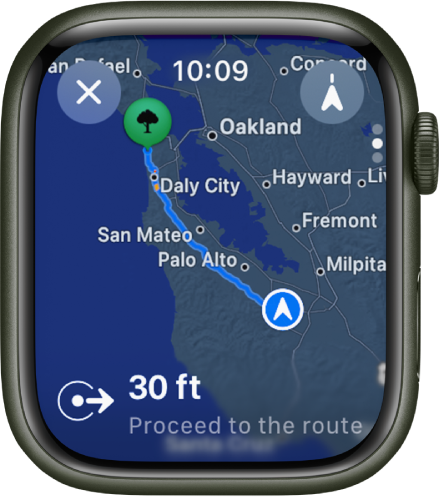
Tap  , turn the Digital Crown to browse suggested routes, tap a route to see turn-by-turn directions, then do any of the following:
Note: Location services must be turned on to use turn-by-turn directions. On Apple Watch, go to Settings  > Privacy & Security > Location Services to turn location services on or off.
* Show the turns along your route: Tap the Info button, then scroll through the list.
* Show an overview of your route: Scroll up one screen to show the beginning of your route on the map. Tap  at the top right to see your entire route. Tap
  to return to your current location.
* Pan and zoom your route: While viewing the overview, drag the map, then use the Digital Crown to zoom in and out. Tap to return to your current location.
* Show distance and estimated arrival time: Scroll up one screen where you can view the destination’s street address, distance, and your estimated time of arrival. Tap to show more information.
Tip: Use Siri to estimate your arrival time. Say something like, “How long will it take me to get home?”
Get directions on Apple Watch - Apple Support
Regarding the behavior with the iPhone, this would be expected since the Apple Watch and iPhone are paired. You can provide feedback regarding this at: Product Feedback - Apple
Regards.


