iPad restarting

My iPad was on charging and suddenly its got turn offf now I tried to restart it but it shows apple logo then again restart and apple logo and disappear continuously… even I tried a force restart but it shows same … I tried to connect with iTunes and updating my iPad but after 2Gb update my device get disconnected… how can I start my iPad …😔

iPad, iPadOS 17

Posted on Oct 30, 2023 8:24 PM

Reply
Question marked as Top-ranking reply

Posted on Oct 31, 2023 4:09 AM

Start by connecting your iPad to its Power Adapter and allow the iPad to charge for at least an hour - or preferably overnight. This step is advised as a battery with very low charge, or is failing, may produce symptoms that emulate a boot loop.


If the problem fails to stabilise, whilst still connected to the Power Adapter, attempt a forced restart of the iPad:


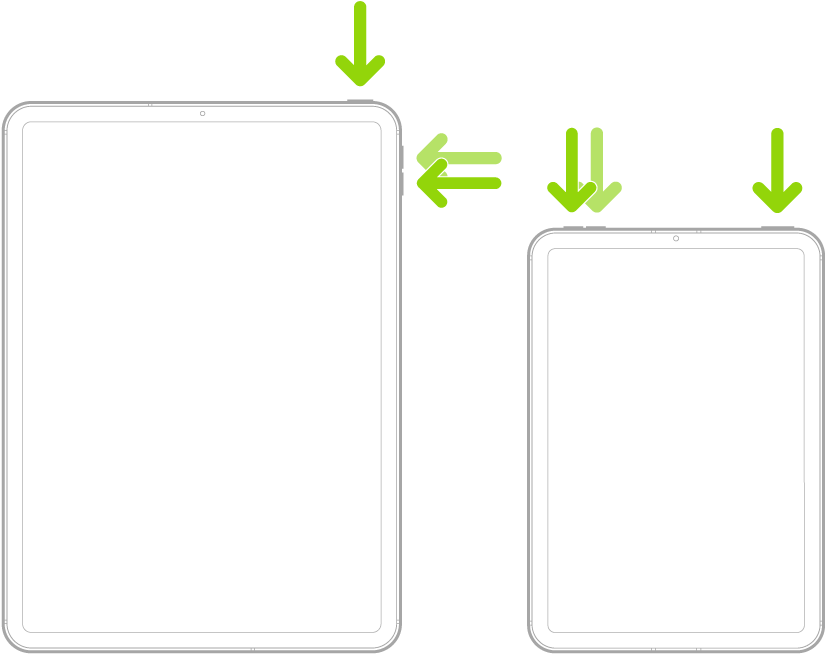
Force restart iPad (models with Face ID or with Touch ID in the top button)

If your iPad doesn’t have the Home button, do the following:

  1. Press and quickly release the volume button nearest to the top button.
  2. Press and quickly release the volume button farthest from the top button.
  3. Press and hold the top button.
  4. When the Apple logo appears, release the top button.


Force restart iPad (models with the Home button)

Press and hold the top button and the Home button at the same time. When the Apple logo appears, release both buttons.


If iPad still doesn’t turn on, or if it gets stuck during start up, see the Apple Support article If your iPhone, iPad, or iPod touch won't turn on or is frozen. Or if your iPad isn’t working correctly after you restart it, see the iPad Support website.


If your iPad is stuck is actually stuck in a boot-loop, you’ll need to resolve this specific issue - which may entail “restoring” the most recent version of iPadOS to the iPad. This support page outlines restoration of an iPad to Factory Settings:

Restore your iPhone, iPad or iPod to factory settings – Apple Support


You’ll need access to either a Windows PC (with iTunes for Windows installed) or a Mac (with iTunes or Finder - as appropriate for the installed version of MacOS).

Download and use iTunes for Windows – Apple Support

Update to the latest version of iTunes – Apple Support


Use of a PC or Mac computer is unavoidable. If you don’t have access to a suitable computer of your own, that of a helpful friend or family member will suffice. Alternatively, the technicians at the Genius Bar of your local Apple Store or Apple Authorised Service Provider (AASP) will be delighted to assist.

Genius Bar Reservation and Apple Support Options - Apple

5 replies
Question marked as Top-ranking reply

Oct 31, 2023 4:09 AM in response to ronak1523

Start by connecting your iPad to its Power Adapter and allow the iPad to charge for at least an hour - or preferably overnight. This step is advised as a battery with very low charge, or is failing, may produce symptoms that emulate a boot loop.


If the problem fails to stabilise, whilst still connected to the Power Adapter, attempt a forced restart of the iPad:


Force restart iPad (models with Face ID or with Touch ID in the top button)

If your iPad doesn’t have the Home button, do the following:

  1. Press and quickly release the volume button nearest to the top button.
  2. Press and quickly release the volume button farthest from the top button.
  3. Press and hold the top button.
  4. When the Apple logo appears, release the top button.


Force restart iPad (models with the Home button)

Press and hold the top button and the Home button at the same time. When the Apple logo appears, release both buttons.


If iPad still doesn’t turn on, or if it gets stuck during start up, see the Apple Support article If your iPhone, iPad, or iPod touch won't turn on or is frozen. Or if your iPad isn’t working correctly after you restart it, see the iPad Support website.


If your iPad is stuck is actually stuck in a boot-loop, you’ll need to resolve this specific issue - which may entail “restoring” the most recent version of iPadOS to the iPad. This support page outlines restoration of an iPad to Factory Settings:

Restore your iPhone, iPad or iPod to factory settings – Apple Support


You’ll need access to either a Windows PC (with iTunes for Windows installed) or a Mac (with iTunes or Finder - as appropriate for the installed version of MacOS).

Download and use iTunes for Windows – Apple Support

Update to the latest version of iTunes – Apple Support


Use of a PC or Mac computer is unavoidable. If you don’t have access to a suitable computer of your own, that of a helpful friend or family member will suffice. Alternatively, the technicians at the Genius Bar of your local Apple Store or Apple Authorised Service Provider (AASP) will be delighted to assist.

Genius Bar Reservation and Apple Support Options - Apple

Oct 31, 2023 7:01 AM in response to ronak1523

You’ll find guidance for troubleshooting error #4013 here:

If you see error 9, 4005, 4013, or 4014 when you restore your iPhone, iPad, or iPod touch - Apple Support


If you continue to experience difficulties, you might be well advised to seek assistance directly from from Apple Support. You can contact the Support Team using the Support link at top-right or bottom-left of this page. 


Alternatively, if you have access to another Apple device, you can initiate and manage your support cases using the excellent Apple Support App. If not already installed, the App can be downloaded from the App Store:

https://apps.apple.com/app/apple-support/id1130498044


You might also visit the Genius Bar at your local Apple Store or Apple Authorised Service Provider (AASP) - where the technicians will be able to provide assistance:

Genius Bar Reservation and Apple Support Options - Apple
This thread has been closed by the system or the community team. You may vote for any posts you find helpful, or search the Community for additional answers.

iPad restarting

Welcome to Apple Support Community
A forum where Apple customers help each other with their products. Get started with your Apple Account.