A670DE6A-4EA5-4A65-B0E1-2077C9927B5E” will damage your computer. You should move it to the Trash.

I' m getting this caution on my MacBook: A670DE6A-4EA5-4A65-B0E1-2077C9927B5E” will damage your computer. You should move it to the Trash.


I've moved it to the trash and deleted trash and it keeps popping up?


MacBook Air 13″, macOS 14.0

Posted on Nov 1, 2023 8:43 AM

Reply
Question marked as Top-ranking reply

Posted on Nov 1, 2023 10:47 AM

Ok thanks. In that case please read and follow these instructions, notwithstanding the fact its title implies a completely different problem:


Removing "Search Marquis" / "Search Baron" / etc on your own - Apple Community


The three separate folders it asks for are likely to contain the files that need to be identified.


It is unlikely a file bearing the name in that dialog box exists anywhere on your Mac.

11 replies
Question marked as Top-ranking reply

Nov 1, 2023 10:47 AM in response to agalatas

Ok thanks. In that case please read and follow these instructions, notwithstanding the fact its title implies a completely different problem:


Removing "Search Marquis" / "Search Baron" / etc on your own - Apple Community


The three separate folders it asks for are likely to contain the files that need to be identified.


It is unlikely a file bearing the name in that dialog box exists anywhere on your Mac.

Nov 1, 2023 12:37 PM in response to agalatas

More than likely CleanMyMac is your problem, CleanMyMac is a disaster for your computer and will cause many issues. I would delete those 2 files in your first screenshot and also move the app to the trash. MacPaw does provide an uninstaller that you may want to try first and then review the same file locations to verify that it has removed all of its files. For more information on CleanMyMac:

Is it ok to use Cleanmymac x? - Apple Community

CleanMyMac X - Apple Community


I am not familiar with the 5 files below the CleanMyMac files in your first screenshot, but John Galt may be able to provide some better insight on those as well.


After that is done, you can verify that your problem has been solved. If it still occurs I suggest downloading EtreCheck that will give a snapshot of your startup files to narrow down which one is causing the problem. Post the free EtreCheck report here using the Additional Text option. It was developed by a fellow contributor here and does not contain any personal information.

Using EtreCheck - Apple Community


Nov 1, 2023 3:25 PM in response to agalatas

agalatas, please follow the instructions below.



First, ensure you have a reliable backup of your Mac, in case something should go wrong with continued troubleshooting. To learn how to do that, please read Back up your Mac with Time Machine.


  • A backup is a fundamental prerequisite regardless of whatever method you may choose uninstall adware, and would apply even if your Mac were running perfectly well. Do not overlook this fundamental requirement. It's important.


Next: This step will prevent the scam products from loading so that they can be removed while they are inactive. Restart in "Safe Mode", and log in: Use safe mode on your Mac - Apple Support. Starting in Safe Mode takes longer than usual so let it finish. The rogue processes affecting that Mac are inoperative in "Safe Mode".


The following files and / or folders need to be deleted while using your Mac in "Safe Mode":


First screenshot:
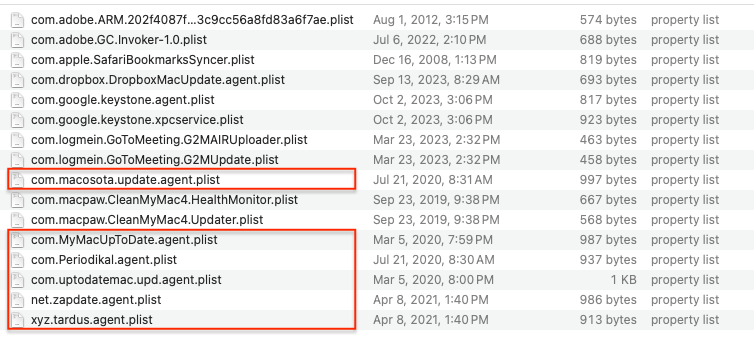


Nothing needs to be deleted from the folders in the other two screenshots, but please read my comments regarding "CleanMyMac" and certain other files in a followup reply.


Drag those selections of files to the Trash. You may be asked to authenticate. Confirm they are no longer present in that folder. Leave all the others alone for now.


Next: open Safari and select the Safari menu > Preferences (or Settings) > Extensions. If you see any Safari Extensions that you do not recognize or understand, simply click the Uninstall button and they will be gone. No Safari Extensions are required for normal operation. Then, select the General pane and review your Homepage selection. Then, select the Search pane and confirm your desired Search Engine. Repeat those equivalent actions for any other browser you may use (Brave, Firefox, or Opera for example).


There may also be adware-associated app icons in your Mac's Applications folder. Open it and examine its contents. Any unwanted or mysterious app icons should be obvious to you, but again please don't remove anything if you are uncertain—ask first. Identify any suspicious apps by name, or post another screenshot.


Next: In an abundance of caution, examine System Preferences (or Settings) > Extensions. Determine if there are any System Extensions that may have been installed without your knowledge. Ask if you're uncertain.


Remaining in System Preferences, check for the presence of any Profiles. Profiles are installed by organizations with a need to manage Macs deployed in institutional corporate or educational environments (for example), but have also been exploited by adware creators and similar malcontents. If any Profiles are installed on your Mac an icon like this will appear in System Preferences:



If you see that icon in System Preferences, select it. To remove a Profile, select it, then click the [—] (minus) button and authenticate.


Remaining in System Preferences, open Users & Groups. Select your User Account's Login Items. You may or may not find those Applications in its list. If you do, select them then click the [—] (minus) button to remove them from Login Items.


You can then restart your Mac and log in as usual. Evaluate its operation and ensure everything is working as you expect it should.


Next: if you want to eradicate all remaining adware remnants post a screenshot of the following folder, in the same manner as you did earlier:


~/Library/Application Support


It is normal for that folder to contain many items, but anything associated with the above adware may contain identical names. If you find a folder or folders bearing those names, drag those folders to the Trash. Without the files you already removed or the reintroduction of similar malware, they can do nothing but occupy space. These can be removed if you wish, but again don't remove anything if you are uncertain.


Finally: If any of the above actions result in abnormal operation or if something else stops working, the easiest way to recover would be to restore the Time Machine backup you created as a prerequisite, so the importance of that fundamental step cannot be overemphasized.


Nov 1, 2023 10:26 AM in response to agalatas

Where did you find the file you moved to the Trash? In other words, please identify the folder in which it was found.


The reason for asking is so you can post the entire contents of that folder, as well as a few others that I will suggest pending your reply. The next step will be to identify additional files that need to be removed, as well as instructions for removing them so that they don't reappear.

Nov 1, 2023 3:25 PM in response to agalatas

Regarding "CleanMyMac": Like all similarly categorized "cleaning" products, it is garbage that should never be installed on any Mac. To uninstall it, follow its uninstallation instructions. As far as I have been able to determine they are sufficient to deactivate the program itself, but are somewhat incomplete in that some of its components will remain. After uninstalling it please review each of the folders you posted in your screenshots, and manually drag any remaining "CleanMyMac" components to the Trash. You might need to do that in "Safe Mode".


  • Note: Merely uninstalling those "cleaning" products, even when performed in accordance with their instructions, is insufficient to reverse the damage they are capable of inflicting upon a system. In extreme cases completely erasing the affected Mac and rebuilding it from the ground up is the only practicable solution to fix the ensuing wreckage. That is in fact what I do with any Mac that has ever been affected by any such product, because it saves time (my time) in the long run.


Some files in those three folders are old and / or associated with long-since abandoned or orphaned products. Recent macOS versions incorporate improved malware detection that has already prevented them from having any effect, but the "will damage your computer" dialog may persist until the process attempting to activate them is eradicated. If the outcome of the above instructions cause the dialog to cease, you fixed the problem. On the other hand if the dialog continues to nag you after following the above instructions, then please start all over again and post three new screenshots of those folders so that we can methodically isolate the remaining potential causes.

This thread has been closed by the system or the community team. You may vote for any posts you find helpful, or search the Community for additional answers.

A670DE6A-4EA5-4A65-B0E1-2077C9927B5E” will damage your computer. You should move it to the Trash.

Welcome to Apple Support Community
A forum where Apple customers help each other with their products. Get started with your Apple Account.
