How do you find the breakdown of storage on iPad?

My ipad used to show storage breakdown. Now it does not. I am apparently using 31.7GB of storage on my ipad but the items listed in the ipad storage section of settings only account for AT MOST 22GB, that is including the system data. So, what is taking up this extra storage? I don't know because there is no longer a breakdown of storage on my device. Is there a way to get this back? It seems like my only option is to upgrade icloud storage? Hm, how convenient for Apple! I ran into similar issues on my MacBook where there was mysterious storage space being used up by nonsense that amounted to tens of GB worth of data and guess what the only option to fix that problem would have been if I didn't do some extensive digging on how to fix it. This company is a scam.

iPad mini, iOS 8

Posted on Nov 13, 2023 8:02 PM

Reply
Question marked as Top-ranking reply

Posted on Nov 14, 2023 2:11 AM

Perhaps you have insufficient available space for your iPad to operate properly. Sometimes strange behaviour can be seen when available storage is completely full.


At this point a forced-restart may be beneficial - as this may release temporary space occupied by cached data and temporary files:


Force restart iPad (models with Face ID or with Touch ID in the top button)

If your iPad doesn’t have the Home button, do the following:

  1. Press and quickly release the volume button nearest to the top button.
  2. Press and quickly release the volume button farthest from the top button.
  3. Press and hold the top button.
  4. When the Apple logo appears, release the top button.



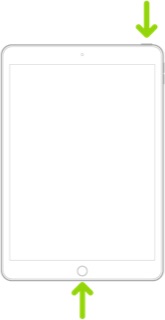
Force restart iPad (models with the Home button)

Press and hold the top button and the Home button at the same time. When the Apple logo appears, release both buttons.


After performing the restart, you should be able to determine your available and used internal storage from iPad settings:

Settings > General > iPad Storage


The graphic at the top of this settings page - and the breakdown by-App - should help you to determine where your storage is being used.


It is generally recommended that you maintain 4-6GB of free space at all times - as your iPad needs some temporary space to complete tasks - more being required when performing system software updates. Keeping some storage space available is necessary to ensure that your iPad behaves normally; if you have a storage constrained device, such as those with only 16/32GB of internal storage, maintaining adequate stored can be challenging. The installed OS alone may occupy +9GB of available space.


A system software update requires sufficient space to be downloaded, unpacked and verified prior to installation - major version updates (such as updating from iPadOS 16.x to iPadOS 17) requiring considerably more space than an incremental point-update. After the update is successfully completed, temporary files are automatically deleted - returning free space.


If your internal storage is full, or is insufficient for the task that you need to perform, your only option is to better manage the storage that you have - and delete unused Apps or unneeded data. 


These support pages should prove to be helpful:

About storage on your device and in iCloud – Apple Support

What's the difference between device storage and iCloud storage? – Apple Support

Manage your iCloud storage – Apple Support

How to check the storage on your iPhone, iPad and iPod touch – Apple Support

Clear Other storage on your iPhone or iPad - Apple Support


“Offloading” Apps can be a helpful method of creating temporary space for a software update.

https://9to5mac.com/2020/01/21/how-to-offload-apps-in-ios-to-save-space-without-deleting-their-data/


Additional information about creating sufficient space for installation of a software update can be found here:

If you need more space for an update on your iPhone, iPad, or iPod touch - Apple Support


External storage options can often help with managing limited internal storage. Depending upon your iPad model, the iPad will either have a Lightning or USB-C port - and may therefore require either an Adapter or USB hub to connect the USB Storage device. If your iPad has a Lightning port, you’ll need an Apple Lightning to USB3 Camera Adapter:


  • Lightning to USB 3 Camera Adapter

https://store.apple.com/uk/xc/product/MK0W2ZM/A

5 replies
Question marked as Top-ranking reply

Nov 14, 2023 2:11 AM in response to AppleJm1

Perhaps you have insufficient available space for your iPad to operate properly. Sometimes strange behaviour can be seen when available storage is completely full.


At this point a forced-restart may be beneficial - as this may release temporary space occupied by cached data and temporary files:


Force restart iPad (models with Face ID or with Touch ID in the top button)

If your iPad doesn’t have the Home button, do the following:

  1. Press and quickly release the volume button nearest to the top button.
  2. Press and quickly release the volume button farthest from the top button.
  3. Press and hold the top button.
  4. When the Apple logo appears, release the top button.


Force restart iPad (models with the Home button)

Press and hold the top button and the Home button at the same time. When the Apple logo appears, release both buttons.


After performing the restart, you should be able to determine your available and used internal storage from iPad settings:

Settings > General > iPad Storage


The graphic at the top of this settings page - and the breakdown by-App - should help you to determine where your storage is being used.


It is generally recommended that you maintain 4-6GB of free space at all times - as your iPad needs some temporary space to complete tasks - more being required when performing system software updates. Keeping some storage space available is necessary to ensure that your iPad behaves normally; if you have a storage constrained device, such as those with only 16/32GB of internal storage, maintaining adequate stored can be challenging. The installed OS alone may occupy +9GB of available space.


A system software update requires sufficient space to be downloaded, unpacked and verified prior to installation - major version updates (such as updating from iPadOS 16.x to iPadOS 17) requiring considerably more space than an incremental point-update. After the update is successfully completed, temporary files are automatically deleted - returning free space.


If your internal storage is full, or is insufficient for the task that you need to perform, your only option is to better manage the storage that you have - and delete unused Apps or unneeded data. 


These support pages should prove to be helpful:

About storage on your device and in iCloud – Apple Support

What's the difference between device storage and iCloud storage? – Apple Support

Manage your iCloud storage – Apple Support

How to check the storage on your iPhone, iPad and iPod touch – Apple Support

Clear Other storage on your iPhone or iPad - Apple Support


“Offloading” Apps can be a helpful method of creating temporary space for a software update.

https://9to5mac.com/2020/01/21/how-to-offload-apps-in-ios-to-save-space-without-deleting-their-data/


Additional information about creating sufficient space for installation of a software update can be found here:

If you need more space for an update on your iPhone, iPad, or iPod touch - Apple Support


External storage options can often help with managing limited internal storage. Depending upon your iPad model, the iPad will either have a Lightning or USB-C port - and may therefore require either an Adapter or USB hub to connect the USB Storage device. If your iPad has a Lightning port, you’ll need an Apple Lightning to USB3 Camera Adapter:


  • Lightning to USB 3 Camera Adapter

https://store.apple.com/uk/xc/product/MK0W2ZM/A

This thread has been closed by the system or the community team. You may vote for any posts you find helpful, or search the Community for additional answers.

How do you find the breakdown of storage on iPad?

Welcome to Apple Support Community
A forum where Apple customers help each other with their products. Get started with your Apple Account.
