In some circumstances, the update process can take many hours. Keeping the iPad connected to its Power Adapter throughout the update process can be helpful - as this will keep the iPad's WIFi connection active throughout the process.
If the update process appears to have stalled for an extended period, be patient. If no progress is made, it may become necessary to force-restart the iPad - being mindful that it may, in some circumstances, be necessary to restore the iPad thereafter.
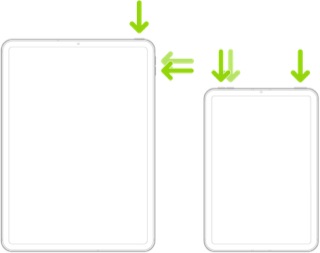
Force restart iPad (models with Face ID or with Touch ID in the top button)
If your iPad doesn’t have the Home button, do the following:
- Press and quickly release the volume button nearest to the top button.
- Press and quickly release the volume button farthest from the top button.
- Press and hold the top button.
- When the Apple logo appears, release the top button.
Force restart iPad (models with the Home button)
Press and hold the top button and the Home button at the same time. When the Apple logo appears, release both buttons.

If the iPad fails to restart to a running state - or the update process resume, the next step is to reset the iPad to factory settings:
Restore your iPhone, iPad, or iPod to factory settings - Apple Support

