Trying to convert mpeg to mp4 for iMovie

How can convert mpeg to mp4...want to edit these videos in iMovie.


I tried using HANDBRAKE to convert but get an error "Your Destination disk is almost full"

"destination" is a new external hard drive andthere is NOTHING on it!


No matter the destination, mac drive or external, I get "Your Destination disk is almost full"

iMac 27″, macOS 10.14

Posted on Nov 28, 2023 8:46 AM

Reply
Question marked as Top-ranking reply

Posted on Nov 28, 2023 11:46 AM

You can also open the movie in QuickTimePlayer and then File/Export it to your desktop to see if that will result in a format that iMovie will recognize.


Another thing you can do is put the movie on your desktop and do a Control-click on its icon. A drop down menu will appear with an item at the bottom that says Endode Selected Video Files. Click on that and encode the file. You will get a separate file so that your original is preserved. See if the encoded file works in iMovie.


-- Rich

6 replies
Question marked as Top-ranking reply

Nov 28, 2023 11:46 AM in response to Rich839

You can also open the movie in QuickTimePlayer and then File/Export it to your desktop to see if that will result in a format that iMovie will recognize.


Another thing you can do is put the movie on your desktop and do a Control-click on its icon. A drop down menu will appear with an item at the bottom that says Endode Selected Video Files. Click on that and encode the file. You will get a separate file so that your original is preserved. See if the encoded file works in iMovie.


-- Rich

Nov 28, 2023 9:57 AM in response to jeffg59

Hi,


The "destination disk is almost full" error with Handbrake as been mentioned by others. You can try an internet search and you will get some hits discussing it.


One suggestion that has been mentioned is to go to Handbrake/Preferences/Advanced/Pause queue if disk is lower than ___, . Then insert the value 2. Below is a screen shot of my Handbrake app's preferences.


Doing the above might not work, but it may be worth a try. You can always change the preference back.


-- Rich

Nov 28, 2023 2:12 PM in response to jeffg59

Click on File/Open Source and then click on the Add to Queue button at the top left of your screen to individually add several vids to the queue.


The start button to the right of the Add to Queue button will change to Start Queue. Click on Start Queue and Handbrake will covert all of the vids in the queue one after the other.


-- Rich

Nov 28, 2023 12:27 PM in response to Rich839

I was able to use Handbrake by using desktop as the destination. When I dragged the video to the desktop, as you stated, and Clicked on encode the file, that file did not work..it there is audio but the video is only a single frame. not sure why...regardless, I do have another question about Handbrake, How do I Queue up all the videos rather than having to do one at a time? I looked on youtube for tutorial and I see that they are different format versions of Handbrake...they do not help with how to queue more than one video...do you know how? Thank so below is my version, ... and #2 and #3 are the versions that I see on youtube that show how to queue more than one video...you can see mine does not have the tool bar at top as in #2 and #3 which they use to load a queue

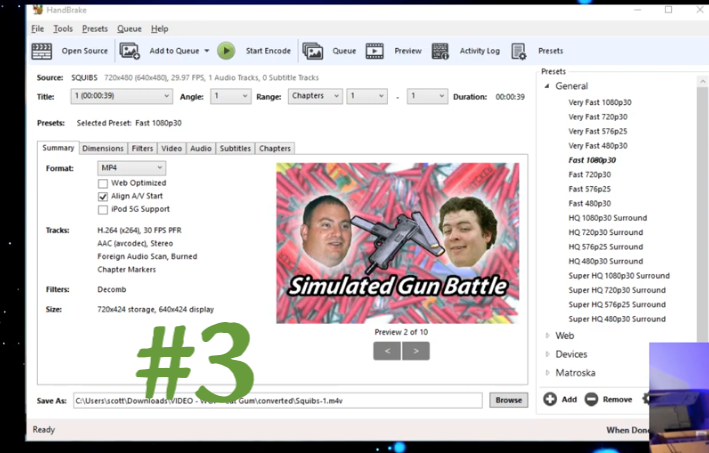
which they use to load a queue
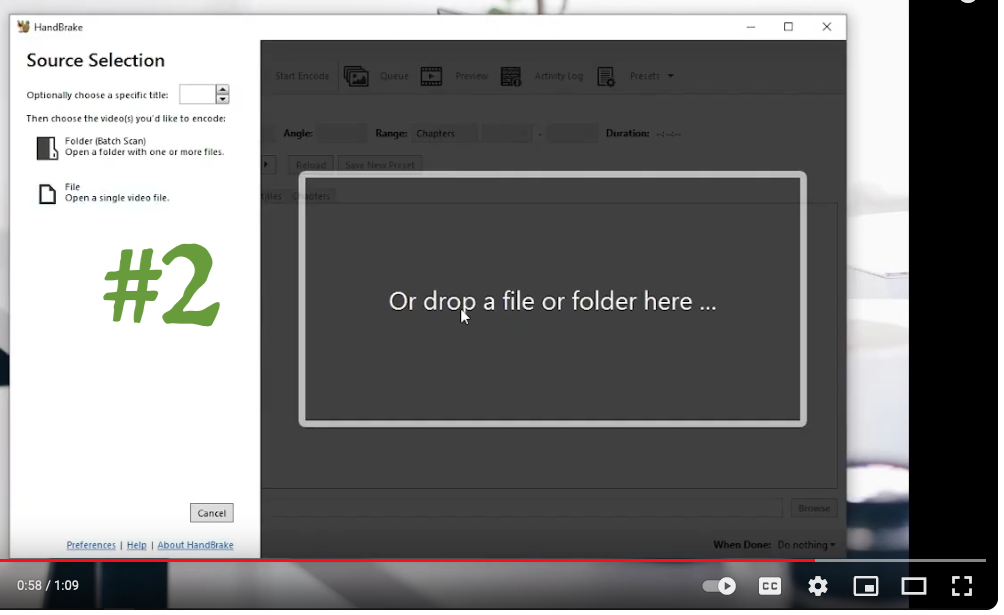
This thread has been closed by the system or the community team. You may vote for any posts you find helpful, or search the Community for additional answers.

Trying to convert mpeg to mp4 for iMovie

Welcome to Apple Support Community
A forum where Apple customers help each other with their products. Get started with your Apple Account.
