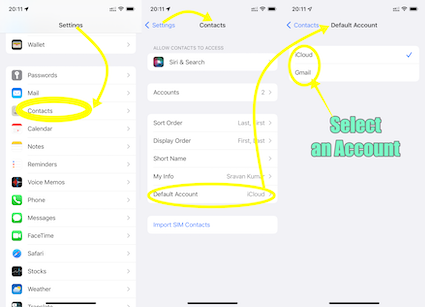
When it comes to storing contacts on an iPhone or any other smartphone, you'll discover that they are not directly stored on the device itself or the SIM card. Instead, modern smartphones utilize synchronization with various email accounts to manage and store contact information.
It's important to note that while the contacts themselves are primarily stored on the email server, a local copy is typically maintained on your iPhone for offline access. This allows you to view and modify your contacts even when your device is not connected to the internet. However, the master copy of your contacts resides on the email server, ensuring that changes made on any synchronized device are consistently updated across all devices connected to the same account.
When you add and enable the Contacts feature on your iPhone, it provides you with the ability to sync your contacts with a specific email account. This email account can be from various providers such as Google, iCloud, AOL, Exchange, Outlook, Yahoo or any Other email client server that supports contact synchronization.
The process of syncing contacts involves establishing a connection between your iPhone and the email server associated with the chosen account. This allows the contact information to be seamlessly exchanged between your device and the server. Any changes or updates made to your contacts, whether it's adding a new contact, editing an existing one, or deleting a contact, are reflected both on your iPhone and in the corresponding email account.
By utilizing this synchronization method, you can access and manage your contacts from multiple devices or platforms. For example, if you add a contact on your iPhone and sync it with your Google account, you can then view and access that contact from other devices like a computer or tablet by signing into your Google account.
By syncing your contacts with an email account, you can enjoy the convenience of having your contact information readily available across multiple devices and platforms, ensuring seamless access and management of your contacts wherever you go.
Please see the pic below for a better understanding...
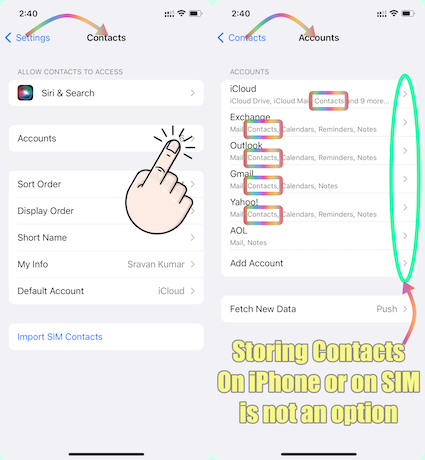

If you are unable to find your contacts which were stored in the email client, then try this --> Restore contacts, calendars, bookmarks, and more using ...
Check if the email account has been removed from the iOS mail app.
Add the email account that stores your contacts in the IOS mail app and enable Contacts.
What is your default Contacts account? If none, please add an email account and enable contacts.
See the pic below
Unlike some Android devices, contacts are neither stored locally on an iPhone nor in SIM. They are synced to an email account that you had Google, iCloud, AOL, Exchange, Outlook, Yahoo or any Other
If you have a corporate email account added through a profile on your device, please check with your organization's system administrator.