How to avoid formulas from referencing wrong cells after sorting the table in Numbers?

After sorting the table, all my formulas' referencing gets jumbled up. Is there a way or a workaround to avoid this? Weird that this is still in an issue in 2024?

Not very skilled in spreadsheets, but can follow if steps provided.

Thanks in advance for your help!


Mac Studio (2022)

Posted on Jan 19, 2024 5:30 AM

Reply
Question marked as Top-ranking reply

Posted on Jan 20, 2024 5:58 AM

Okay, now I see what you are getting at. Each row of a table is a treated like a "record" in a database and the entire record stays together during a sort. Your goal is to leave part of the record behind in its original row.


In Excel you can sort part of the table, excluding some columns. Numbers does not have that capability. One solution is to put that column of references in a different table. The two tables can be butted up together to look like one. Another solution is to lift that column from the table before sorting then put it back in afterward. It takes a few steps to do this so might not be practical if you are sorting a lot. There may be other solutions but I think it will depend upon whether your cell references follow any kind of pattern that can be recreated with formulas (using OFFSET, INDIRECT, etc., perhaps combined with ROW) versus them being kind of random.


17 replies
Question marked as Top-ranking reply

Jan 20, 2024 5:58 AM in response to theAnim8r

Okay, now I see what you are getting at. Each row of a table is a treated like a "record" in a database and the entire record stays together during a sort. Your goal is to leave part of the record behind in its original row.


In Excel you can sort part of the table, excluding some columns. Numbers does not have that capability. One solution is to put that column of references in a different table. The two tables can be butted up together to look like one. Another solution is to lift that column from the table before sorting then put it back in afterward. It takes a few steps to do this so might not be practical if you are sorting a lot. There may be other solutions but I think it will depend upon whether your cell references follow any kind of pattern that can be recreated with formulas (using OFFSET, INDIRECT, etc., perhaps combined with ROW) versus them being kind of random.


Jan 20, 2024 8:49 AM in response to theAnim8r

theAnim8r wrote:

I hope to sort column B (in ur example) after putting in the references (like you did) but have the references not change.

Putting the formula in a separate table does not solve the problem. Absolute or relative references in a formula affect the behavior when copying or filling the formula, not the behavior when sorting after a formula has already been entered.


One way to do what you describe might be to add an index column and have the formula look up the value using the index, like this:


=XLOOKUP(1,A,B)


Now when you sort the formula still retrieves the same value, in effect "following" the cell wherever it is sorted.


SG

Jan 20, 2024 8:00 PM in response to Badunit

Badunit wrote:


Putting the formula in a separate table does not solve the problem.

I must be misunderstanding the problem


Quite possible.


Original, before sorting Table 1:


Result, after sorting Table 1:


As you can see, using relative references or absolute references gives the same results. Maybe in the old, old version of Numbers the behavior was different. If it was, that would have been non-standard. This the behavior now, similar to Excel and probably other spreadsheets.


SG

Jan 21, 2024 9:55 AM in response to SGIII

SG,


I know how Absolute and Relative Addressing modes work, as I'm sure you do too. We must be using terms that aren't common between us.


I wrote: "Relative references are adjusted for a sort, absolute references are not."


Here is what I meant by that:


In the example below, the expression in Column C of the row containing 102 in Column A has a SUM Function containing an Absolute Reference to $A$1, and Relative References to the Cell above and to the Cell to the right.


After the Full Table Sort on Column A, the expression has moved to Row 8. The Absolute Reference is unchanged as $A$1, but the Relative References have been adjusted so that the expression still points to the cells above and to the right of the cell with the expression.


Regards,


Jerry


Jan 19, 2024 5:50 AM in response to theAnim8r

Nothing "weird" about it unless you have discovered something new about sorting and formulas. There were choices to be made about whether cell references followed cells around when they were sorted or stayed fixed to the referenced cells. Neither is perfect for every situation. A cell reference such as B2 will follow the cell to its new location. A cell reference such as B$2 will stay pointing to B2.


What is it you are doing, what do you want to happen, and what is happening instead?

Jan 19, 2024 10:21 PM in response to theAnim8r

Badunit wrote:


A cell reference such as B2 will follow the cell to its new location. A cell reference such as B$2 will stay pointing to B2.


To test that, I started with this table:
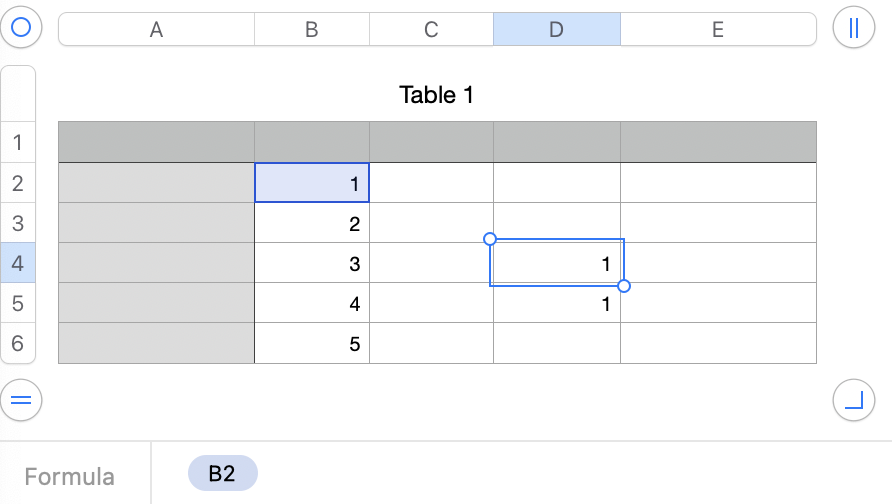


In D4 is this formula:

=B2


In D5 is this formula:


=$B$2


Now I sort column B differently, and get this:
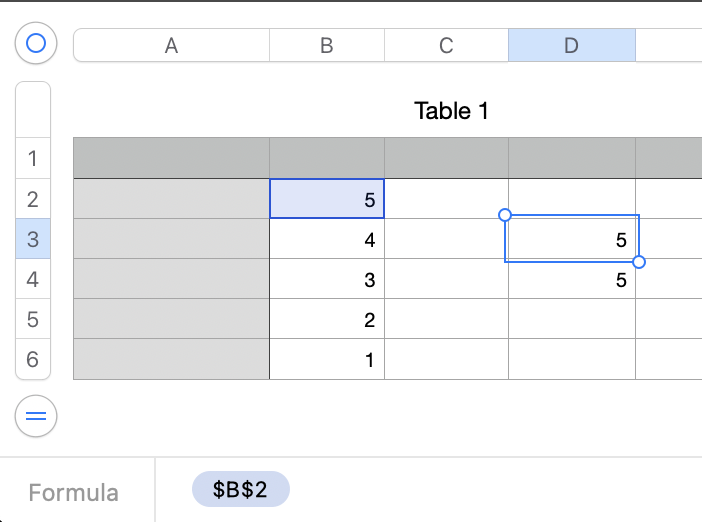


=$B$2 is now in cell D3.

=B2 is in cell D$


Both formulas still reference B2, even though one has a relative reference and one has an absolute reference.


I get the same behavior in Excel.


My understanding is that relative and absolute references in spreadsheets control the behavior when filling or copying a formula, not the behavior during a sort.


I'm guessing there may be memories here of some kind of non-standard behavior in a long defunct version of Numbers.


SG


Jan 21, 2024 7:52 PM in response to Badunit

Yes, I agree that it is important to know what the OP needs.


However, it is also important not to give the wrong impression about what absolute and relative references do and don't do.


The $ anchors are intended to control behavior when a formula is copied or filled. They do not necessarily make a formula sort-safe.


Here's a fun exercise with Jerry's latest example.


It compares using


=SUM($A$1,C3,D4)


with,


=SUM($A$1,$C$3,$D$4)


Here are the results after a Sort Descending:


We think we understand what relative and absolute references mean. But do we? When sorting is involved?


Best stick to their original purpose, filling and copying, and use other ways to make results sort-safe.


SG

Jan 20, 2024 10:06 AM in response to SGIII

Putting the formula in a separate table does not solve the problem.


I must be misunderstanding the problem if putting the references into a separate table is not a possible solution.


The upper screenshot shows the tables the way they start out. The lower screenshot shows after the Table 1 is sorted in the opposite direction. All cells in the right table point to the exact same cells they pointed to before the sort.


Jan 21, 2024 2:51 AM in response to theAnim8r

Relative references are adjusted for a sort, absolute references are not.


Not the case now, as demonstrated above, though it might have been with the old, old Numbers.


Either of the functions INDEX or ADDRESS will give you complete control over what cell is referenced


If one wants the formula to "follow" the cell to its new location after a sort?


I'd suggest that you circumvent the sorting issues by using LOOKUP functions (from old thread)


Now we're talking! See the XLOOKUP solution above.


SG

This thread has been closed by the system or the community team. You may vote for any posts you find helpful, or search the Community for additional answers.

How to avoid formulas from referencing wrong cells after sorting the table in Numbers?

Welcome to Apple Support Community
A forum where Apple customers help each other with their products. Get started with your Apple Account.



