Apple/Google Maps in New York

Hello, I am using the latest iphone with 5g+ internet. But whenever I go to New York city, my maps dont work correctly, the gps keeps on taking me to the wrong direction and also doesnt updates as I move. It never happens anywhere else it only starts to lag as soon I step into New York City

iPhone 15 Pro Max

Posted on Jan 23, 2024 9:24 PM

Reply
Question marked as Top-ranking reply

Posted on Jan 23, 2024 9:48 PM

You said this happens only in New York in both Apple and Google Maps.


You haven't specified the name of the Carrier for the SIM you've subscribed to. The issue might be with your carrier, as they may not be offering data services in New York. They also may not have a strong presence in the city.


Learn how Maps (Apple & Google) work.

In general, turn-by-turn navigation apps like Apple Maps and Google Maps rely on a combination of GPS and internet connectivity to provide accurate and up-to-date navigation instructions. Here's how it typically works:


  1. Initial Route Calculation: When you input a destination, the navigation app calculates the route based on available map data stored on your device or fetched from the internet.
  2. Turn-by-Turn Navigation:
    1. The app uses GPS to track your real-time location as you follow the planned route.
    2. Turn-by-turn directions are usually provided using pre-loaded map data on your device, but sometimes, real-time traffic and road conditions updates require internet access.
  3. Internet for Additional Features: While basic turn-by-turn navigation can often work without an active internet connection, certain features may rely on internet access. This includes real-time traffic updates, alternative route suggestions, and points of interest information.
  4. Re-routing and Correction: If you deviate from the planned route, the app may attempt to recalculate the route based on your current location. This process usually requires some internet connectivity to access real-time traffic data and road conditions.
  5. Offline Maps: Some navigation apps allow users to download maps for offline use. In such cases, basic navigation functions (without real-time updates) can still work without an internet connection.


If you take a wrong turn and the app needs to recalculate the route, having an internet connection can be beneficial for obtaining the most accurate and timely information. However, many navigation apps can still provide guidance using the GPS signal and pre-loaded map data even if there's a temporary loss of internet connectivity.


Try to check the following:


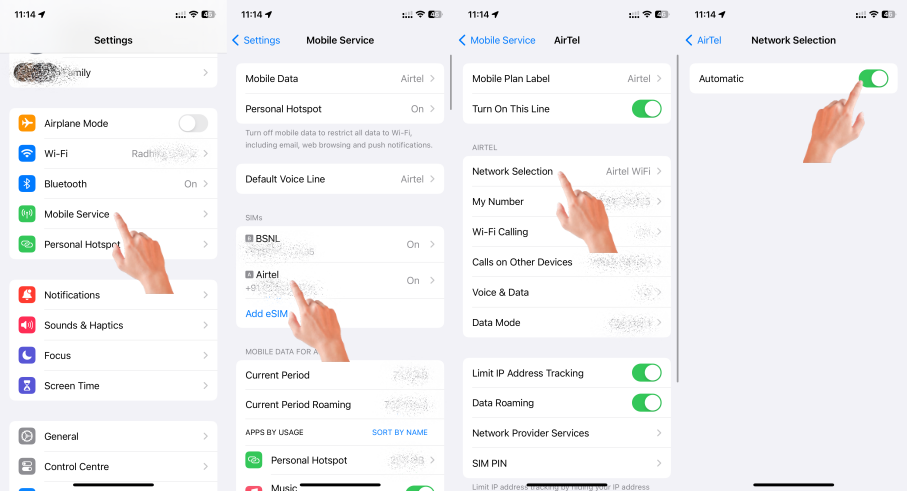
  1. Network Selection of Mobile Services should be set to Automatic as shown in the pic below
  2. Contact your Carrier and see if they have full internet support in New York.
  3. Make sure that Location Services are enabled for the Maps app. You can do this by going to Settings > Privacy > Location Services, and then ensure that Location Services are turned on for Maps. If it is ON, Go to Settings > Privacy > Location Services and toggle it off and on again.
  4. In areas with crowded Wi-Fi networks, your iPhone might try to use Wi-Fi for location services. You can manually switch between Wi-Fi and cellular data to see if one provides a better signal.
  5. Download offline maps for NYC before you go. This can be helpful if you lose your cellular connection or experience network congestion.
  6. Use Wi-Fi when available, as it can be more reliable than cellular data for navigation.
  7. Let others know about your location and planned route, especially if you're not familiar with NYC.


Similar questions

2 replies
Question marked as Top-ranking reply

Jan 23, 2024 9:48 PM in response to Shahroz1

You said this happens only in New York in both Apple and Google Maps.


You haven't specified the name of the Carrier for the SIM you've subscribed to. The issue might be with your carrier, as they may not be offering data services in New York. They also may not have a strong presence in the city.


Learn how Maps (Apple & Google) work.

In general, turn-by-turn navigation apps like Apple Maps and Google Maps rely on a combination of GPS and internet connectivity to provide accurate and up-to-date navigation instructions. Here's how it typically works:


  1. Initial Route Calculation: When you input a destination, the navigation app calculates the route based on available map data stored on your device or fetched from the internet.
  2. Turn-by-Turn Navigation:
    1. The app uses GPS to track your real-time location as you follow the planned route.
    2. Turn-by-turn directions are usually provided using pre-loaded map data on your device, but sometimes, real-time traffic and road conditions updates require internet access.
  3. Internet for Additional Features: While basic turn-by-turn navigation can often work without an active internet connection, certain features may rely on internet access. This includes real-time traffic updates, alternative route suggestions, and points of interest information.
  4. Re-routing and Correction: If you deviate from the planned route, the app may attempt to recalculate the route based on your current location. This process usually requires some internet connectivity to access real-time traffic data and road conditions.
  5. Offline Maps: Some navigation apps allow users to download maps for offline use. In such cases, basic navigation functions (without real-time updates) can still work without an internet connection.


If you take a wrong turn and the app needs to recalculate the route, having an internet connection can be beneficial for obtaining the most accurate and timely information. However, many navigation apps can still provide guidance using the GPS signal and pre-loaded map data even if there's a temporary loss of internet connectivity.


Try to check the following:


  1. Network Selection of Mobile Services should be set to Automatic as shown in the pic below
  2. Contact your Carrier and see if they have full internet support in New York.
  3. Make sure that Location Services are enabled for the Maps app. You can do this by going to Settings > Privacy > Location Services, and then ensure that Location Services are turned on for Maps. If it is ON, Go to Settings > Privacy > Location Services and toggle it off and on again.
  4. In areas with crowded Wi-Fi networks, your iPhone might try to use Wi-Fi for location services. You can manually switch between Wi-Fi and cellular data to see if one provides a better signal.
  5. Download offline maps for NYC before you go. This can be helpful if you lose your cellular connection or experience network congestion.
  6. Use Wi-Fi when available, as it can be more reliable than cellular data for navigation.
  7. Let others know about your location and planned route, especially if you're not familiar with NYC.


This thread has been closed by the system or the community team. You may vote for any posts you find helpful, or search the Community for additional answers.

Apple/Google Maps in New York

Welcome to Apple Support Community
A forum where Apple customers help each other with their products. Get started with your Apple Account.