**** the ap library!

I have had my apps organized in logical folders on my second Home Screen page for years!! Now the 2nd page has disappeared. The app library is cumbersome and inefficient. Why not let iOS users get rid of it if they do not want it or put it away somewhere hidden?

Posted on Feb 1, 2024 6:35 AM

Reply
Question marked as Top-ranking reply

Posted on Feb 1, 2024 6:42 AM

The App Library does not remove other home screens. Its merely an addition to them.


It cannot be turned off or removed, but you don't ever have to use it or access it in any way if you don;t want to.


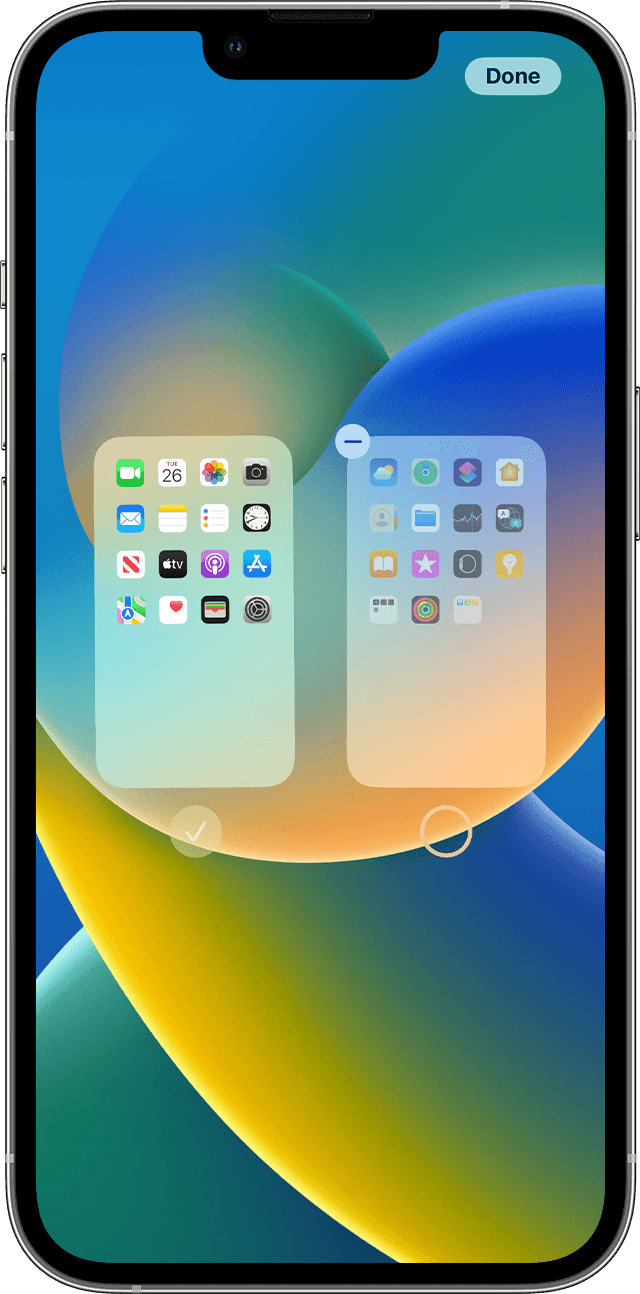
If one of your home screens is missing tap and hold on an app and choose the "Edit Home screen" option from the menu. Then tap on the .... section below the icons to bring up the Home Screen chooser. Make sure all your home screens are correctly checked. Home screens without a check mark will be hidden.

Tap on Done to complete the process.


click here ➜ Organize the Home Screen and App Library on your iPhone - Apple Support


2 replies
Question marked as Top-ranking reply

Feb 1, 2024 6:42 AM in response to PSR68

The App Library does not remove other home screens. Its merely an addition to them.


It cannot be turned off or removed, but you don't ever have to use it or access it in any way if you don;t want to.


If one of your home screens is missing tap and hold on an app and choose the "Edit Home screen" option from the menu. Then tap on the .... section below the icons to bring up the Home Screen chooser. Make sure all your home screens are correctly checked. Home screens without a check mark will be hidden.

Tap on Done to complete the process.


click here ➜ Organize the Home Screen and App Library on your iPhone - Apple Support


Feb 1, 2024 6:47 AM in response to PSR68

Any chance that you have inadvertently hidden your other Home Screens? See the following from Organize the Home Screen and App Library on your iPhone - Apple Support


With iOS 14 and later, you can hide pages to streamline how your Home Screen looks and add them back whenever you want. Here's how to hide a page:


  1. Touch and hold an empty area on your Home Screen.
  2. Tap the dots near the bottom of your screen.
  3. Tap the circle under the page that you want to hide.
  4. Tap Done. 

To unhide a page, repeat the steps above. 


author: FoxFifth

This thread has been closed by the system or the community team. You may vote for any posts you find helpful, or search the Community for additional answers.

**** the ap library!

Welcome to Apple Support Community
A forum where Apple customers help each other with their products. Get started with your Apple Account.