Reset Network Settings Locks Up

I have an iPhone 11 Pro running iOS 17.3 and anytime I attempt to reset network settings it locks up. I am able to select “Reset Network Settings”, type in my password, then select the red lettering to reset network settings and it locks up on the page. I cannot press Back, Reset, Erase All Content and Settings or even select “Get Started” to prepare for new iPhone. I have to close out the Settings tab by swiping up and holding then swipe up again but my network settings never reset. However, I am able to reset my keyboard. Any help would be appreciated!

iPhone 11 Pro

Posted on Feb 1, 2024 8:16 PM

Reply
Question marked as Top-ranking reply

Posted on Feb 1, 2024 9:59 PM

Sometimes, a simple restart can resolve temporary software glitches. Turn off your iPhone, wait for a few seconds, and then turn it back on.

  1. Restart the device. That's it.
  2. Still not solved --> Force restart iPhone - Apple Support


Settings > General > Transfer or Reset iPhone > Reset > Reset Network Settings: Only network settings are removed.


  • When you reset network settings, previously used networks and VPN settings that weren’t installed by a configuration profile or mobile device management (MDM) are removed. Wi-Fi is turned off and then back on, disconnecting you from any network you’re on. The Wi-Fi and Ask to Join Networks settings remain turned on.
  • To remove VPN settings installed by a configuration profile, go to Settings > General > Profiles & Device Management, select the configuration profile, then tap Remove Profile. This also removes other settings and accounts provided by the profile. See Install or remove configuration profiles on iPhone in this guide.
  • To remove network settings installed by MDM, go to Settings > General > Profiles & Device Management, select the management, then tap Remove Management. This also removes other settings and certificates provided by MDM. See “Mobile device management (MDM)” in the iOS Deployment Reference.
  • Reset your Network Settings. Tap Settings > General > Reset > Reset Network Settings. This also resets Wi-Fi networks and passwords, cellular settings, and VPN and APN settings that you've used before.

If the above fails...


Settings > General > Transfer or Reset iPhone > Reset > Reset All Settings: All settings—including network settings, the keyboard dictionary, the Home screen layout, location settings, privacy settings, and Apple Pay cards—are removed or reset to their defaults. No data or media are deleted.


  1. Reset All Settings: Return iPhone settings to their defaults - Apple Support:- Return iPhone settings to their defaults
  2. You can return settings to their defaults without erasing your content.
  3. If you want to save your settings, back up your iPhone before returning them to their defaults. For example, if you’re trying to solve a problem but returning settings to their defaults doesn’t help, you might want to restore your previous settings from a backup.


Make sure you have the latest updates installed.

  1. Update Over-the-Air (OTA) —> Update your iPhone or iPad - Apple Support (IN)
  2. Update using iTunes/Finder —> Update your iPhone, iPad, or iPod touch - Apple Support (IN)


Similar questions

1 reply
Question marked as Top-ranking reply

Feb 1, 2024 9:59 PM in response to Brusin7

Sometimes, a simple restart can resolve temporary software glitches. Turn off your iPhone, wait for a few seconds, and then turn it back on.

  1. Restart the device. That's it.
  2. Still not solved --> Force restart iPhone - Apple Support



Settings > General > Transfer or Reset iPhone > Reset > Reset Network Settings: Only network settings are removed.


  • When you reset network settings, previously used networks and VPN settings that weren’t installed by a configuration profile or mobile device management (MDM) are removed. Wi-Fi is turned off and then back on, disconnecting you from any network you’re on. The Wi-Fi and Ask to Join Networks settings remain turned on.
  • To remove VPN settings installed by a configuration profile, go to Settings > General > Profiles & Device Management, select the configuration profile, then tap Remove Profile. This also removes other settings and accounts provided by the profile. See Install or remove configuration profiles on iPhone in this guide.
  • To remove network settings installed by MDM, go to Settings > General > Profiles & Device Management, select the management, then tap Remove Management. This also removes other settings and certificates provided by MDM. See “Mobile device management (MDM)” in the iOS Deployment Reference.
  • Reset your Network Settings. Tap Settings > General > Reset > Reset Network Settings. This also resets Wi-Fi networks and passwords, cellular settings, and VPN and APN settings that you've used before.
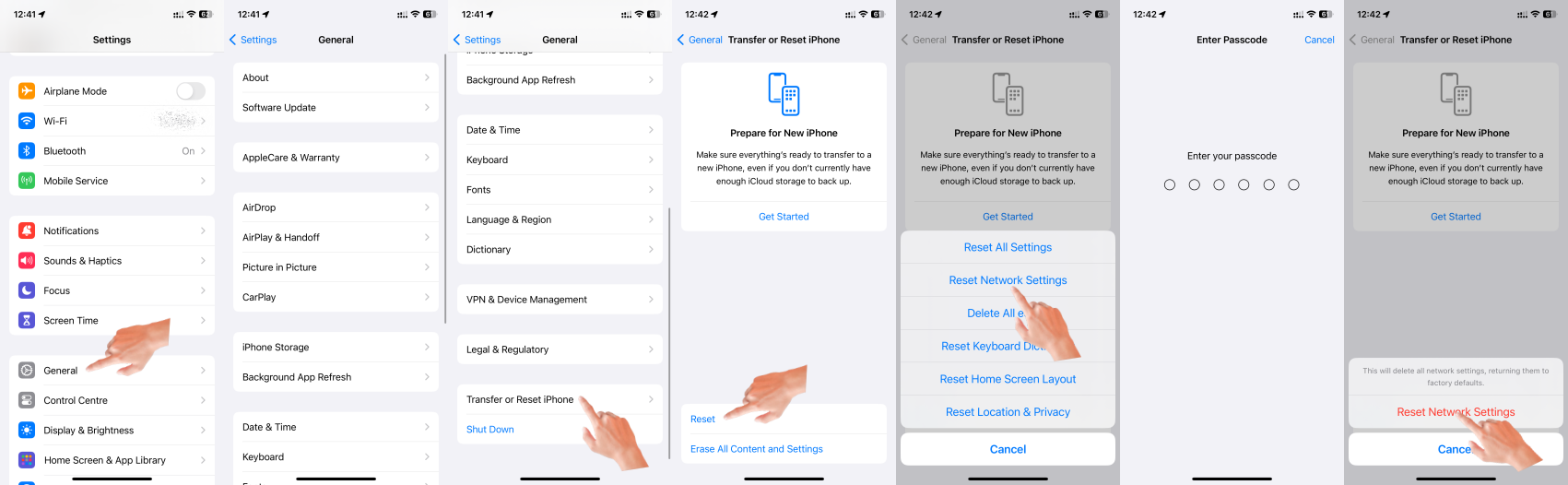
If the above fails...


Settings > General > Transfer or Reset iPhone > Reset > Reset All Settings: All settings—including network settings, the keyboard dictionary, the Home screen layout, location settings, privacy settings, and Apple Pay cards—are removed or reset to their defaults. No data or media are deleted.


  1. Reset All Settings: Return iPhone settings to their defaults - Apple Support:- Return iPhone settings to their defaults
  2. You can return settings to their defaults without erasing your content.
  3. If you want to save your settings, back up your iPhone before returning them to their defaults. For example, if you’re trying to solve a problem but returning settings to their defaults doesn’t help, you might want to restore your previous settings from a backup.
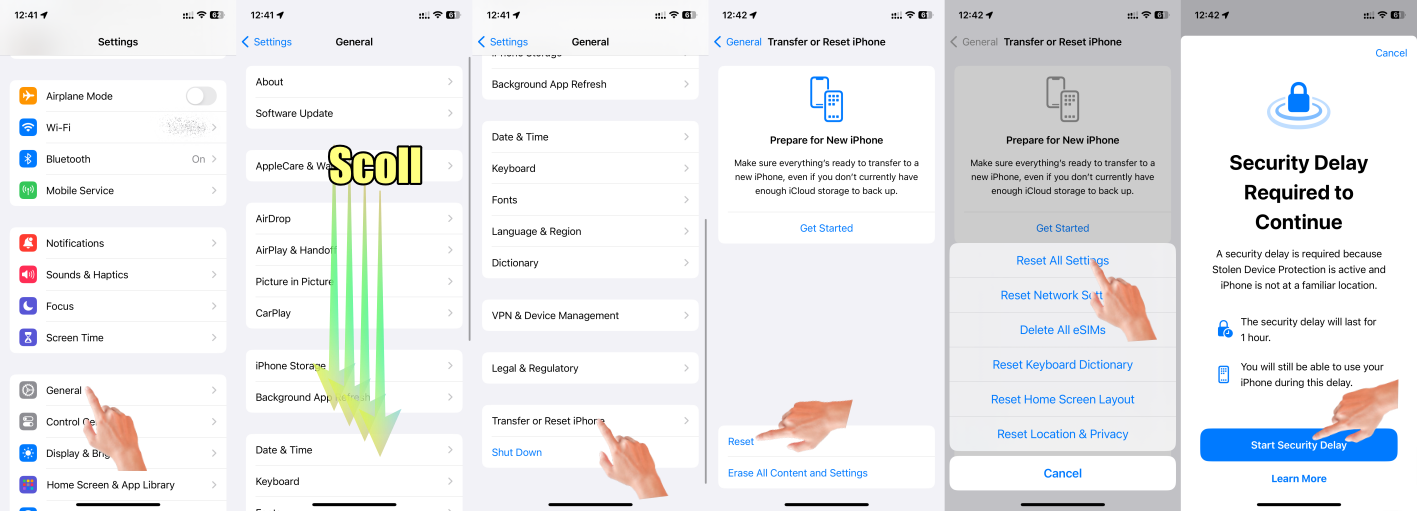


Make sure you have the latest updates installed.

  1. Update Over-the-Air (OTA) —> Update your iPhone or iPad - Apple Support (IN)
  2. Update using iTunes/Finder —> Update your iPhone, iPad, or iPod touch - Apple Support (IN)


This thread has been closed by the system or the community team. You may vote for any posts you find helpful, or search the Community for additional answers.

Reset Network Settings Locks Up

Welcome to Apple Support Community
A forum where Apple customers help each other with their products. Get started with your Apple Account.
