
Difference between Live & Loop on iPhone 11
Something showed up in a photo on my iPhone 11 when I set it on Loop that wasn’t there when set on Live. Why?
iPhone 6 Plus, iOS 12
Something showed up in a photo on my iPhone 11 when I set it on Loop that wasn’t there when set on Live. Why?
iPhone 6 Plus, iOS 12
How to add Live Photo effects
 near the top of the screen.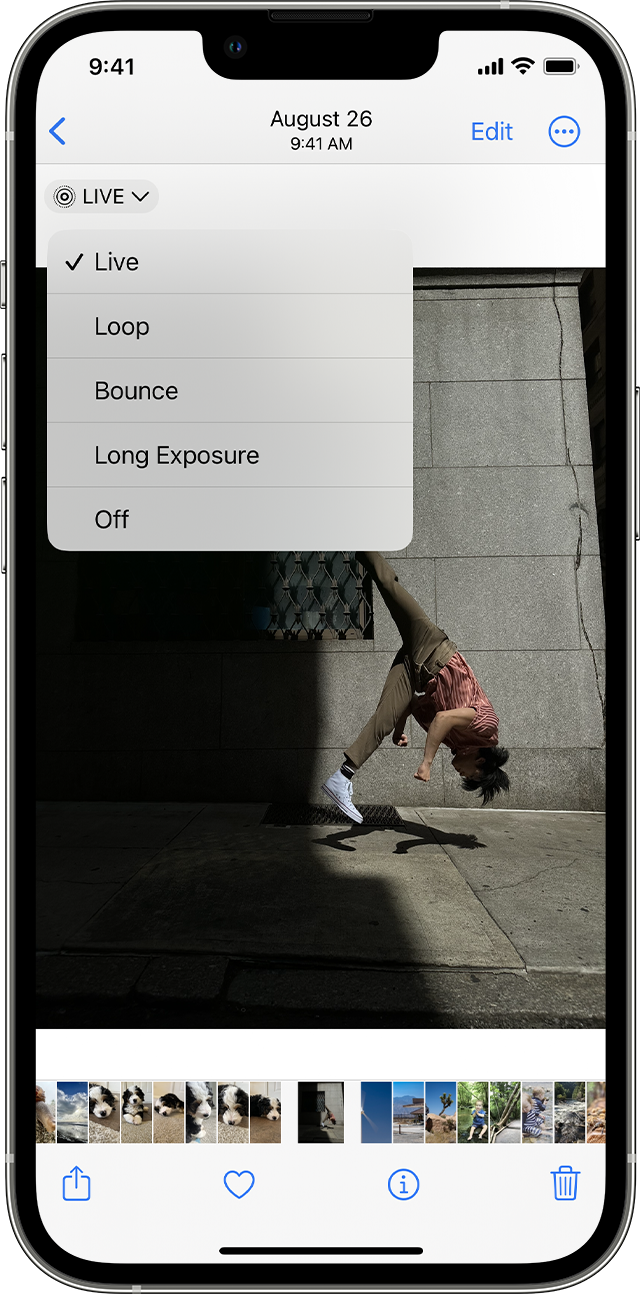
Loop: Turn a Live Photo you love into a video loop. Choose an image yourself, or look in the For You tab to see photos that would make great loops.
Bounce: Make your Live Photo rock back and forth. Watch your Live Photo as it happened, then it instantly plays in reverse.
Long Exposure: Capture the elements of time and movement. Create a beautiful effect that used to be possible only with a DSLR camera. Fireworks become bright streaks across the night sky. A waterfall becomes a magical blur.
Source: Bring your photos to life - Apple Support (IN)
Difference between Live & Loop on iPhone 11
