The process for managing and adjusting screen time settings can vary depending on whether you are using a parent's device or a child's device. Here's a general overview:
- Parent's Device:
- Parents typically use their own devices to set up and manage screen time restrictions for their children.
- On iOS devices, parents can use the Screen Time feature in Settings to set limits, view activity reports, and manage content and privacy restrictions for their child's device.
- Child's Device:
- The child's device is where the set screen time limits and restrictions are enforced.
- On iOS devices, the child may be prompted to request additional time if they reach their time limit, and they can view their screen time usage.
If you're experiencing issues with screen time settings, it's essential to check and adjust these settings on the parent's device initially. The parent's device is typically the one responsible for managing and controlling screen time limits and restrictions for the child's device.

You should pay attention to two commonly overlooked aspects...
- Configuring device restrictions for your child's device.
- Setting up a screen time passcode on your own device for your child.
Set Screen Time Restrictions for your Child in your Family using Parental Control.
Please see the pic below which is self-explanatory.
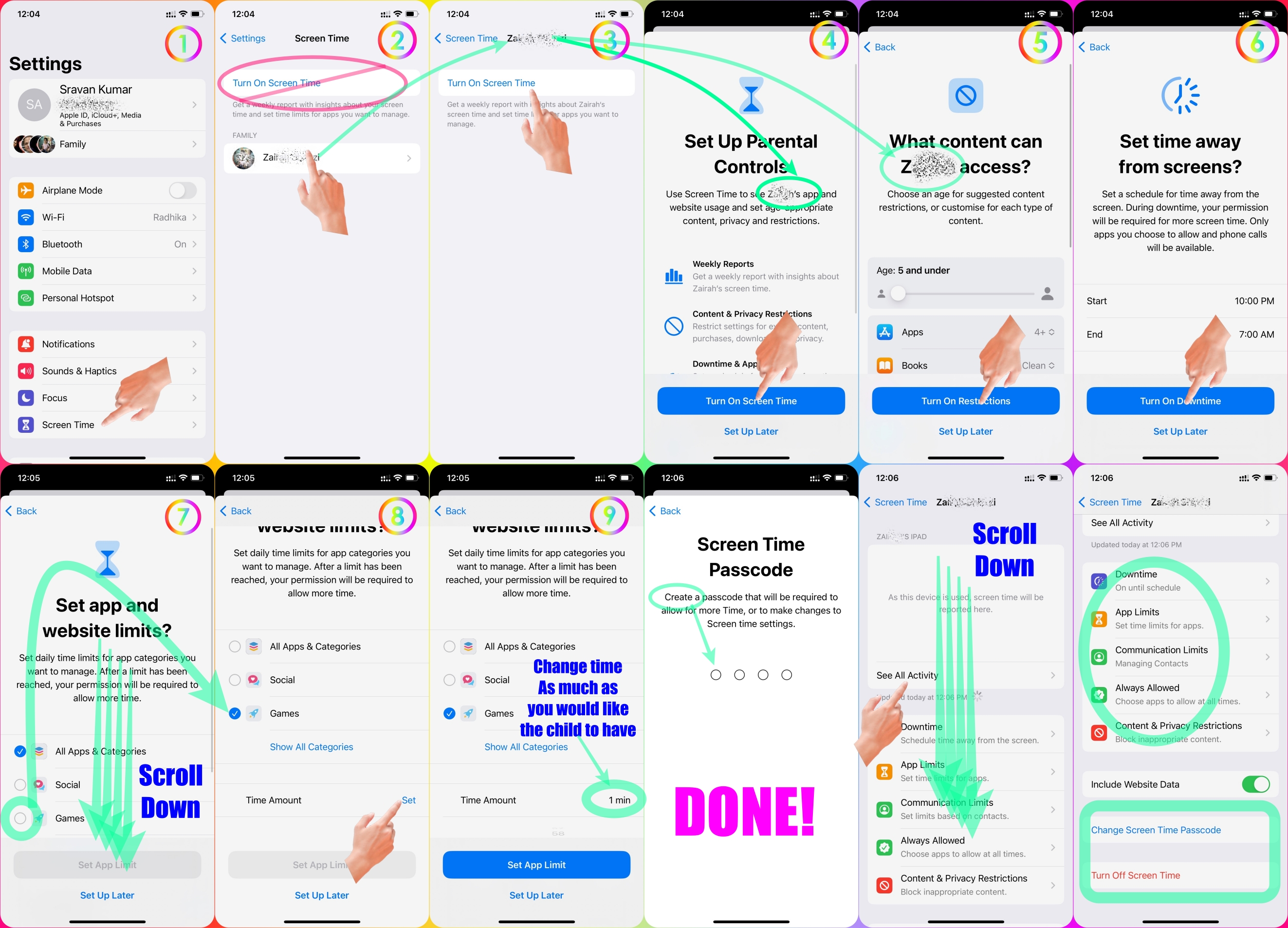
Set Screen Time Passcode for your child's device through your device.
Please see the pic below which is self-explanatory.
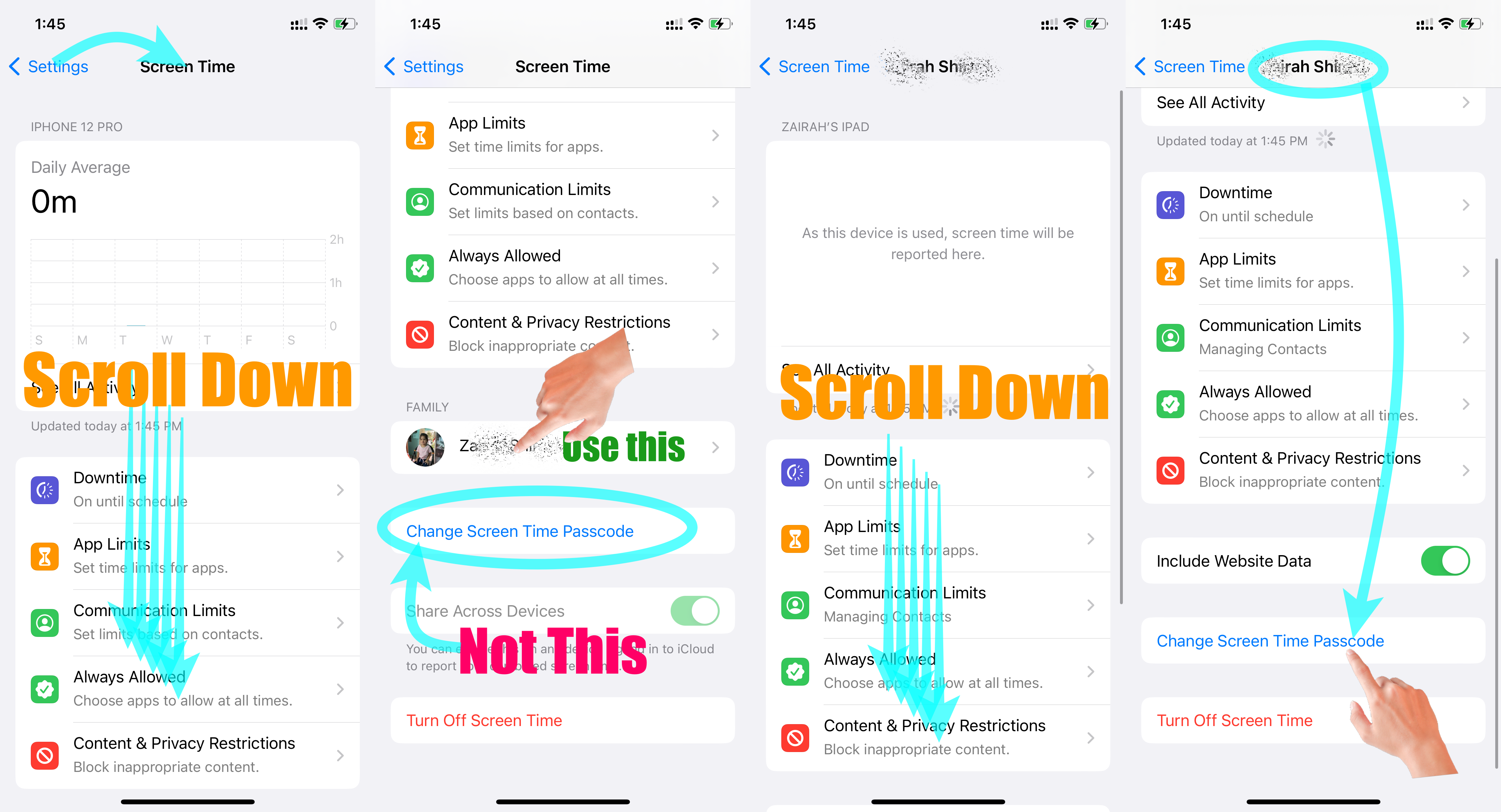
This GIF below will depict how to set Screen Time Restrictions for your Child's Device
- Add your Child as a Family Member
- Then Start Screen Time on your Device.
- Now watch the GIF below
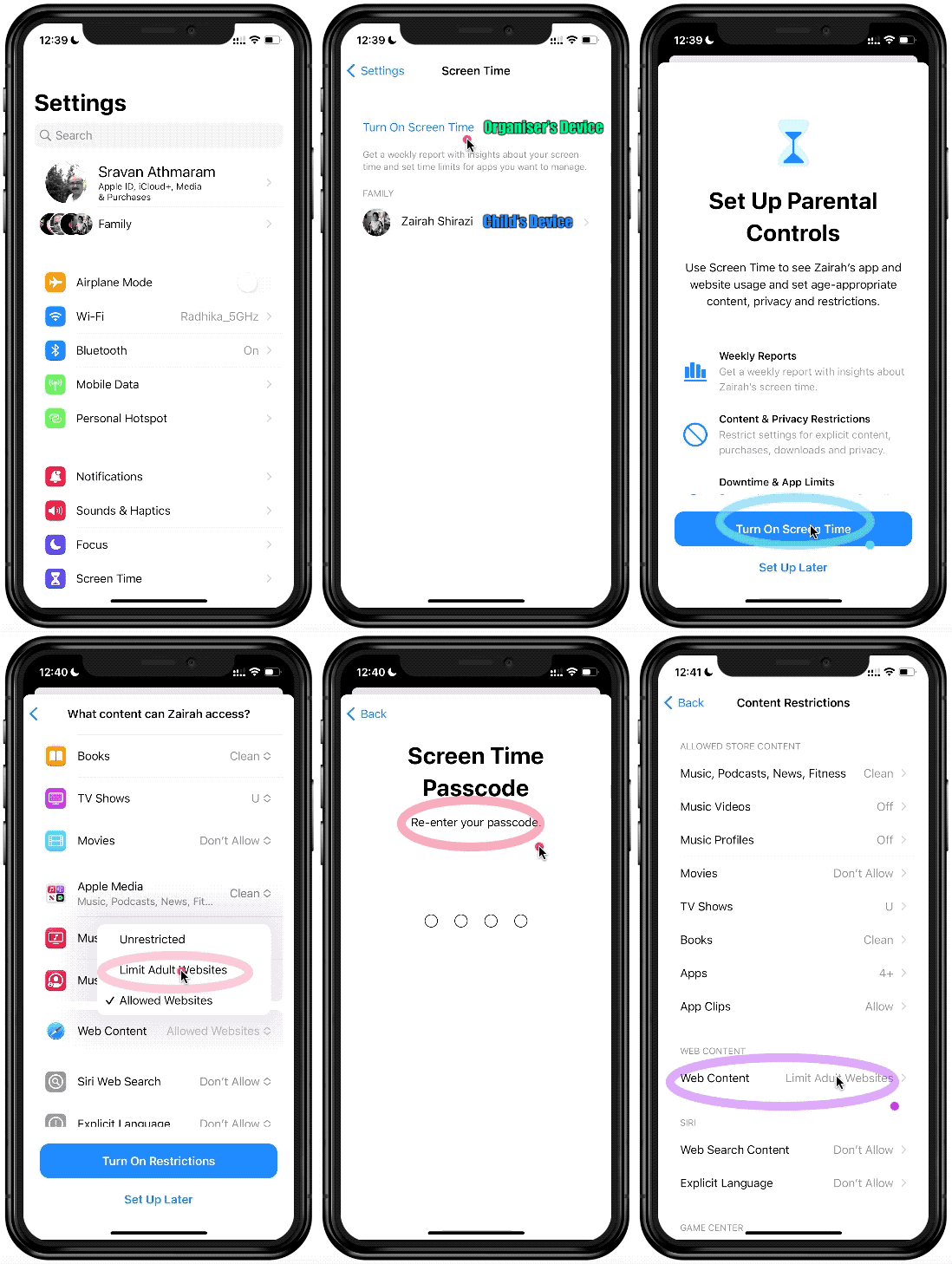
Go to Settings and tap Screen Time. Tap Content & Privacy Restrictions and enter your Screen Time passcode. Tap Content Restrictions, then tap Web Content. Choose Unrestricted Access, Limit Adult Websites, or Allowed Websites Only.
Use parental controls on your child's iPhone, iPad, and iPod ...
Set up parental controls with Family Sharing on iPhone
- Go to Settings > [your name] > Family Sharing > Screen Time.
- Tap the name of a child in your family group, tap Turn On Screen Time, then follow the onscreen instructions.
Set up parental controls with Family Sharing on iPhone

