Best colour profile on MacBook Air M2 for artist?

I'm sending images of some of my art to a printer and need to make sure the colours on my display are as close as possible to what a printer might come back with. Any suggestions?

MacBook Air, macOS 14.1

Posted on Apr 6, 2024 11:41 AM

Reply
Question marked as Top-ranking reply

Posted on Apr 7, 2024 7:47 AM

None of those. The entire purpose of a profile is that it's an accurate mathematical description of the color response of the hardware it's for. All of the included profiles you mention are nothing but generic portions of Lab, and do not represent your monitor at all. Not even a little.


The only one that's even somewhat useful is the profile above the line, such as like this:
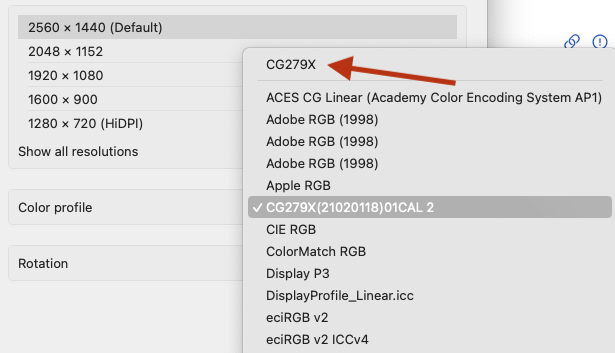

That's the default profile for your MacBook (whatever its name is) in the /Library/ColorSync/Profiles/Displays folder. But it's most likely a useless 6500K profile.


There's only one way to get an accurate profile. And that's with a monitor calibration system, such as the X-Rite Calibrate Display Plus HL. As far as color management goes, a good monitor calibrator is at the same time the most important, and least expensive piece of such equipment you can buy.


They have less expensive versions, but none of the others have the ability to handle the brightness of today's newer class of display panels. The next one down is the Pro at $280, but it can only handle 3,000 nits compared to the Plus version's 10,000 nits.


If you do purchase such a unit, these are the settings you need to use to match what a print shop uses:


Gamma - 1.8

Luminance - 80

Color - D50


The first step the included software does is set the monitor's response to the color settings above. That's the calibration. Then it runs a series of color patches to create a profile based on that calibration. This means you can never, ever manually change the brightness or other monitor settings away from that calibration. Otherwise, the resulting profile is meaningless.


In D50 (or D65, etc.), the D simply means daylight. The 50 is short for 5000 (the white and black point color). 65 is short for 6500, and so on.


However, don't mix up what you may see as separate choices for 5000K and D50. Despite both having 5000K white and black balance points, they don't have the same gray ramp. Straight 5000K will be a bit yellowish. D50 will create a center balance closer to slightly cooler 5200K. This is as close as we can get on a computer to natural sunlit color.

4 replies
Question marked as Top-ranking reply

Apr 7, 2024 7:47 AM in response to eithne208

None of those. The entire purpose of a profile is that it's an accurate mathematical description of the color response of the hardware it's for. All of the included profiles you mention are nothing but generic portions of Lab, and do not represent your monitor at all. Not even a little.


The only one that's even somewhat useful is the profile above the line, such as like this:


That's the default profile for your MacBook (whatever its name is) in the /Library/ColorSync/Profiles/Displays folder. But it's most likely a useless 6500K profile.


There's only one way to get an accurate profile. And that's with a monitor calibration system, such as the X-Rite Calibrate Display Plus HL. As far as color management goes, a good monitor calibrator is at the same time the most important, and least expensive piece of such equipment you can buy.


They have less expensive versions, but none of the others have the ability to handle the brightness of today's newer class of display panels. The next one down is the Pro at $280, but it can only handle 3,000 nits compared to the Plus version's 10,000 nits.


If you do purchase such a unit, these are the settings you need to use to match what a print shop uses:


Gamma - 1.8

Luminance - 80

Color - D50


The first step the included software does is set the monitor's response to the color settings above. That's the calibration. Then it runs a series of color patches to create a profile based on that calibration. This means you can never, ever manually change the brightness or other monitor settings away from that calibration. Otherwise, the resulting profile is meaningless.


In D50 (or D65, etc.), the D simply means daylight. The 50 is short for 5000 (the white and black point color). 65 is short for 6500, and so on.


However, don't mix up what you may see as separate choices for 5000K and D50. Despite both having 5000K white and black balance points, they don't have the same gray ramp. Straight 5000K will be a bit yellowish. D50 will create a center balance closer to slightly cooler 5200K. This is as close as we can get on a computer to natural sunlit color.

Apr 6, 2024 2:21 PM in response to eithne208

eithne208 wrote:

I'm sending images of some of my art to a printer and need to make sure the colours on my display are as close as possible to what a printer might come back with. Any suggestions?


Every monitor is going to render slightly differently.


Have you tested the default setting, and run some sample prints? This is your best test.


Is this for stand alone archival prints or embedded in a Document or some such..?


What software are you using...(?)

"InDesign" application seems to be an industry standard for RGB to CMYK print quality control.


random example reference: https://www.dazzleprinting.com/how-to-convert-rgb-images-to-cmyk-images/


Apr 6, 2024 11:53 PM in response to leroydouglas

Thanks for your reply. My question is more about which screen colour profile to choose while checking my images before uploading them to the printing company's website. The MacBook comes with options of colour lcd, display p3, adobe rgb, generic rgb etc, smpte rp etc. Each option makes the colours in the photo of my painting a bit darker of brighter and I don't know which to use.

This is for stand alone archival prints that will be made from photos of my paintings. I don't do loads of prints but I'd like to be looking at the most accurate(for print) of the available colour profiles before uploading the images. Thanks for your help. I'm way better at just painting at an easel!

This thread has been closed by the system or the community team. You may vote for any posts you find helpful, or search the Community for additional answers.

Best colour profile on MacBook Air M2 for artist?

Welcome to Apple Support Community
A forum where Apple customers help each other with their products. Get started with your Apple Account.