Manage and Clear Storage on your iPhone and save space… - Apple Community
Unlike a computer where you can add a hard drive for more storage, iPhones come with a fixed amount of internal storage that can't be physically expanded. This means you can't buy more storage space for the device itself.
However, there are ways to manage your iPhone storage and free up space:
- Delete unused apps and data: Identify apps you don't use and remove them. Many apps also allow you to clear their cache or stored data.
- Manage photos and videos: Photos and videos can be some of the biggest storage hogs. Consider deleting old or unwanted media, or use iCloud Photos to store them in the cloud and free up space on your phone.
- Utilize iCloud storage: Apple offers iCloud storage plans that let you store your data (photos, videos, documents, etc.) in the cloud, freeing up space on your phone. You can purchase additional iCloud storage if you need more space. You can optimize iPhone Storage by using iCloud Storage in order to save space on your device
- If you had turned on Messages in iCloud & iCloud Photos and you delete Photos, Videos and Messages from the iPhone then it is deleted from iCloud too, and vice-versa. At the same time, it is also deleted from all the devices that use the same Apple ID.
- And if you happen to take a backup either over iTunes or iCloud after deleting Photos, Videos & Messages all the photos and messages are deleted from the backup (iCloud/iTunes) too when you take the backup next time.
- Alternatively, you may upload data to iCloud Drive.

Settings > [your name] > iCloud Tap Photos > Choose Optimize [device] Storage --> Set up and use iCloud Photos - Apple Support
To clear storage on your iPhone, you can follow these steps:
- Go to "Settings" on your iPhone and tap on "General" > "iPhone Storage." This will show you a breakdown of the storage used by different apps and data on your device.
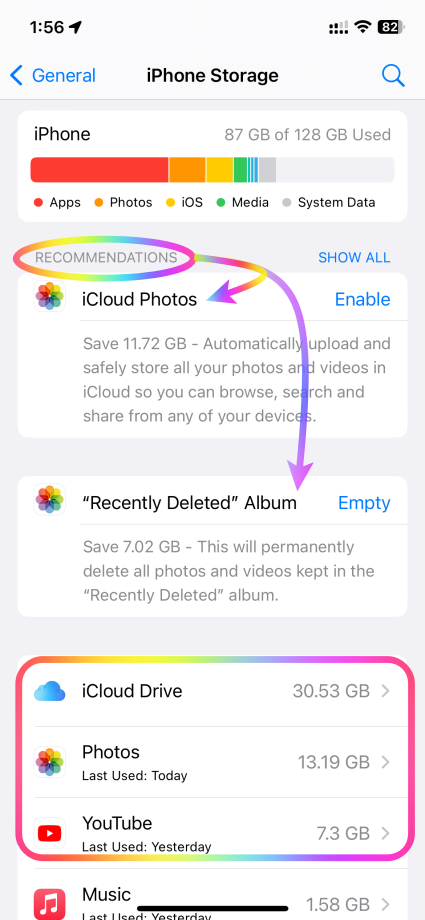
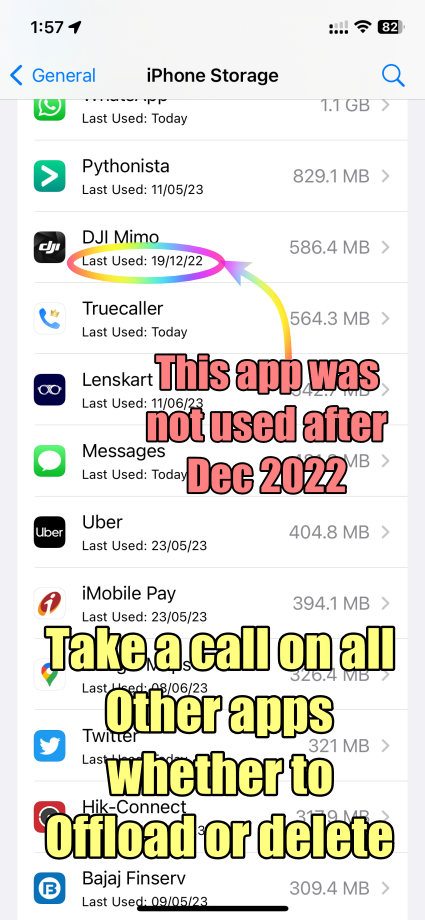
- Scroll down to the list of installed apps and review which ones you don't use frequently. Tap on an app and select "Offload App." This will remove the app from your device while keeping its data intact. You can always reinstall the app later if needed.
- Go through the list of apps and delete the ones you no longer need. To delete an app, tap on it and select "Delete App." Additionally, you can delete other types of data such as photos, videos, messages, and unused files to free up space.
- If your Photos app takes up a significant amount of space, you can enable iCloud Photos to store your photos and videos in the cloud and keep optimized versions on your device. Go to "Settings" > "[Your Name]" > "iCloud" > "Photos" and enable "iCloud Photos." --> Manage your photo and video storage - Apple Support
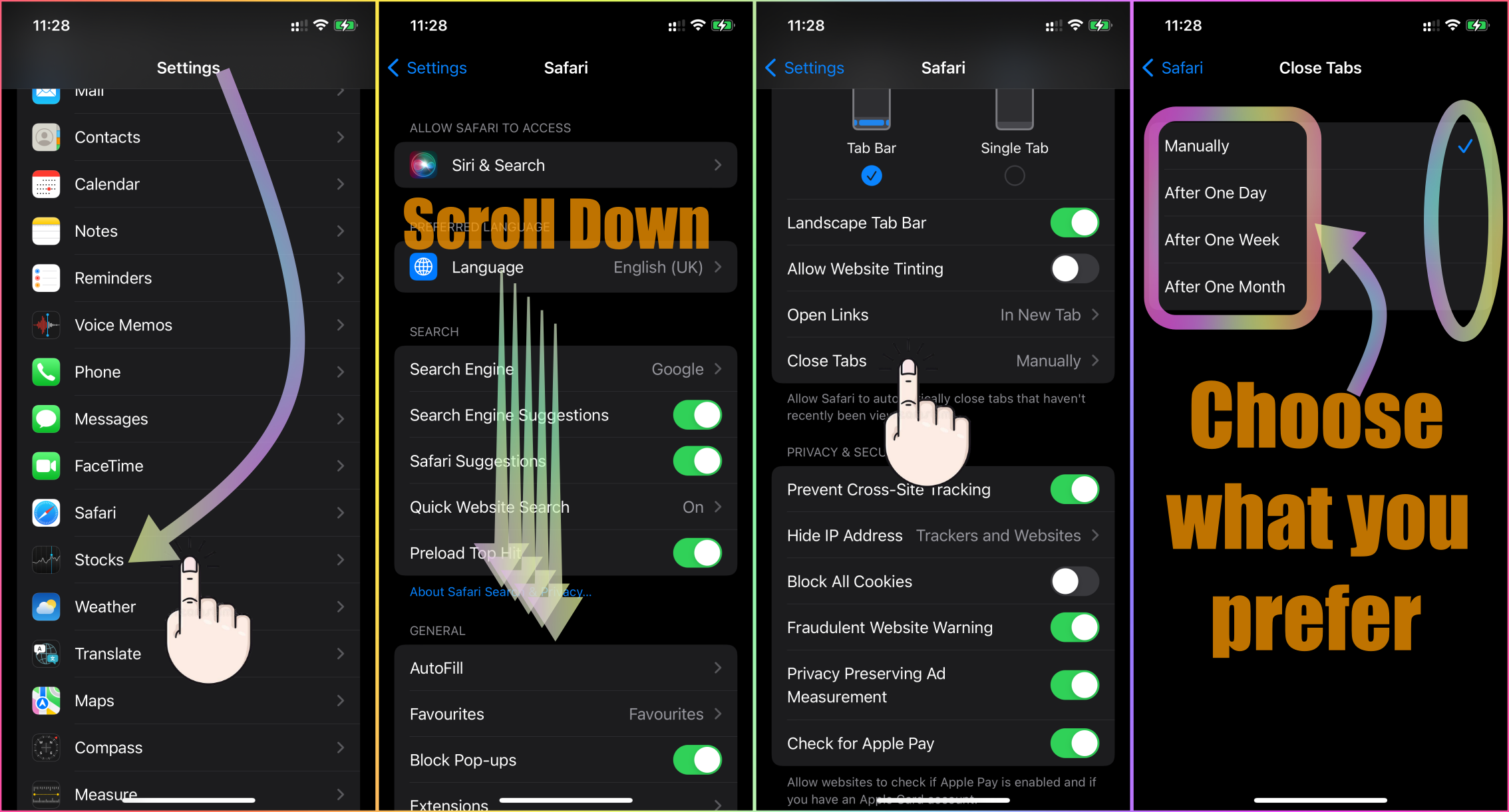
- If you use Safari as your web browser, you can clear its cache to free up storage. Go to "Settings" > "Safari" > "Clear History and Website Data." Please see the pic below which is self-explanatory
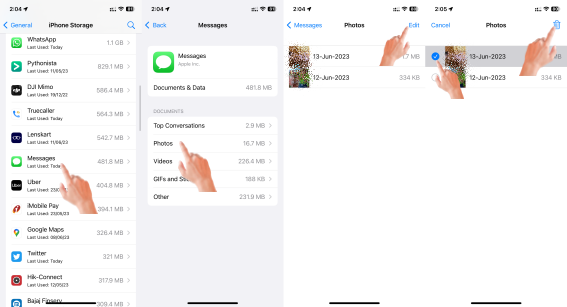
- Messages and attachments can take up a substantial amount of storage. Open the Messages app and delete unnecessary conversations or individual messages. You can also enable the option to automatically delete messages after a certain period. Go to "Settings" > "Messages" > "Keep Messages" and select an appropriate duration. Deleting attachments to messages may also help
- If you have music, movies, or TV shows downloaded on your device that you no longer need offline access to, you can remove them to save space. Open the respective app (e.g., Music or TV), find the content, and delete it.
- Consider reviewing other apps and data that may be taking up storage space, such as documents, downloads, and podcasts. Delete unnecessary files or manage them accordingly.
- After performing the above steps, it's good practice to restart

