A photo takes up more space than on the iPhone itself

The photos on my iPhone took up 23 gb. I purchased iCloud+ to free up space, but there was a glitch and the photos started taking up 46gb and now the total size of the files exceeds the memory of the iPhone. Please help me to solve this problem, because I can not upload photos to iCloud, as it gives an error that there is not enough memory in the iPhone.

Posted on Apr 17, 2024 12:52 AM

Reply
Question marked as Top-ranking reply

Posted on Apr 17, 2024 1:22 AM

Manage and Clear Storage on your iPhone and save space… - Apple Community


Unlike a computer where you can add a hard drive for more storage, iPhones come with a fixed amount of internal storage that can't be physically expanded. This means you can't buy more storage space for the device itself.


However, there are ways to manage your iPhone storage and free up space:

  • Delete unused apps and data: Identify apps you don't use and remove them. Many apps also allow you to clear their cache or stored data.
  • Manage photos and videos: Photos and videos can be some of the biggest storage hogs. Consider deleting old or unwanted media, or use iCloud Photos to store them in the cloud and free up space on your phone.
  • Utilize iCloud storage: Apple offers iCloud storage plans that let you store your data (photos, videos, documents, etc.) in the cloud, freeing up space on your phone. You can purchase additional iCloud storage if you need more space. You can optimize iPhone Storage by using iCloud Storage in order to save space on your device
  • If you had turned on Messages in iCloudiCloud Photos and you delete Photos, Videos and Messages from the iPhone then it is deleted from iCloud too, and vice-versa. At the same time, it is also deleted from all the devices that use the same Apple ID.
  • And if you happen to take a backup either over iTunes or iCloud after deleting Photos, Videos & Messages all the photos and messages are deleted from the backup (iCloud/iTunes) too when you take the backup next time.
  • Alternatively, you may upload data to iCloud Drive.


Settings > [your name] > iCloud Tap Photos > Choose Optimize [device] Storage --> Set up and use iCloud Photos - Apple Support


To clear storage on your iPhone, you can follow these steps:


  1. Go to "Settings" on your iPhone and tap on "General" > "iPhone Storage." This will show you a breakdown of the storage used by different apps and data on your device.
  2. Scroll down to the list of installed apps and review which ones you don't use frequently. Tap on an app and select "Offload App." This will remove the app from your device while keeping its data intact. You can always reinstall the app later if needed.
  3. Go through the list of apps and delete the ones you no longer need. To delete an app, tap on it and select "Delete App." Additionally, you can delete other types of data such as photos, videos, messages, and unused files to free up space.
  4. If your Photos app takes up a significant amount of space, you can enable iCloud Photos to store your photos and videos in the cloud and keep optimized versions on your device. Go to "Settings" > "[Your Name]" > "iCloud" > "Photos" and enable "iCloud Photos." --> Manage your photo and video storage - Apple Support
  5. If you use Safari as your web browser, you can clear its cache to free up storage. Go to "Settings" > "Safari" > "Clear History and Website Data." Please see the pic below which is self-explanatory
  6. Messages and attachments can take up a substantial amount of storage. Open the Messages app and delete unnecessary conversations or individual messages. You can also enable the option to automatically delete messages after a certain period. Go to "Settings" > "Messages" > "Keep Messages" and select an appropriate duration. Deleting attachments to messages may also help
  7. If you have music, movies, or TV shows downloaded on your device that you no longer need offline access to, you can remove them to save space. Open the respective app (e.g., Music or TV), find the content, and delete it.
  8. Consider reviewing other apps and data that may be taking up storage space, such as documents, downloads, and podcasts. Delete unnecessary files or manage them accordingly.
  9. After performing the above steps, it's good practice to restart


6 replies
Question marked as Top-ranking reply

Apr 17, 2024 1:22 AM in response to pavlenko92

Manage and Clear Storage on your iPhone and save space… - Apple Community


Unlike a computer where you can add a hard drive for more storage, iPhones come with a fixed amount of internal storage that can't be physically expanded. This means you can't buy more storage space for the device itself.


However, there are ways to manage your iPhone storage and free up space:

  • Delete unused apps and data: Identify apps you don't use and remove them. Many apps also allow you to clear their cache or stored data.
  • Manage photos and videos: Photos and videos can be some of the biggest storage hogs. Consider deleting old or unwanted media, or use iCloud Photos to store them in the cloud and free up space on your phone.
  • Utilize iCloud storage: Apple offers iCloud storage plans that let you store your data (photos, videos, documents, etc.) in the cloud, freeing up space on your phone. You can purchase additional iCloud storage if you need more space. You can optimize iPhone Storage by using iCloud Storage in order to save space on your device
  • If you had turned on Messages in iCloudiCloud Photos and you delete Photos, Videos and Messages from the iPhone then it is deleted from iCloud too, and vice-versa. At the same time, it is also deleted from all the devices that use the same Apple ID.
  • And if you happen to take a backup either over iTunes or iCloud after deleting Photos, Videos & Messages all the photos and messages are deleted from the backup (iCloud/iTunes) too when you take the backup next time.
  • Alternatively, you may upload data to iCloud Drive.


Settings > [your name] > iCloud Tap Photos > Choose Optimize [device] Storage --> Set up and use iCloud Photos - Apple Support


To clear storage on your iPhone, you can follow these steps:


  1. Go to "Settings" on your iPhone and tap on "General" > "iPhone Storage." This will show you a breakdown of the storage used by different apps and data on your device.
  2. Scroll down to the list of installed apps and review which ones you don't use frequently. Tap on an app and select "Offload App." This will remove the app from your device while keeping its data intact. You can always reinstall the app later if needed.
  3. Go through the list of apps and delete the ones you no longer need. To delete an app, tap on it and select "Delete App." Additionally, you can delete other types of data such as photos, videos, messages, and unused files to free up space.
  4. If your Photos app takes up a significant amount of space, you can enable iCloud Photos to store your photos and videos in the cloud and keep optimized versions on your device. Go to "Settings" > "[Your Name]" > "iCloud" > "Photos" and enable "iCloud Photos." --> Manage your photo and video storage - Apple Support
  5. If you use Safari as your web browser, you can clear its cache to free up storage. Go to "Settings" > "Safari" > "Clear History and Website Data." Please see the pic below which is self-explanatory
  6. Messages and attachments can take up a substantial amount of storage. Open the Messages app and delete unnecessary conversations or individual messages. You can also enable the option to automatically delete messages after a certain period. Go to "Settings" > "Messages" > "Keep Messages" and select an appropriate duration. Deleting attachments to messages may also help
  7. If you have music, movies, or TV shows downloaded on your device that you no longer need offline access to, you can remove them to save space. Open the respective app (e.g., Music or TV), find the content, and delete it.
  8. Consider reviewing other apps and data that may be taking up storage space, such as documents, downloads, and podcasts. Delete unnecessary files or manage them accordingly.
  9. After performing the above steps, it's good practice to restart


Apr 17, 2024 1:15 AM in response to pavlenko92

Try to copy the photos from iCloud to your computer, to back up the photos saved in iCloud, as explained in this article:

Archive or make copies of the information you store in iCloud - Apple Support


Then disable iCloud Photos in the settings for iCloud on your iPhone, and delete the photos to create more space on your device.


Then make sure that you have enough free space on your iPhone for all the photos in iCloud and switch iCloud Photos on again in the settings for iCloud on your iPhone, and all photos should sync back again.


If you haven't already, enable the "Optimising iPhone Storage" option, as explained in this article:

Manage your photo and video storage - Apple Support

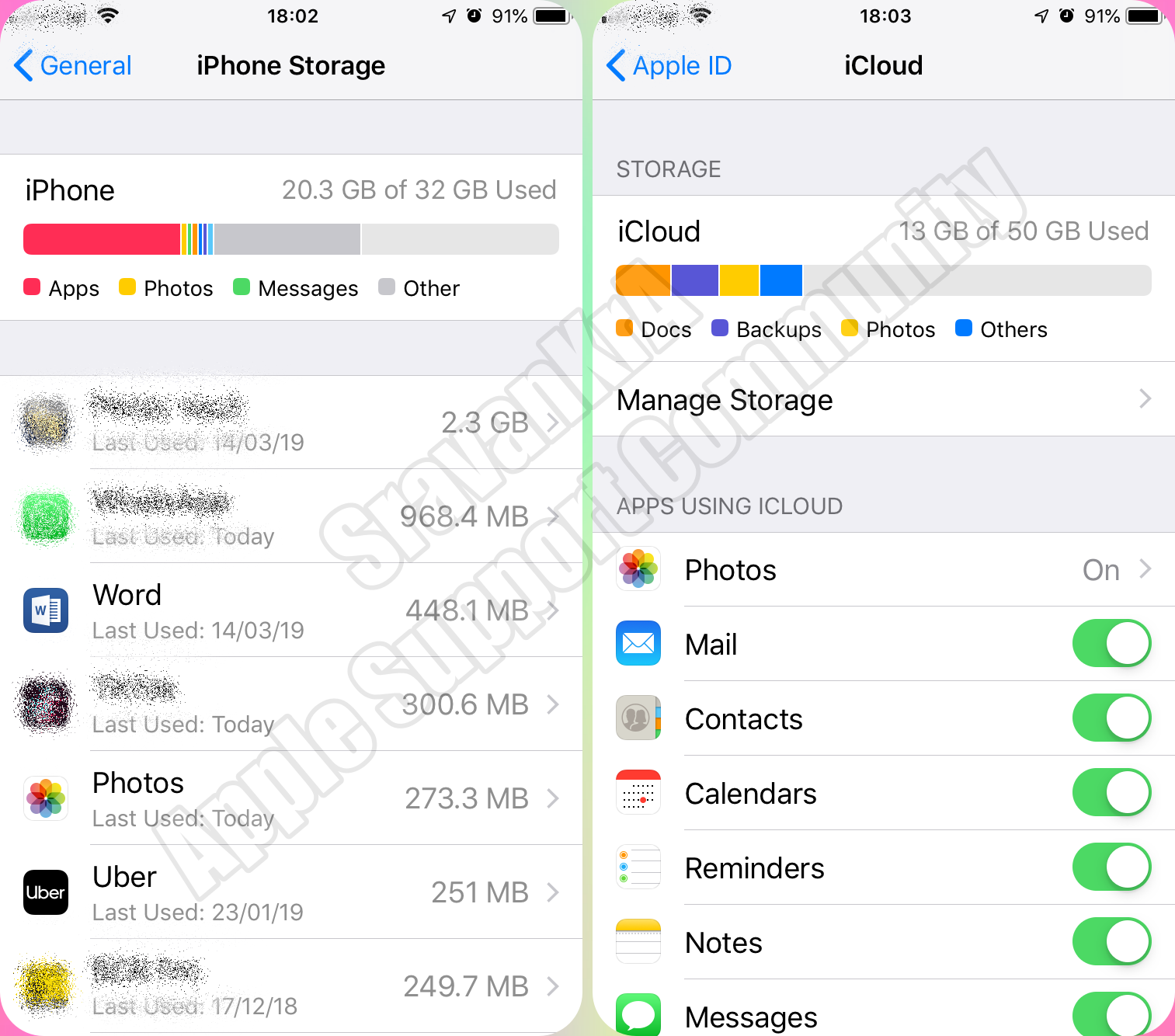
Apr 17, 2024 1:21 AM in response to pavlenko92

When you get a popup message on your iPhone or iPad that the storage is full.


Look closely into the storage of the iPhone and iCloud.


iCloud storage is primarily for keeping a copy of your iPhone data safely on the cloud. If you delete data on iPhone, data on iCloud is gone too.


Turn iCloud features on or off

  1. On your iPhone, iPad or iPod touch, go to Settings > [your name] > iCloud.
  2. Turn iCloud features on or off.


Turn iCloud features on or off - Apple Support


iPhone Storage (Setting > General > iPhone Storage)

  1. Total storage remains the same throughout the lifespan of the iPhone
  2. Storage can not be enhanced
  3. You may take back up on Mac or PC using iTunes without iCloud


iCloud Storage (Settings > [Tap your name] > iCloud)

  1. By default, every user gets 5GB of free storage space
  2. You can buy more storage based on your requirement of 50, 200GB, and 2TB with a monthly subscription
  3. Based on your storage capacity you can back up your iPhone or iPad
  4. Space can be shared between your family members for a storage plan beyond 200GB


This thread has been closed by the system or the community team. You may vote for any posts you find helpful, or search the Community for additional answers.

A photo takes up more space than on the iPhone itself

Welcome to Apple Support Community
A forum where Apple customers help each other with their products. Get started with your Apple Account.

