iPad 8th generation not connecting to Wi-Fi after iOS 17 update

After updating 8th generation iPad with software update to iOS 17.5, cannot connect to WiFi. WiFi is not the problem because this android phone I'm using connected right away.


[Re-Titled by Moderator]

iPad (8th generation)

Posted on May 14, 2024 12:08 PM

Reply
Question marked as Top-ranking reply

Posted on May 14, 2024 2:42 PM

Internet connection difficulties are usually an indication that your device does not have a routable IP Address - your IP Address usually being assigned by DHCP. When problems occur, your iPad may only have a self-assigned link-local IP address that begins 169.254.x.x.


You can verify your DHCP-assigned IP Address from settings:

Settings > WiFi > [Your WiFi Network / SSID] - tap the blue “i” icon - [IPv4 Address] IP Address


If you have a VPN App or profiles installed, or a security App such as Norton, these may be interfering with DHCP and preventing your device from obtaining a valid IP Address for the WiFi network to which you are attempting to connect. The resolution is usually simple; if installed, you may only need to temporarily disable or remove the Security App and/or VPN.


DHCP is frequently used to automatically obtain an IP Address. Until your iPad has a valid IP Address to connect to your network, you will not have an internet connection. Disabling or removing VPN and/or the offending security App should allow DHCP to operate normally - allowing connection to your network and the internet.


If this resolves your issue, the VPN and/or security App can be reinstated after the connectivity problem has been resolved.


If some Apps are working as expected, while others are not - or other devices can connect to your WiFi network - you may find that a restart of your WiFi Router, followed by a restart of your iPad will clear the problem….


To restart your router, disconnect power from the router for at least 30 seconds - then reconnect power to restart. After your router reboots (which may take several minutes), force restart your iPad:


Force restart iPad (models with Face ID or with Touch ID in the top button)

If your iPad doesn’t have the Home button, do the following:

  1. Press and quickly release the volume button nearest to the top button.
  2. Press and quickly release the volume button farthest from the top button.
  3. Press and hold the top button.
  4. When the Apple logo appears, release the top button.


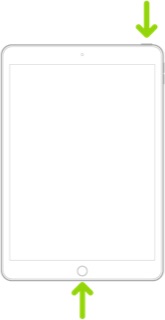
Force restart iPad (models with the Home button)

Press and hold the top button and the Home button at the same time. When the Apple logo appears, release both buttons.


If you continue to have difficulties, check to see if your iPad is using the WiFi Private Address feature. This feature is intended to provide additional privacy and security when using “public” (untrusted) WiFi networks.

Settings > WiFi > [Your WiFi Network / SSID] - tap the “i” icon - Private Address


The Private Address feature is largely unnecessary for your home WiFi network; if enabled, Private Addressing can cause issues if specific MAC addresses are expected by your WiFi Router. You may need to disable this feature - and can be enabled or disabled for each individual network.


Use private Wi-Fi addresses in iOS 14, iPadOS 14, and watchOS 7 - Apple Support

6 replies
Question marked as Top-ranking reply

May 14, 2024 2:42 PM in response to Renmgw63

Internet connection difficulties are usually an indication that your device does not have a routable IP Address - your IP Address usually being assigned by DHCP. When problems occur, your iPad may only have a self-assigned link-local IP address that begins 169.254.x.x.


You can verify your DHCP-assigned IP Address from settings:

Settings > WiFi > [Your WiFi Network / SSID] - tap the blue “i” icon - [IPv4 Address] IP Address


If you have a VPN App or profiles installed, or a security App such as Norton, these may be interfering with DHCP and preventing your device from obtaining a valid IP Address for the WiFi network to which you are attempting to connect. The resolution is usually simple; if installed, you may only need to temporarily disable or remove the Security App and/or VPN.


DHCP is frequently used to automatically obtain an IP Address. Until your iPad has a valid IP Address to connect to your network, you will not have an internet connection. Disabling or removing VPN and/or the offending security App should allow DHCP to operate normally - allowing connection to your network and the internet.


If this resolves your issue, the VPN and/or security App can be reinstated after the connectivity problem has been resolved.


If some Apps are working as expected, while others are not - or other devices can connect to your WiFi network - you may find that a restart of your WiFi Router, followed by a restart of your iPad will clear the problem….


To restart your router, disconnect power from the router for at least 30 seconds - then reconnect power to restart. After your router reboots (which may take several minutes), force restart your iPad:


Force restart iPad (models with Face ID or with Touch ID in the top button)

If your iPad doesn’t have the Home button, do the following:

  1. Press and quickly release the volume button nearest to the top button.
  2. Press and quickly release the volume button farthest from the top button.
  3. Press and hold the top button.
  4. When the Apple logo appears, release the top button.


Force restart iPad (models with the Home button)

Press and hold the top button and the Home button at the same time. When the Apple logo appears, release both buttons.


If you continue to have difficulties, check to see if your iPad is using the WiFi Private Address feature. This feature is intended to provide additional privacy and security when using “public” (untrusted) WiFi networks.

Settings > WiFi > [Your WiFi Network / SSID] - tap the “i” icon - Private Address


The Private Address feature is largely unnecessary for your home WiFi network; if enabled, Private Addressing can cause issues if specific MAC addresses are expected by your WiFi Router. You may need to disable this feature - and can be enabled or disabled for each individual network.


Use private Wi-Fi addresses in iOS 14, iPadOS 14, and watchOS 7 - Apple Support

May 15, 2024 1:36 AM in response to Renmgw63

System software updates on any computer can, on occasion, trigger an unexpected condition. Consider the many possible combination of Apps that might be installed - along with the possible permutations of settings - and you may begin to comprehend that any one of them might be the trigger.


Experience with Apple devices, specifically iPad and iPhone, demonstrates that WiFi and Internet connectivity issues are often attributable to third-party VPN/Security Apps (e.g., Norton) or the other items that I have suggested that you check. Often, after the issue has been cleared, you can simply restore the previous settings and/or reinstall the App or Apps that had triggered the problem.


While avoiding in-depth technical explanation as to how the "network stack" operates, suffice to say that its complexity is hidden from view.


To cite an analogy, consider the classic Jenga game - consisting of a tower of wooden blocks. The challenge of the game is to remove one or more of the blocks without the tower collapsing.

https://en.wikipedia.org/wiki/Jenga


In this analogy, the tower of blocks represents the iPad's network stack that provides your WiFi network connection. The system software update that you performed may need to remove and replace (or rearrange the sequence of) individual blocks without upsetting the stability of the tower. Usually, the update is successful in manipulating the individual elements without issue - but, occasionally, the stack will topple - and the network connection is lost.


Simply resetting some specific settings - and/or removing specific Apps that are known to be involved in the network stack - allows the connection (and the Jenga tower) to be reconstructed - restoring the WiFi/network connection.


Computers are complex - and much of the complexity is successfully hidden from view. Thankfully the days of needing to be a computer scientist to program and use a computer are long past - but, occasionally, we will all encounter a situation when something does not work as expected. Often the resolution is relatively simple, requiring a few steps to resolve a problem.


With a little guidance - as presumably you were seeking - the process to resolve your connectivity problem should be relatively painless.

May 14, 2024 4:04 PM in response to LotusPilot

That sounds like a lot of good information, but it's all moot. My iPad connected perfectly fine until AFTER THE UPDATE.


I reset my modem anyway and also turned off my iPad and back on. Once last night and again today.


The problem is not with my WiFi or my settings, UNLESS the update changed something it wasn't supposed to!! And the same WiFi is working perfectly with the Android phone I'm using. Really wish people would read the entire question and answer appropriately. "WiFi is not the problem because this android phone I'm using connected right away."


I do have Norton antivirus which has a VPN. Don't know how that could interfere because I had to offload it, a long with the vast majority of my other apps in order to download the update. And I've had it for years. So again, that is NOT the problem


If there's an app I need for my WiFi, how do I reinstall it without WiFi????


As far as using a private WiFi address, always have. I live in an apartment building and I know it's possible for people to hack into your WiFi, so that's not changing and it is also NOT the problem.


My iPad is totally useless. I even offloaded my games.


The problem happened immediately AFTER the software update to 17.5. Apple needs to send out an update to fix this or provide the PROPER steps to fix.


This is not a problem that originates from WiFi!!


May 14, 2024 4:36 PM in response to Renmgw63

Be assured, your post was thoroughly digested before I replied.


While you may genuinely believe that the possibilities that I have outlined are not the issue, as a diagnostic exercise, I recommend that each are explored.


Once the connectivity issue has been cleared, you may be able to restore your chosen configuration while maintaining your WiFi connection.

May 14, 2024 5:09 PM in response to LotusPilot

But you do understand the problem is caused by the update? That is not in question.


IMO, I shouldn't have to mess with my settings or anything else if Apple caused the problem. Apple should take accountability and offer a fix. And I've already done the easy things. Not very comfortable messing with my WiFi settings, and it really doesn't make sense to me.


That will likely be another two hours trying to fix a problem caused by Apple.

You have no idea how angry I am right now.


I do thank you for your prompt responses and efforts to help. I just feel like I'm having to clean up someone else's mess.

May 15, 2024 5:10 PM in response to LotusPilot

What you're saying does make sense and thank you for the detailed explanation. I just assumed that before an update was sent it had been tested on different iPad models. I'm sorry, I know I came across very negative. This is a huge issue for me, especially this week. Need Internet access to buy a car (don't have one) and also need to order groceries.

Using this phone takes everything 2-3 times longer. Thanks again for your explanation and patience.

I did get a call (couldn't answer)and email from Support. Hoping tomorrow I can attempt your fixes. Thanks again!

This thread has been closed by the system or the community team. You may vote for any posts you find helpful, or search the Community for additional answers.

iPad 8th generation not connecting to Wi-Fi after iOS 17 update

Welcome to Apple Support Community
A forum where Apple customers help each other with their products. Get started with your Apple Account.