If you have a VPN App or profiles installed, or a security/AV/firewall App such as Norton, these may be interfering with your network connection. Where applicable, the resolution is usually simple; if installed, you may only need to temporarily disable or remove the Security App and/or VPN.
If this resolves your issue, the VPN and/or security App can be reinstated after the connectivity problem has been resolved.
If some Apps are working as expected, while others are not - you may find that a restart of your WiFi Router, followed by a restart of your iPad will clear the problem….
To restart your router, disconnect power from the router for at least 30 seconds - then reconnect power to restart. After your router reboots (which may take several minutes), force restart your iPad:
Force restart iPad (models with Face ID or with Touch ID in the top button)
If your iPad doesn’t have the Home button, do the following:
- Press and quickly release the volume button nearest to the top button.
- Press and quickly release the volume button farthest from the top button.
- Press and hold the top button.
- When the Apple logo appears, release the top button.

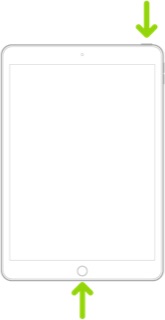
Force restart iPad (models with the Home button)
Press and hold the top button and the Home button at the same time. When the Apple logo appears, release both buttons.
If the issue remains unresolved, try changing your local DNS Settings from Automatic to Manual - and replace the automatically selected DNS servers with those of a reliable DNS Provider:
Settings > WiFi > [Your WiFi SSID] - tap the “i” icon - then Configure DNS > Manual - finally replace the listed DNS servers.
Here are the DNS Server addresses for Quad9 (recommended):
9.9.9.9
149.112.112.112
2620:fe::9
2620:fe::fe
Enter all four server addresses (two are IPv4 - two are IPv6) exactly as shown, one per line. The sequence doesn't matter.
The aim of this exercise is to eliminate the network and/or DNS as a potential cause of the problem - determination of the root cause, if necessary, may be made later.

